






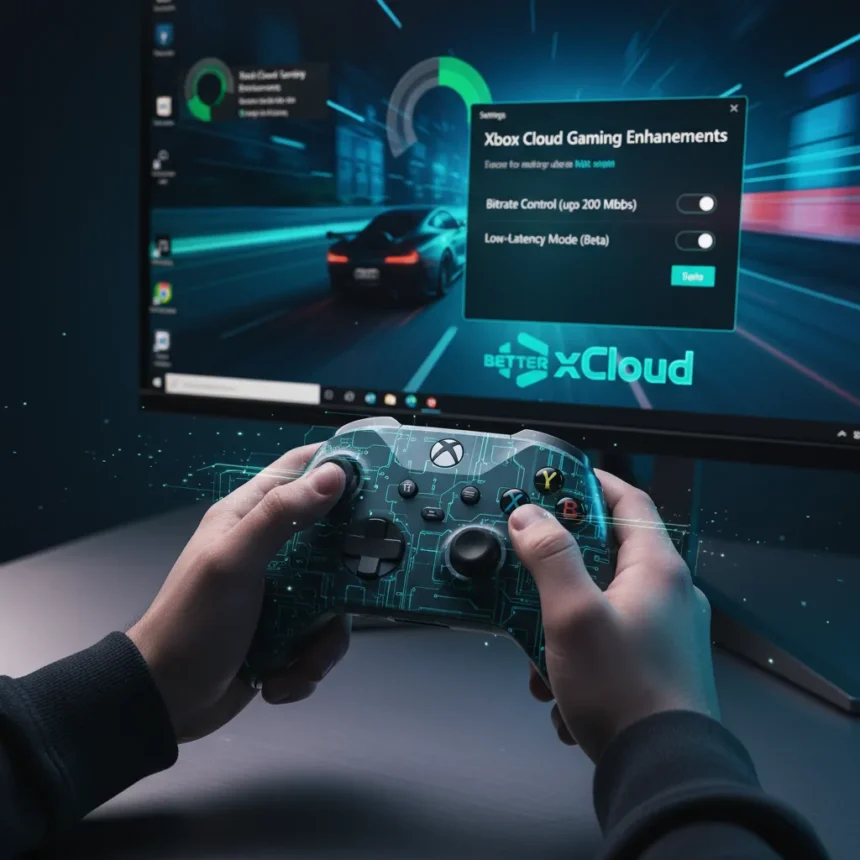
Better xCloud is a free third-party optimization tool for Xbox Cloud Gaming on Windows 11, designed to enhance streaming quality by adjusting bitrate, resolution, and latency parameters beyond what the official Xbox app provides. If you own an Xbox Game Pass Ultimate subscription and stream games on Windows 11, this tool puts professional-grade control over your cloud experience directly in your hands.
Key Takeaways
- Better xCloud is a free Windows 11 tool that optimizes bitrate, resolution, and streaming lag for Xbox Cloud Gaming.
- Optimized streams can reach 12 Mbps with zero packet loss and 0.4 ms decode time.
- Xbox Game Pass Ultimate is required to access cloud streaming at maximum 1440p resolution.
- Wired Ethernet and latency under 60 ms are critical for stable, high-quality streams.
- Clarity Boost, a complementary Microsoft Edge feature, sharpens visuals without performance cost.
Why Better xCloud Matters for Windows 11 Streamers
Xbox Cloud Gaming streams at up to 1440p resolution with Game Pass Ultimate, but many Windows 11 setups display at full HD (1080p) due to default settings or network constraints. Better xCloud solves this by letting you manually control bitrate and streaming parameters, bypassing the limitations of the native Xbox app. The tool also enables features like full-screen launching and metered connection streaming—options absent from the official client.
The performance difference is measurable. Optimized streams through Better xCloud achieve 12 Mbps bitrate with nil packet loss and 0.4 ms decode time, eliminating stuttering and input lag that plague default configurations. For competitive or fast-paced games, this precision tuning transforms cloud gaming from a convenience feature into a genuinely playable option.
Setting Up Better xCloud on Windows 11
Installation is straightforward: download Better xCloud (a free tool available for Windows 11), open it, and configure your streaming parameters. The tool’s main interface lets you enable launch full screen, activate network quality indicators, and toggle streaming over metered connections. You can also select your default cloud gaming service—xCloud or GeForce Now—and customize in-game behavior like hiding the menu icon or muting the microphone.


Once configured, look at per-game optimization. In your game’s graphics settings, enable Performance mode and target 60 FPS rather than higher frame rates that cloud infrastructure struggles to deliver reliably. Disable motion blur and depth of field, which consume bandwidth without improving gameplay and introduce latency. These tweaks, combined with Better xCloud’s bitrate controls, create the foundation for smooth, responsive streaming.
Network setup is equally critical. Use wired Ethernet instead of Wi-Fi—wireless introduces unpredictable latency spikes that no software can fully compensate for. Test your connection to confirm latency stays under 60 ms and packet loss remains zero. Close background applications that consume bandwidth, including updates, streaming services, or cloud sync tools. A clean network is the difference between a playable stream and a frustrating one.



Complementary Tools: Clarity Boost and Native Options
Microsoft Edge Canary offers Clarity Boost, a free client-side sharpening feature that improves visual clarity without requiring additional bandwidth or processing power. To enable it, download Microsoft Edge Canary (version 96.0.1033.0 or later), navigate to xbox.com/play, start a game, and toggle Clarity Boost from the in-game menu. The feature works alongside Better xCloud’s bitrate optimization, layering sharpness on top of higher resolution streams.
The native Xbox app on Windows 11 provides a stable baseline for streaming with minimal latency, but it lacks the granular controls that Better xCloud and Clarity Boost deliver. If you prioritize simplicity over optimization, the Xbox app suffices for casual play. However, anyone seeking the best possible quality should pair the official app with these free tools to unlock the full potential of Xbox Cloud Gaming on Windows 11.
Optimizing Your Network for Best Results
Network quality directly determines streaming success. Wired Ethernet is non-negotiable for consistent performance; Wi-Fi introduces jitter and packet loss that degrade video quality and responsiveness. If Ethernet is unavailable, position your router close to your device and minimize interference from other appliances. Test your connection using Xbox’s built-in network quality indicator, available in the Xbox app’s Cloud Gaming settings. Latency should stay below 60 ms, and packet loss should be zero or negligible.
Beyond hardware, manage your network actively. Pause large downloads, disable cloud backups during gaming sessions, and close bandwidth-hungry applications. A 50 Mbps connection is plenty for 1440p streaming if it is clean and uncontended. A 100 Mbps connection shared with video calls or file uploads will stutter regardless of Better xCloud’s settings. Quality beats quantity in cloud gaming infrastructure.



Is Better xCloud worth using?
Yes, if you own Xbox Game Pass Ultimate and stream on Windows 11. The tool is free, adds no risk, and delivers measurable improvements in bitrate control, latency, and visual quality. Even casual players benefit from full-screen launching and network monitoring features alone. The only caveat: third-party tools may introduce instability in rare cases, though Better xCloud has proven stable for most users.
Can I use Better xCloud with GeForce Now?
Better xCloud supports GeForce Now as a selectable default service within its settings menu. However, the tool’s bitrate and resolution optimizations are primarily designed for Xbox Cloud Gaming. GeForce Now streams may behave differently depending on your subscription tier and the game’s availability on that platform.
Does Clarity Boost drain battery faster?
Clarity Boost is a client-side sharpening filter that adds minimal processing overhead, but Microsoft notes it can increase battery drain on portable devices. Toggle it off if you are gaming on battery power for extended periods, or enable it only for docked play where power is unlimited.
Better xCloud transforms Xbox Cloud Gaming from a convenience feature into a genuinely high-quality experience on Windows 11. Combined with Clarity Boost, proper network setup, and per-game graphics tuning, this free tool delivers the best possible cloud gaming experience available to Game Pass Ultimate subscribers. The investment is zero; the payoff is a responsive, visually sharp, lag-free way to play your entire Xbox library from any Windows 11 device.
This article was written with AI assistance and editorially reviewed.
Source: Windows Central