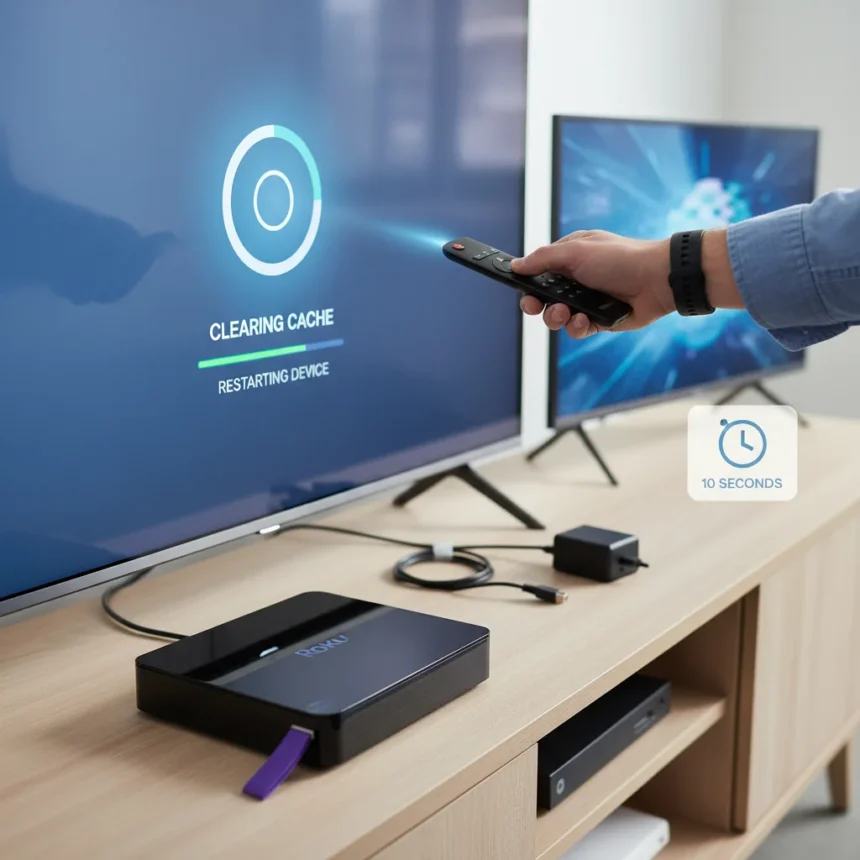
Your slow Roku doesn’t need a replacement—it needs a restart. Clearing the cache on Roku devices removes accumulated temporary files and digital clutter that cause freezing, buffering, and sluggish navigation, even on years-old hardware. A 10-second system restart clears this cached data and restores smooth performance in most cases, saving you from an unnecessary hardware purchase.
Key Takeaways
- System restart via Settings > System > Power > System restart clears cache and fixes most performance issues in minutes
- App-specific freezing requires uninstalling and reinstalling the affected app from the Roku Channel Store
- Outdated firmware causes lag; check Settings > Software Update and enable automatic updates
- Network connection degradation requires router restart—unplug for 30 seconds, then replug and retest
- Factory reset is the last resort, erasing all apps, accounts, and settings
The 10-Second Restart Method for Slow Roku
The fastest way to fix a slow Roku is a system restart, which clears cached data even when the device is sluggish or menus are unresponsive. This method works because cached files accumulate over time, consuming memory and slowing app loading, navigation, and streaming performance. Press Home on your Roku remote, navigate to Settings, select System, then Power, and choose System restart. The device will power down, clear its cache, and restart fresh—all within a few minutes. This single step resolves freezing, buffering, and lag for most users without erasing any apps or preferences.
The restart approach is particularly effective because it targets the root cause: temporary files that pile up during normal use. Unlike a factory reset, which wipes everything, a restart preserves your installed apps, login credentials, and personal settings while removing the problematic data slowing the system down. Many users report immediate improvement in responsiveness and streaming smoothness after restarting, making this the first fix to try before considering replacement.
Fixing App-Specific Freezing on Slow Roku Devices
If one streaming app freezes while others work fine, the issue is app-specific, not device-wide. Uninstall the problematic app by going to Settings, selecting Apps, choosing the frozen app, and clicking Uninstall. Then reinstall it fresh from the Roku Channel Store. This removes corrupted app data without affecting other services on your device.


App freezing often stems from outdated app versions or cached data within a single application. Reinstalling forces the app to download the latest version and start with a clean cache, eliminating conflicts that cause freezing on that service alone. This targeted approach takes less time than a full device restart and directly addresses the specific problem without touching other apps.
Firmware Updates and Network Resets for Slow Roku Performance
Outdated firmware is another common culprit behind slow Roku performance. Navigate to Settings, find Software Update or System Update (the exact label varies by model), and check for available updates. If an update is available, install it immediately and enable automatic updates to prevent future lag from outdated software. Firmware updates patch performance bugs, add features, and optimize streaming efficiency.



If your Roku is slow despite a clear cache and current firmware, your network connection may have degraded. Reset your network by going to Settings, selecting System, choosing Advanced system settings, and selecting Network connection reset. This forces your Roku to establish a fresh connection to your Wi-Fi. Be aware that resetting the network may require you to re-pair wireless devices like soundbars or wireless speakers afterward. Test your internet speed on another device using speedtest.net; if you’re below 5 Mbps for HD or 25 Mbps for 4K, restart your router by unplugging it for 30 seconds, plugging it back in, and retesting.
When to Consider an External Device Instead of Replacement
If you own an older smart TV with built-in Roku software and these fixes don’t restore performance, adding an external streaming device like a standalone Roku or Fire TV may be more practical than replacing the TV. External devices receive regular software updates and run faster than aging TV firmware, extending the life of your hardware without a full replacement. This approach costs far less than buying a new television and often delivers better performance than relying on outdated built-in streaming software.
Factory Reset: The Last Resort for Slow Roku
If restarting, updating firmware, clearing apps, and resetting the network all fail, a factory reset is your final option. This wipes all installed apps, login credentials, and personalized settings, returning your Roku to like-new condition. Only attempt a factory reset if you’ve exhausted all other troubleshooting steps, as you’ll need to reinstall apps and log back into services afterward. For most users, the restart method alone solves the problem without reaching this point.
Does clearing cache really fix a slow Roku?
Yes, clearing cache via a system restart fixes freezing, buffering, and lag for the majority of users. Cached files accumulate during normal streaming and consume memory, slowing performance. A restart clears this data and restores responsiveness in minutes. Results are typically immediate, though some users may notice continued improvement over the first few hours as the system stabilizes.



How often should I restart my Roku to prevent slowdowns?
Restarting monthly helps prevent cache buildup and keeps your Roku running smoothly. If you notice lag developing, restart immediately rather than waiting. You can also enable automatic firmware updates to ensure your device runs the latest optimized software without manual intervention.
What’s the difference between a restart and a factory reset on Roku?
A restart clears cached data and temporary files while preserving all your apps, accounts, and settings. A factory reset erases everything and returns the device to factory condition, requiring you to reinstall apps and log back in. Use restart first; only factory reset if nothing else works.
Don’t rush to replace your slow Roku. A 10-second restart clears the cached clutter dragging down performance and restores smooth streaming in most cases. If that doesn’t work, firmware updates, app reinstalls, and network resets address common causes of lag without costing you anything. Only consider replacement or an external device if these troubleshooting steps fail—but for the vast majority of users, your Roku just needs a fresh start.
Where to Buy
Hisense U8N ULED TV | Samsung S95C 55-inch OLED TV | LG OLED65G4 | Hisense 65U6K
Edited by the All Things Geek team.
Source: Tom's Guide