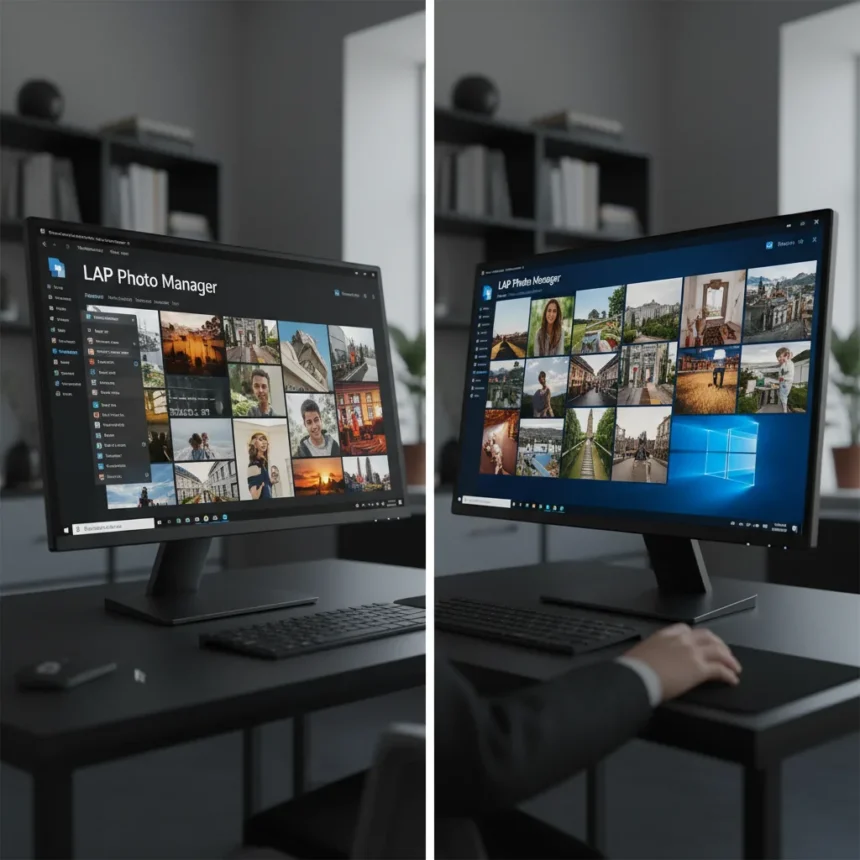
LAP Photo Manager is a third-party photo management application for Windows 11 that challenges the built-in Photos app in ways that matter to users who take their image libraries seriously. After extended testing, LAP Photo Manager demonstrates clear advantages over Microsoft’s native solution across organization, search, and workflow efficiency.
Key Takeaways
- LAP Photo Manager offers superior organization features compared to Windows 11’s built-in Photos app
- The third-party app provides more granular control over photo management and sorting
- Windows 11’s Photos app syncs across devices via OneDrive but lacks advanced organization tools
- LAP Photo Manager is purpose-built for serious photo libraries, not casual snapshots
- The comparison reveals a gap in Microsoft’s native photo management capabilities
Why LAP Photo Manager Matters for Windows 11 Users
Windows 11’s Photos app handles basic image viewing and cloud synchronization, organizing files and syncing across devices through OneDrive integration. But basic functionality is not enough for users managing large photo collections. LAP Photo Manager fills that gap by delivering organization depth and search capabilities that Windows 11’s native solution simply does not provide. The difference becomes obvious the moment you try to manage more than a few hundred photos across multiple folders and projects.
The built-in Photos app prioritizes simplicity over power. It searches by themes and people, which works fine for casual users browsing vacation pictures. For photographers, archivists, or anyone maintaining a structured photo library, this approach feels limiting. LAP Photo Manager respects the complexity of real photo management workflows without forcing users into Microsoft’s simplified model.
LAP Photo Manager’s Organization Advantages
Where LAP Photo Manager genuinely outperforms Windows 11’s Photos app is in how it handles file structure and metadata. The application gives users granular control over how photos are organized, sorted, and tagged—capabilities that the built-in app treats as secondary concerns. This matters because a photo management tool that forces you to work within its own organizational logic wastes time instead of saving it.


Users managing photo projects across different years, clients, or themes will find LAP Photo Manager’s approach refreshingly direct. The app respects traditional folder hierarchies while adding powerful search and filtering layers on top. Windows 11’s Photos app, by contrast, abstracts away folder structure in favor of its own categorization system, which can feel restrictive if your workflow depends on maintaining specific folder arrangements.
Performance and Responsiveness
LAP Photo Manager handles large libraries without the lag that sometimes affects Windows 11’s Photos app when dealing with thousands of images. The application loads quickly, searches return results fast, and navigating between folders feels snappy. For users with substantial photo collections, this responsiveness difference accumulates into meaningful time savings across a week or month of regular use.



The built-in Photos app prioritizes visual polish and integration with Microsoft’s ecosystem. LAP Photo Manager prioritizes speed and user control. Both philosophies have merit, but they serve different audiences. If you are managing a serious photo library, LAP Photo Manager’s performance profile aligns better with professional workflows.
Should You Replace Windows 11’s Photos App with LAP Photo Manager?
The answer depends on your photo management needs. Casual users who occasionally browse photos and rely on OneDrive sync should stick with Windows 11’s Photos app. It does what it does well: simple viewing, basic organization, and cloud backup. But if you maintain a structured photo library, shoot regularly, or need advanced search and tagging, LAP Photo Manager justifies the switch. The gap between a basic viewer and a true photo management tool becomes impossible to ignore once you experience the difference.
LAP Photo Manager is not a replacement for professional photo editing software like Adobe Lightroom or Capture One. It is a replacement for Windows 11’s Photos app when that app’s simplicity becomes a liability instead of a feature. Think of it as the bridge between casual photo viewing and professional photo management.
Is LAP Photo Manager free?
The research brief does not specify whether LAP Photo Manager is free, paid, or subscription-based. Readers should check the official application listing on the Microsoft Store or the developer’s website for current pricing and licensing details.



Can you use LAP Photo Manager alongside Windows 11’s Photos app?
Yes. Both applications can coexist on Windows 11 without conflict. You can use Windows 11’s Photos app for quick browsing and casual viewing while relying on LAP Photo Manager for serious organization and management tasks. This hybrid approach works well for users who want simplicity for everyday use but power when they need it.
Does LAP Photo Manager sync photos to OneDrive like Windows 11’s Photos app?
The research brief does not provide details about LAP Photo Manager’s cloud synchronization capabilities or OneDrive integration. You should consult the application’s documentation to understand how it handles cloud backup and cross-device syncing compared to Windows 11’s native OneDrive integration.
LAP Photo Manager proves that Windows 11’s built-in Photos app, while serviceable for casual users, leaves serious photographers and photo managers wanting. The third-party alternative demonstrates that better organization, faster performance, and greater user control are not luxuries—they are necessities for anyone maintaining a substantial image library. If your photo collection has grown beyond a few hundred snapshots, LAP Photo Manager deserves a serious look.
Edited by the All Things Geek team.
Source: Windows Central