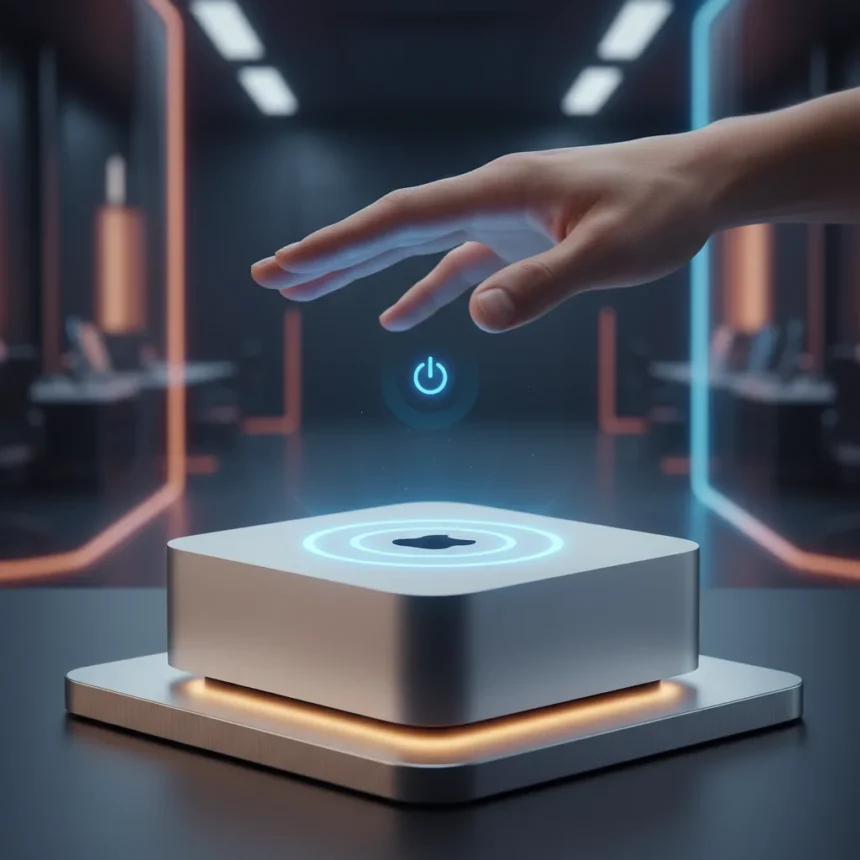
The Mac mini power button problem that has frustrated users for years finally has a solution. macOS 26.5, released on May 11, 2026, introduces a new Power control setting that allows your Mac mini to power on automatically when connected to electricity, eliminating the need to physically press the notoriously hard-to-reach power button on the M4 model.
Key Takeaways
- macOS 26.5 adds automatic power-on for Mac mini, Mac Studio, and iMac when connected to power
- New Power control setting located in System Settings > Energy > Startup (when power is connected)
- Solves long-standing complaints about M4 Mac mini’s inaccessible power button placement
- Enables power control via assistive accessories like switches for accessibility and remote management
- Free update available immediately on compatible M4 and 2025 hardware
Apple’s design team finally acknowledged what Mac mini users have been saying since the M4 redesign: the power button placement is genuinely problematic. The new Power control setting in the Energy section of System Settings lets you select Always to enable automatic startup whenever power is restored. This single feature transforms how the Mac mini works in real-world scenarios where touching the device isn’t practical.
How to Enable the Mac mini Power Button Workaround
Accessing the new power management feature takes seconds. Open System Settings, navigate to Energy, then select Startup (when power is connected). Choose Always from the dropdown menu, and your Mac mini will power on automatically the next time it receives power. This applies whether you’re restoring power after an outage or plugging in a previously disconnected device.
The feature works on M4 Mac mini models, 2025 Mac Studio, and M4 iMac, though the Mac mini power button problem makes this update most relevant for that particular machine. Users who frequently move their equipment, work in server environments, or simply have poor physical access to their Mac mini will find this change genuinely useful. Apple’s support documentation notes the setting is helpful when you don’t have easy access to the computer’s power button, which is precisely the situation many Mac mini owners face.


Mac mini Power Button and Remote Control Options
Beyond automatic startup, macOS 26.5 enables power control through third-party assistive accessories like switches, according to Apple’s release notes. This opens possibilities for remote management that go far beyond the original accessibility intent. Users in labs, data centers, or home automation setups can now control their Mac mini’s power state without direct physical contact, a capability that was missing from previous desktop Mac operating systems.
Smart plugs offer a practical workaround for those wanting remote power management. By plugging a Mac mini into a smart plug controlled from a phone or voice assistant, users can remotely cut power and trigger the automatic restart when power is restored. This approach, combined with the new Power control setting, gives Mac mini users flexibility that laptop users have enjoyed for years through built-in power-on-after-outage settings.



Why This Matters for Mac mini Users
The Mac mini power button complaint wasn’t trivial. When Apple redesigned the M4 Mac mini in 2024, it relocated the power button to a position that frustrated users almost immediately. The button’s placement made it difficult to reach without moving the device or awkwardly contorting your hand. Social media filled with complaints, and the issue became a running joke in tech communities—hence TechRadar’s description of it as low key hilarious. macOS 26.5 transforms a hardware design flaw into a non-issue for most users.
This update also demonstrates Apple’s willingness to address user feedback through software when hardware design decisions prove problematic. Rather than waiting for the next Mac mini redesign, the company shipped a practical solution within months of the widespread complaints. For anyone who purchased an M4 Mac mini and struggled with the power button, this free update is a genuine quality-of-life improvement.
macOS 26.5 Availability and Compatibility
The update rolled out on May 11, 2026, as a free download for compatible hardware. If you own an M4 Mac mini, M4 iMac, or 2025 Mac Studio, you can enable the new Power control setting immediately through System Settings > General > Software Update. The feature requires no additional hardware or configuration beyond accessing the Energy settings.
Apple’s focus on this particular feature suggests the company recognized the Mac mini power button as a genuine usability problem rather than user error or niche complaint. By making the power-on automatic and controllable via assistive accessories, the company has essentially removed the power button from the critical path for most workflows, which is the cleanest possible solution to a hardware design problem.



Is macOS 26.5 worth installing?
Yes, especially if you own an M4 Mac mini. The automatic power-on feature alone justifies the update, and there’s no downside to enabling it. Even if you have easy access to your power button, the feature costs nothing and may prove useful if your setup changes.
Can I control my Mac mini power with smart plugs?
Yes. By plugging your Mac mini into a smart plug and enabling the Always power-on setting in macOS 26.5, you can remotely cut power and trigger automatic restart when power is restored. This enables remote power management without additional hardware.
Does this fix work on older Mac mini models?
No. The Power control setting is available only on M4 Mac mini, M4 iMac, and 2025 Mac Studio models. Older Mac mini hardware does not support the feature, though the power button placement issue is specific to the M4 redesign anyway.
The Mac mini power button finally stops being a joke with macOS 26.5. Apple solved a hardware design problem with a thoughtful software update that works for accessibility, remote management, and everyday convenience. If you’ve been frustrated reaching around your Mac mini to power it on, this free update makes that frustration disappear.
Where to Buy
Edited by the All Things Geek team.
Source: TechRadar