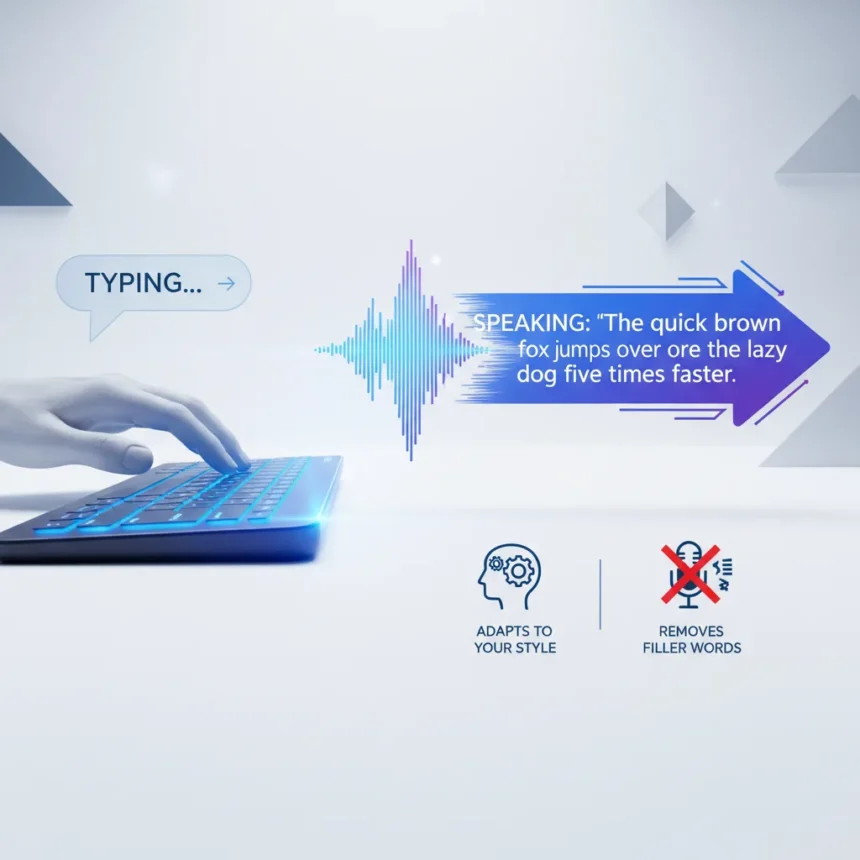
Speechify for Windows voice typing is a dictation app that lets you speak naturally while AI transcribes and polishes your words in real time, claiming to type 5x faster than keyboard input. The Windows app, newly launched, shifts the company’s focus from text-to-speech reader to an addictive voice-writing assistant that adapts to your spelling and writing style while removing filler words like “umms” and “ahhs.”
Key Takeaways
- Speechify for Windows voice typing transcribes speech 5x faster than manual typing with real-time filler removal
- Premium costs $29 monthly; free tier includes basic robotic voices for proofreading
- Available on Chrome extension, Mac app, and web; iOS/Android/Windows apps launching soon
- Practical listening speed ranges from 200-400 WPM; claims above 500 WPM become unclear
- Built-in Voice AI Assistant answers questions with web page context, rivaling ChatGPT via voice
How Speechify for Windows Voice Typing Works
The core mechanic is straightforward: speak into the app or browser extension, and AI transcribes your words across Gmail, Google Docs, ChatGPT, or any text field. The app removes verbal stumbles automatically and learns your spelling preferences over time. This solves a real friction point—typing while thinking is slow; speaking while thinking is natural. The Windows app brings this dictation capability to the desktop, extending beyond the Chrome extension’s web-only reach.
Testing shows the speed advantage is genuine. Dictating 5x faster than typing is not marketing fiction when you account for the elimination of typing pauses and correction cycles. A citation capsule: “Don’t type, just talk. You can now use Speechify to type 5x faster,” Speechify’s January 2026 update states. The real-world gain depends on your typing speed and speaking fluency, but for most users, voice beats fingers.
One critical limitation: the app works best within a comfortable speech range. Speeds above 500 words per minute become unintelligible; even 400 WPM pushes the boundary of clarity. Speechify markets speeds up to 900 WPM, but that is marketing theater. Practical listening ranges from 200-400 WPM for comfortable comprehension.


Speechify for Windows Voice Typing vs. Free Alternatives
The $29 monthly subscription ($139 annually) is a hard sell when free alternatives exist. Microsoft Word includes built-in narration, and browser-based tools handle basic text-to-speech adequately. The question is not whether Speechify works—it does—but whether the premium features justify the cost for your workflow.
Where Speechify differentiates: the Voice AI Assistant, which functions like a personal PhD assistant that understands the context of your open web page and can answer questions in multi-turn conversations. This is closer to ChatGPT functionality wrapped in voice, which appeals to users who want to avoid typing entirely. Competitors like Otter focus on transcription; Speechify adds style adaptation and filler removal as standard features.



The accessibility angle matters too. Speechify was designed originally for users with dyslexia, ADHD, or vision impairments. For that audience, the premium is justified. For general productivity users, the cost-benefit calculation is murkier—especially given billing concerns and trial traps flagged by reviewers.
Speechify Studio and Content Creation
Beyond voice typing, Speechify Studio is a content creation tool with timeline editing, voice cloning, and audiobook production capabilities. You paste a script, assign AI voices to different text blocks, adjust pacing and pitch, and export as MP3 or WAV. It is useful for podcasters and audiobook creators, but the interface can lag with large text files, making it lightweight rather than professional-grade.
The tool’s strength lies in simplicity: non-technical users can generate voiceovers without hiring talent. The weakness is performance—it struggles with heavy workloads. For serious audio production, dedicated DAWs remain the standard.
Why the Pricing Stings
The $29 monthly fee is the article’s biggest friction point. Speechify’s own marketing highlights this as a hurdle. At that price, you are paying roughly $348 annually for voice typing that competes with free dictation built into most operating systems. The premium features—style adaptation, filler removal, Voice AI Assistant—add real value, but the gap between feature richness and cost is wider than it should be.



Reviewers note that Speechify’s billing practices include trial traps and inflated speed claims designed to lock users into subscriptions. The company oversells productivity gains with slogans like “10x your productivity,” which is hype beyond the actual accessibility benefits. This erodes trust, even when the core product works.
Is Speechify for Windows Voice Typing Worth It?
For accessibility users—dyslexia, ADHD, vision impairments—yes. The app delivers genuine utility and justifies the premium. For general productivity users, the verdict depends on your workflow. If you spend hours in Gmail, Google Docs, and ChatGPT, and you speak faster than you type, Speechify accelerates your output. If you type at 70+ WPM and rarely dictate, the free tier or free alternatives are sufficient.
The addictive quality reviewers mention is real—once you experience dictation without filler words, typing feels cumbersome. But addiction is not the same as necessity. Test the free version first. If you find yourself reaching for voice typing daily, the subscription becomes defensible. If you use it weekly, it is not.
What makes Speechify for Windows voice typing different from ChatGPT?
Speechify is voice-first; ChatGPT is text-first. Speechify’s Voice AI Assistant is built around natural speech conversations and web page context, making it feel like a voice-enabled research partner. ChatGPT requires typing or using a third-party voice interface. For users who want to avoid keyboards entirely, Speechify’s integration is seamless.
Can you use Speechify for Windows voice typing in any app?
The Chrome extension works in Gmail, Google Docs, ChatGPT, and online forms. The Mac app extends to Slack, email clients, Word, and any text field. The Windows app is newly launched, with iOS and Android versions coming soon. Coverage is broad but not universal—desktop applications outside the listed platforms may not support dictation.
Is the free version of Speechify for Windows voice typing useful?
Yes, but limited. The free tier includes basic robotic voices for proofreading and text-to-speech, which solves fundamental needs adequately. You lose style adaptation, filler removal, and the Voice AI Assistant without a premium subscription. For occasional users, the free version is sufficient; for daily users, premium features feel essential.
Speechify for Windows voice typing is not revolutionary, but it works and it is faster than typing. The app’s real value lies in removing friction from voice input—no more “umms,” no manual cleanup, no context switching. Whether that justifies $29 monthly depends on how much you dictate and how much your time is worth. For accessibility users and heavy voice-input workflows, it is a no-brainer. For casual users, the free tier or free alternatives are a smarter choice.
Edited by the All Things Geek team.
Source: Windows Central