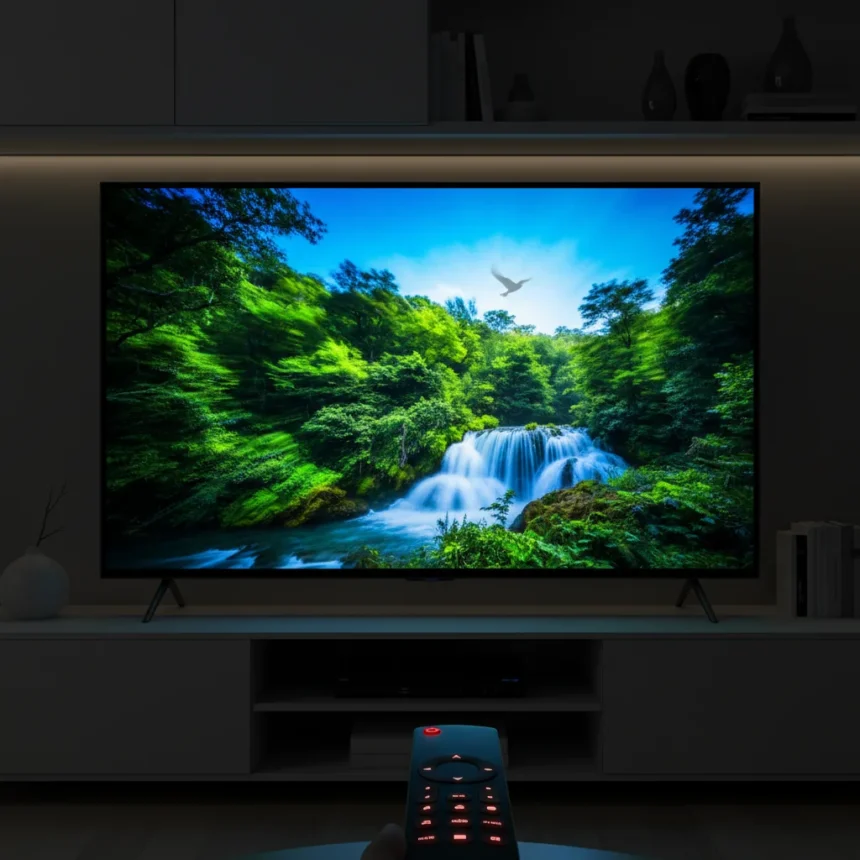
Your TV’s default configuration is sabotaging your picture. Most manufacturers ship their sets with TV picture quality settings that prioritize eye-catching demo-floor appeal over accurate, natural image reproduction. The result: oversaturated colors, artificial motion effects, and brightness that swings wildly depending on what’s on screen. Turning off these destructive settings is the fastest way to dramatically improve what you’re actually watching.
Key Takeaways
- Motion smoothing creates an artificial soap opera effect that ruins film and drama viewing
- Dynamic contrast and adaptive brightness cause distracting, inconsistent brightness shifts
- Vivid and dynamic picture modes are oversaturated and unrealistic out of the box
- Disabling these settings takes seconds but transforms picture quality permanently
- Tom’s Guide recommends changing these settings first for any new TV
Motion smoothing is destroying your films
Motion smoothing—known by brand-specific names like TruMotion, MotionFlow, or Motion Clarity depending on your manufacturer—is the single worst offender. This feature artificially interpolates frames between the original footage to create the illusion of smoother motion. What it actually does is make every movie, drama, and prestige television series look like a soap opera shot on a cheap video camera. The effect is immediate and jarring once you know what to look for. Disable this setting in your TV’s motion or TruMotion menu and you’ll instantly recover the cinematic look that directors intended.
The irony is that motion smoothing exists to appeal to people shopping in electronics stores, where fast-paced sports and action scenes benefit from the effect. Once you’re home watching actual content—particularly slower, dialogue-driven scenes—the artificial smoothing becomes distracting and obviously fake. Sports broadcasts are the exception; if you’re watching the Super Bowl or a live soccer match, motion smoothing can enhance the viewing experience. For everything else, turn it off.
Dynamic contrast is causing brightness chaos
Dynamic contrast and adaptive brightness features sound helpful in theory. They automatically adjust your TV’s brightness and contrast based on what’s happening on screen, theoretically optimizing the image in real time. In practice, they cause constant, distracting shifts that pull your attention away from the content. A dark scene will suddenly brighten as the algorithm detects a shift, then dim again moments later. Brightness Optimization features behave similarly, creating an inconsistent viewing experience that no human cinematographer would ever approve.



These settings are enabled by default on most TVs because they make the picture pop during store demos. In your living room, they’re a nuisance. Disable dynamic contrast, adaptive brightness, and any brightness optimization feature your TV offers. Your picture will be more stable, more natural, and more watchable. The trade-off is a slightly less aggressively bright image, but that’s the point—you’re trading artificial enhancement for actual picture quality.
Vivid and dynamic picture modes are oversaturated disasters
Your TV likely shipped in either Vivid or Dynamic picture mode. Both are aggressively oversaturated, with colors pushed far beyond what any content creator intended. Reds bleed into oranges, greens look neon, and skin tones become plastic and artificial. These modes exist because they look impressive in a showroom where you’re glancing at the TV for five seconds. They’re unwatchable for actual viewing.



Switch to a more neutral picture mode—usually labeled Cinema, Movie, or Standard depending on your brand. These modes are calibrated closer to broadcast standards and will immediately feel more natural. Yes, the picture will look less aggressively bright and colorful at first. That’s not a downgrade; that’s accuracy. Once your eyes adjust, you’ll realize how much better the image actually looks when colors aren’t being artificially pushed to the extreme.
The settings that matter most
Tom’s Guide recommends tackling five core settings first on any new TV: disabling motion smoothing, turning off dynamic contrast and adaptive brightness, switching away from vivid picture modes, and adjusting your backlight to a comfortable level. These changes take minutes and will transform your viewing experience more than any hardware upgrade. The TV you own is almost certainly capable of displaying a better picture than it currently is—it’s just hidden behind a wall of aggressive post-processing and artificial enhancement.
The deeper lesson is that TV manufacturers optimize for the wrong metric: immediate visual impact in a store, not long-term viewing satisfaction at home. By understanding which settings are designed to impress shoppers rather than serve viewers, you reclaim control of your image. Your TV becomes a tool for watching content the way creators intended, not a device fighting against itself with competing image-processing algorithms.
Should I disable all picture enhancement features?
Not all enhancement features are harmful. Local dimming, if your TV has it, can genuinely improve contrast. Noise reduction can help with lower-quality streaming sources. The key is testing each setting individually and disabling only those that visibly degrade your specific content. Motion smoothing and dynamic contrast should go immediately; others depend on your preferences and content diet.



What picture mode should I use instead of Vivid?
Switch to Cinema, Movie, or Standard mode depending on your TV brand. These modes are calibrated closer to industry broadcast standards and will look more natural and accurate than Vivid or Dynamic. Some TVs also offer a Filmmaker or THX mode, which are excellent choices if available.
Can I turn off motion smoothing for sports but keep it for movies?
Most TVs allow you to enable or disable motion smoothing per input or per viewing session. You can leave it off by default and toggle it on specifically when you’re watching live sports, though this requires discipline. A simpler approach: accept that motion smoothing looks good for sports and leave it off for everything else, treating sports broadcasts as a minor trade-off for better movie and drama viewing the rest of the time.
The path to better picture quality isn’t expensive hardware or complicated calibration. It’s understanding that your TV is working against you out of the box and taking five minutes to disable the settings that are actively ruining your image. Once you’ve made these changes, you’ll wonder why manufacturers ever shipped with these settings enabled in the first place.
Edited by the All Things Geek team.
Source: Tom's Guide