





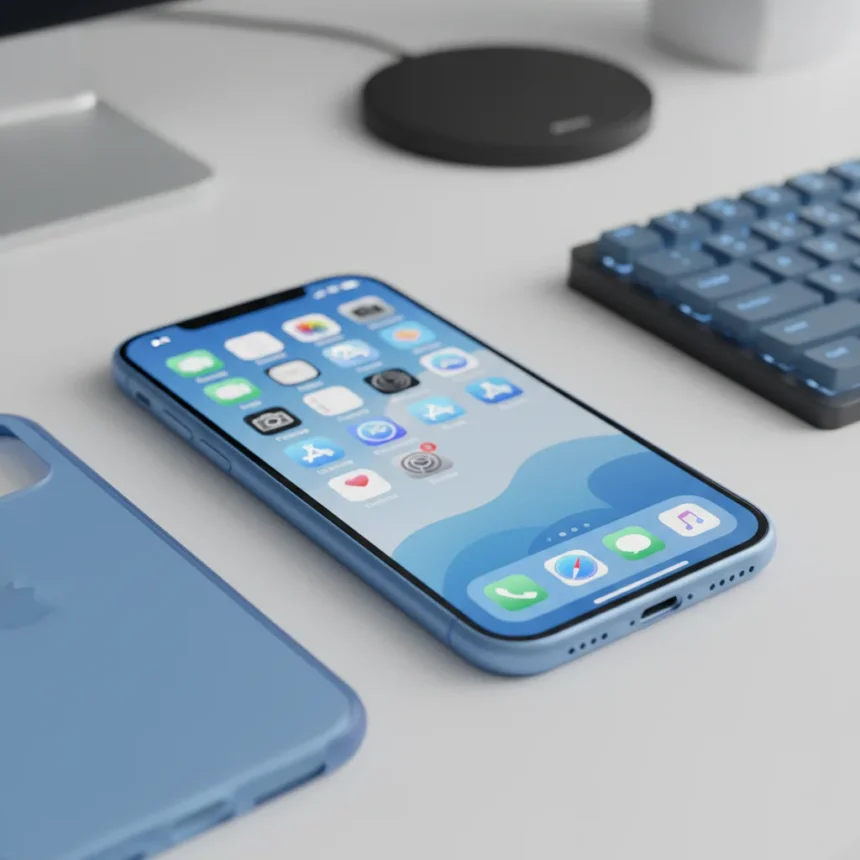
iOS 26 app icon color matching is Apple’s answer to one of the most requested iPhone customization features: automatically tinting your app icons to match your device’s chassis or case color. Launched in April 2026 with the iOS 26 update, this feature builds on iOS 18’s Tinted icons by offering specific options to sync your entire Home Screen aesthetic with your iPhone’s actual color.
Key Takeaways
- iOS 26 automatically tints app icons to match your iPhone body color or compatible case color
- Feature uses your iPhone’s base color, then adjusts brightness, saturation, and contrast for readability
- Requires Apple MagSafe cases with NFC chips for case color detection; some third-party cases work inconsistently
- Access via Home Screen customization menu by long-pressing, tapping Edit, then selecting Customize
- Supports Light, Dark, and Auto modes for different visual preferences
How iOS 26 App Icon Color Matching Works
iOS 26 app icon color matching analyzes your iPhone’s chassis color and automatically applies a tinted filter across your entire app library. Unlike iOS 18’s Tinted icons, which simply apply a color overlay, iOS 26 uses your device’s actual base color as the foundation, then intelligently adjusts brightness, saturation, and contrast to ensure icons remain legible. In Light Mode, icons display the full selected color with white graphics; in Dark Mode, backgrounds shift to a darker shade of that color rather than pure black. This adaptive approach means your Home Screen stays readable whether you’re using a Cosmic Orange iPhone 17 Pro or a classic black model.
The feature respects your system-wide Light, Dark, or Auto mode preference, so your icons automatically adjust as your device switches between day and night settings. This eliminates the manual tweaking required with previous customization methods.
Step-by-Step: Enable iOS 26 App Icon Color Matching
Enabling iOS 26 app icon color matching takes less than a minute. Long-press on any blank area of your Home Screen to enter jiggle mode, then tap the Edit button in the top-left corner. From the popup menu, select Customize to open the Home Screen customization panel.


Tap Tinted from the available customization options. You’ll see two horizontal color sliders and icon buttons beneath them. Tap the far-left iPhone icon to match your device’s body color. If you’re using an Apple MagSafe case with an embedded NFC chip, tap the button immediately to the right of the iPhone icon to match your case color instead. Finally, choose Light, Dark, or Auto mode depending on your preferred appearance.
The process is straightforward, but compatibility matters. iOS 26 app icon color matching works on compatible iPhone models, particularly newer devices like the iPhone 17 series. Some users report inconsistent results on older iPhones updated to iOS 26, so your mileage may vary depending on your device.



Case Compatibility and Limitations
Here’s where iOS 26 app icon color matching hits a real constraint: case color detection requires Apple’s official MagSafe cases, which contain an NFC chip that communicates color information to your device. This isn’t a limitation unique to Apple — many smartphone customization features rely on proprietary hardware — but it does mean you can’t use just any case and expect automatic color matching.
Third-party cases occasionally work with iOS 26 app icon color matching, but compatibility is inconsistent. If you’re serious about matching your case color, stick with Apple’s MagSafe lineup. Alternatively, you can always fall back to matching your iPhone’s body color, which requires no special case at all.
iOS 26 Icon Customization Beyond Color Matching
Apple didn’t stop at color matching. iOS 26 offers additional Home Screen customization options that give you even more control over your aesthetic. Clear icons provide a minimalist look, while an eyedropper tool lets you sample colors directly from your wallpaper and apply them to your icons. If you want granular control, you can also set custom app icons using the Shortcuts app, though this approach requires manual configuration for each app.
These alternatives exist because iOS 26 app icon color matching, while powerful, isn’t universal. Not every app icon works perfectly with tinting, and some users prefer the precision of manually selected colors or the simplicity of clear icons. The feature set gives you options to choose your own customization path.



Comparing iOS 26 to Previous Customization Methods
iOS 18’s Tinted icons were a solid first step, but they applied a uniform color filter with a black background and colored graphics. iOS 26 app icon color matching is fundamentally different because it uses your device’s actual color as the starting point, creating a seamless visual connection between hardware and software. This is the kind of polish that separates Apple’s approach from competitors — the feature feels intentional rather than bolted-on.
Custom icons via third-party apps like Color Widgets offer more granular control but require manual setup and don’t support all apps equally. The Photos app, for example, resists custom icon assignment, leaving gaps in your carefully curated aesthetic. iOS 26 app icon color matching eliminates this friction by working system-wide without manual intervention.
Will iOS 26 App Icon Color Matching Work on Your iPhone?
Compatibility varies by device. iOS 26 app icon color matching is confirmed to work on iPhone 17 models, but older iPhones updated to iOS 26 may experience issues. If your device supports the feature, you’ll find the Tinted option in your Home Screen customization menu. If it’s grayed out or missing entirely, your iPhone likely doesn’t support it — a frustrating limitation for users with older devices.
FAQ: iOS 26 App Icon Color Matching
Can I use any iPhone case with iOS 26 app icon color matching?
No. Case color detection requires Apple MagSafe cases with embedded NFC chips. Some third-party cases work, but compatibility is inconsistent. You can always match your iPhone’s body color instead, which works on any device regardless of case.
Does iOS 26 app icon color matching work on all iPhones?
No. The feature works reliably on iPhone 17 and newer models. Some users report issues on older iPhones updated to iOS 26. Check your Home Screen customization menu to see if Tinted is available on your device.
What’s the difference between iOS 26 app icon color matching and iOS 18 tinting?
iOS 18 applied a uniform color filter with a black background and colored graphics. iOS 26 app icon color matching uses your iPhone’s actual chassis or case color as the foundation, then intelligently adjusts brightness and contrast for readability. The result feels more integrated and less artificial.
iOS 26 app icon color matching represents a meaningful step forward in iPhone customization, but it’s not a silver bullet. It works best on newer devices with Apple’s official cases, and it doesn’t solve every aesthetic challenge. For users with compatible hardware, though, it’s the closest thing to a truly cohesive, hardware-aware Home Screen experience Apple has offered. If your iPhone supports it, enable it — the visual payoff is worth the 60 seconds it takes to set up.
This article was written with AI assistance and editorially reviewed.
Source: Tom's Guide