





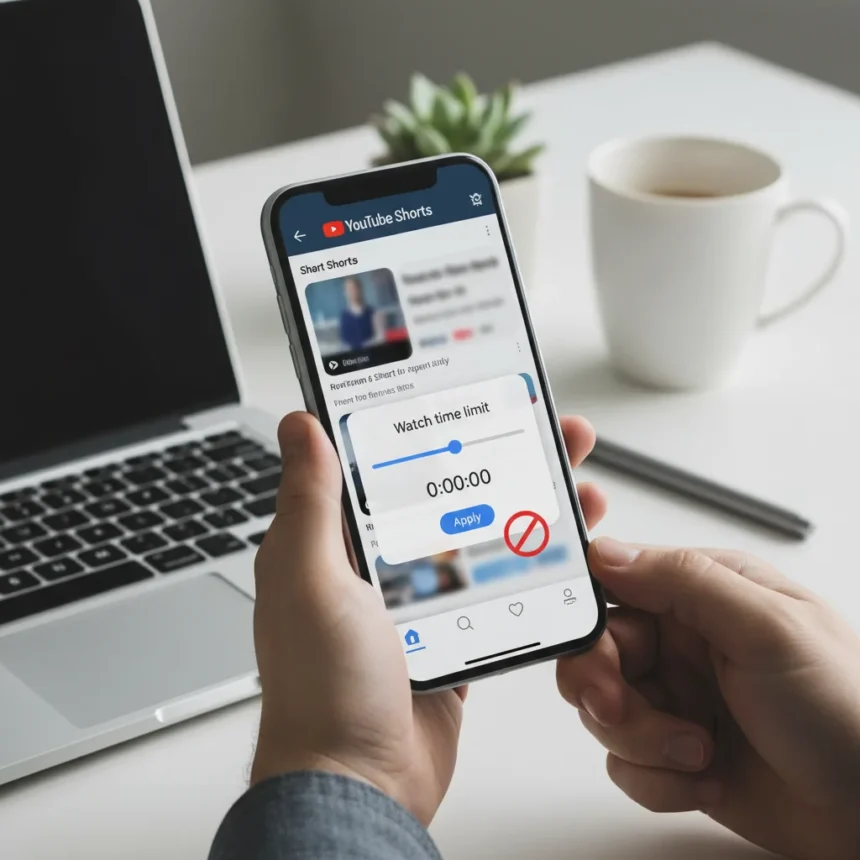
YouTube Shorts hiding is now possible directly in the YouTube app through a dedicated setting that lets you set a zero-minute time limit, completely removing Shorts from your Home and Subscriptions feeds. For years, users frustrated with the endless scroll of short-form content had no official way to disable Shorts within the app itself. That changed with YouTube’s rollout of a new playback control that addresses one of the platform’s most persistent user complaints.
Key Takeaways
- YouTube Shorts hiding works by setting a zero-minute time limit in Settings > General > Playback in feeds > Shorts.
- The feature is available on both iPhone and Android YouTube apps at no cost.
- Shorts disappear immediately from Home and Subscriptions tabs after enabling the setting.
- Previous workarounds required repetitive “Not Interested” taps or switching to mobile web.
- The zero-minute limit prevents Shorts from autoplaying or appearing in your feed entirely.
How to Hide YouTube Shorts in the App
YouTube Shorts hiding through the official app setting takes just four taps. Open the YouTube app on your phone and tap your profile picture in the bottom right corner. Then tap the gear icon to enter Settings, navigate to General, select Playback in feeds, and choose Shorts. At the bottom of that menu, you’ll find a time limit slider—drag it all the way to zero minutes. Once you confirm, Shorts will vanish from both your Home feed and Subscriptions tab immediately. This zero-minute time limit prevents Shorts from autoplaying or appearing anywhere in those sections, giving you a clean feed focused on traditional long-form videos.
The elegance of YouTube Shorts hiding via this method lies in its permanence. Unlike tapping “Not Interested” on individual Shorts—a tedious process that requires repeating 10 to 15 times before the section begins to shrink—this setting removes the entire Shorts shelf in one action. No more algorithmic creep, no more Shorts reappearing after a few days. The feature works identically on both iPhone and Android, making it a genuinely universal solution for users across platforms.
Why YouTube Shorts Hiding Matters Now
For the past several years, YouTube Shorts hiding was effectively impossible within the app itself. Users who wanted to escape the short-form feed had to resort to awkward workarounds: visiting m.youtube.com on mobile and tapping the X button to hide Shorts for 30 days (a temporary measure requiring repetition), or manually marking dozens of Shorts as “Not Interested”. Some power users disabled their entire Watch history, forcing YouTube to show only Subscriptions-based recommendations and bypassing the algorithm-driven Shorts feed entirely. These were solutions born from desperation, not design.


YouTube’s official YouTube Shorts hiding toggle represents the company finally listening to sustained user feedback. The zero-minute time limit is not a compromise or a soft feature buried three menus deep—it’s a straightforward control that respects user choice. For creators and casual viewers alike, the ability to tailor your feed without YouTube’s short-form content reshaping your recommendations is a meaningful quality-of-life improvement.
YouTube Shorts Hiding vs. Other Methods
The new YouTube Shorts hiding setting outperforms every previous workaround in simplicity and permanence. The “Not Interested” method requires endless repetition and never fully eliminates Shorts—the shelf simply shrinks rather than disappearing. The mobile web approach (m.youtube.com) hides Shorts for only 30 days, forcing you to revisit the X button periodically to maintain your preference. Disabling Watch history is nuclear—it nukes personalized recommendations entirely and leaves you with only Subscriptions-based content, a trade-off many users find too restrictive.



By contrast, the zero-minute time limit in YouTube Shorts hiding is permanent, requires one-time setup, and leaves all other YouTube functionality intact. Your recommendations, your subscriptions, your watch history—everything continues working normally. Only Shorts vanish. This targeted approach is why the feature has resonated with users frustrated by the platform’s relentless push toward short-form content.
Will YouTube Shorts Hiding Stay Permanent?
One caveat: some users report that YouTube Shorts hiding may reappear after app restarts or major updates, requiring you to reset the zero-minute limit. This is not universal—many users confirm the setting persists—but it’s worth testing immediately after updating the YouTube app to ensure your preference hasn’t reverted. If Shorts return unexpectedly, simply navigate back to Settings > General > Playback in feeds > Shorts and confirm the zero-minute limit is still active.
Is YouTube Shorts hiding available on all devices?
YouTube Shorts hiding via the zero-minute time limit works on iPhone and Android YouTube apps. YouTube TV and YouTube Kids do not offer this toggle; on those platforms, you can use the long-press menu to select “Not interested” on individual Shorts, but there’s no blanket hide option.
Can I hide Shorts without disabling my recommendations?
Yes. The zero-minute time limit in YouTube Shorts hiding removes Shorts from your feed without affecting personalized recommendations on long-form videos. If you disable Watch history entirely to hide Shorts, you’ll lose algorithmic recommendations and be left with only Subscriptions-based content, a far more drastic trade-off.



YouTube Shorts hiding is finally straightforward. After years of users jumping through hoops to escape short-form content, the zero-minute time limit setting is the official, permanent solution the platform should have shipped years ago. If you’ve been frustrated by Shorts crowding your feed, enable this setting and reclaim your YouTube experience.
Edited by the All Things Geek team.
Source: Tom's Guide




