





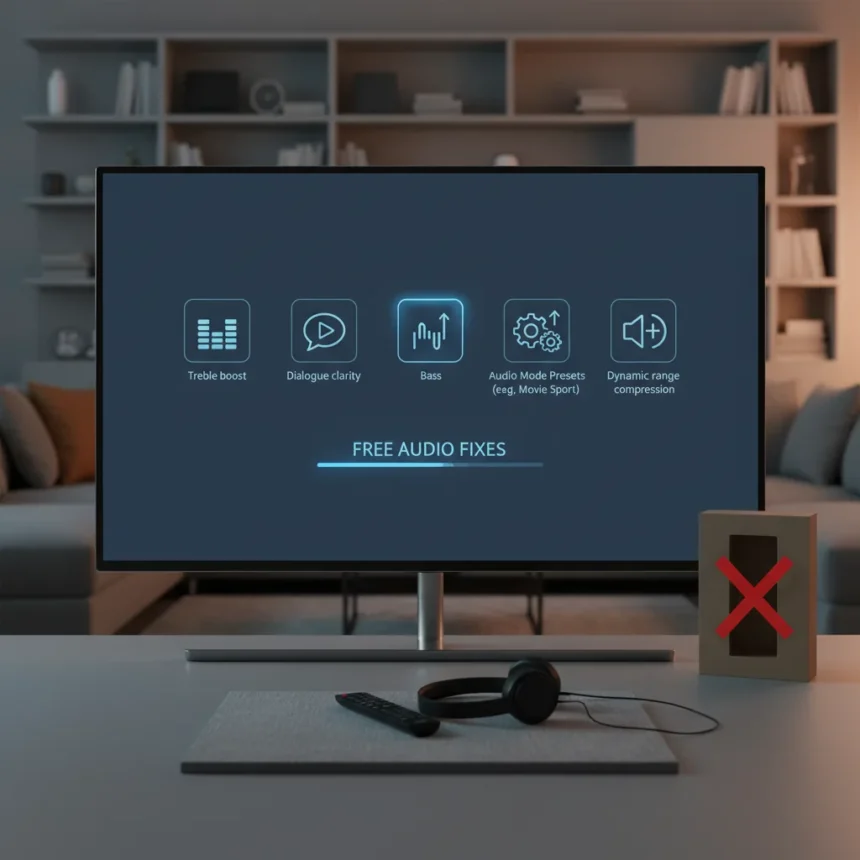
Muffled dialogue. Tinny action sequences. Volume that swings wildly between scenes. If your TV sounds terrible, your first instinct might be to buy a soundbar. Stop. Free TV sound fixes exist on most modern televisions, and they work better than you’d expect.
Key Takeaways
- Five built-in TV settings can dramatically improve dialogue clarity and audio balance without spending money.
- Sound modes like Clear Voice and Amplify specifically boost human speech frequencies for easier listening.
- Dynamic Range Compression eliminates jarring volume jumps between quiet dialogue and loud action scenes.
- AI Acoustic Tuning on some TVs optimizes sound based on your room’s physical layout and acoustics.
- Most modern Samsung and LG televisions include these features in their standard settings menus.
Change Your Sound Mode First
The easiest fix is also the most overlooked. Your TV’s sound settings menu contains preset audio profiles designed for different content types. Standard mode delivers flat, balanced audio. Cinema or Theater mode emphasizes bass and immersion. But for dialogue-heavy shows and films, dialogue-focused modes like Clear Voice on LG televisions or Amplify on Samsung models are where the real improvement happens.
These modes actively boost the frequency range where human voices live, making speech cut through background music and effects. To access them, navigate to your TV’s Settings menu (usually a gear icon on the remote), then select Sound. You’ll see a Sound Mode or Sound Mode Settings option. Choose Clear Voice on LG, or Amplify on Samsung newer models. The difference is immediate—suddenly you can actually hear what characters are saying without turning subtitles on.
Tame Volume Fluctuations With Dynamic Range Compression
Nothing ruins a viewing experience like a whispered conversation followed by an explosion that rattles your walls. This happens because streaming services and broadcast content compress audio differently. Your TV can fix it. A feature called Dynamic Range Compression—also labeled as DRC, Auto Volume Leveller, or volume levelling depending on your TV—smooths these swings by bringing down peaks and lifting valleys.



Find this setting in your TV’s Sound menu under Expert Settings or Advanced Audio options. The exact path varies by brand and model year, but the principle is the same: enable it, and sudden volume jumps disappear. Samsung televisions hide this under Home > Settings > Sound > Expert Settings, where you’ll toggle on Auto Volume. The result feels like someone’s hand on a volume knob, keeping everything at a consistent, comfortable level.
Use AI Acoustic Tuning for Room-Specific Optimization
Newer televisions, particularly LG’s recent lineup, include AI Acoustic Tuning features that analyze your room’s acoustics and adjust sound output accordingly. This isn’t magic—it’s the TV measuring how sound bounces off walls, furniture, and floors, then compensating. If you have a small room with hard surfaces, the TV will adjust differently than if you have a large living room with carpeting and curtains.



If your TV doesn’t have AI tuning, the built-in equalizer serves the same purpose manually. Boosting treble frequencies makes dialogue clearer; reducing bass prevents boomy, unclear speech. Most TVs let you adjust these sliders in the Sound menu without needing an external app or tool.
Explore Other Sound Mode Options
Beyond Clear Voice and Amplify, your TV likely offers additional sound profiles worth testing. Sports mode emphasizes crowd noise and energy, useful if you watch live events. Music mode distributes frequencies more evenly across the spectrum. Game mode reduces latency for responsive audio during gameplay. Cinema or Movie mode, despite its bass emphasis, works well for films where dialogue is professionally mixed.
The key is experimenting. Spend five minutes cycling through modes on a show or film you know well. One will feel noticeably better than the default. Make that your baseline, then layer on Dynamic Range Compression and any available AI tuning. These three adjustments alone solve most common complaints about TV audio quality.
When Free Fixes Aren’t Enough
Some people genuinely need external audio. If you’re hard of hearing, closed captions offer a free alternative to better sound. If your TV is genuinely broken—speakers producing static or cutting out entirely—no setting adjustment will help. But for the majority of complaints about muffled dialogue or poor balance, these five free TV sound fixes deliver noticeable improvement within minutes.



The soundbar industry thrives on the assumption that TV audio is hopeless. It isn’t. Modern televisions come with surprisingly capable audio hardware and smart processing tools. Before spending hundreds on external speakers, unlock what you already own.
How do I find Sound Mode settings on my Samsung TV?
On Samsung televisions, navigate to Home > Settings > Sound, then look for Sound Mode. Newer models may show this under Quick Settings. Select a dialogue-focused option like Amplify. If you don’t see Amplify, your TV model may be older, but standard, cinema, and clear voice options should still be available.
What’s the difference between Dynamic Range Compression and Auto Volume?
These terms describe the same feature with different names across brands. Dynamic Range Compression, DRC, Auto Volume Leveller, and volume levelling all accomplish the same goal: smoothing volume fluctuations between scenes. The mechanism is identical—the TV reduces loud peaks and lifts quiet valleys to maintain consistent playback levels.
Do these free TV sound fixes work on all televisions?
Most modern TVs from Samsung, LG, and other major manufacturers include sound mode presets and dynamic range compression. Older models may have fewer options or different menu structures. Check your TV’s manual for the exact path to Sound settings, as interface design varies by model year and brand.
The takeaway is simple: before you buy anything, spend ten minutes exploring your TV’s audio settings. You’ll probably find that muffled dialogue was never a hardware problem—it was just a settings problem. And settings are free to change.
Edited by the All Things Geek team.
Source: Tom's Guide




