




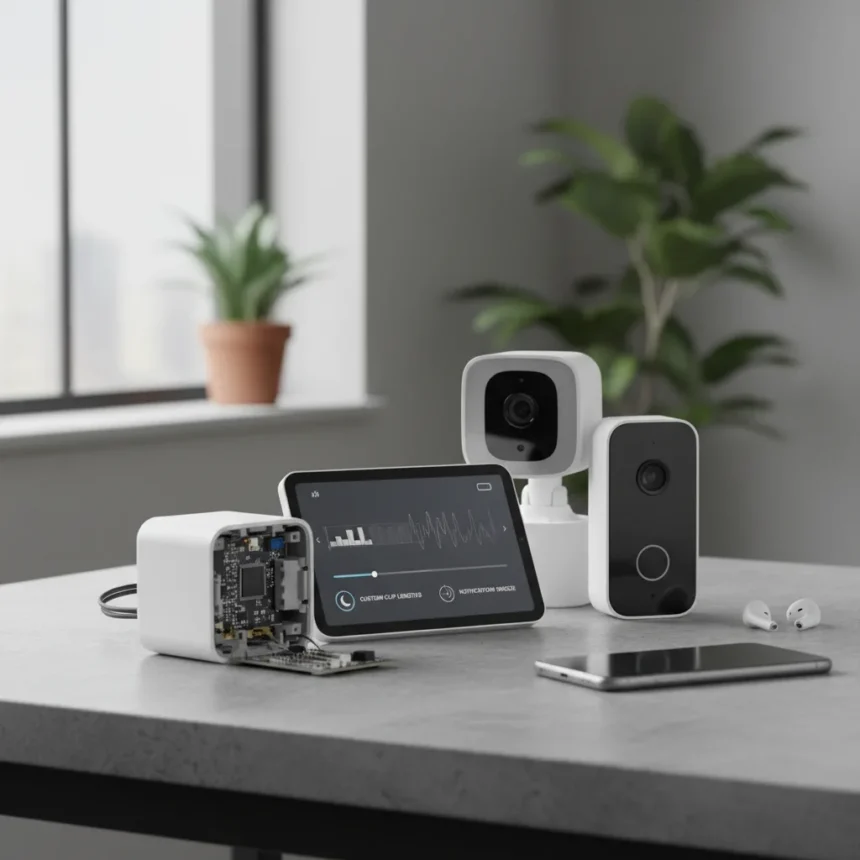
Blink camera features extend far beyond basic motion detection and live view, yet most owners never venture into the settings that genuinely improve daily usability. The platform’s lesser-known capabilities—from granular clip customization to intelligent notification management—sit quietly in menus, waiting to transform how you interact with your security system.
Key Takeaways
- Custom clip lengths let you record shorter or longer video segments based on your security needs.
- Notification snooze prevents alert fatigue by temporarily silencing alerts without disabling monitoring.
- Blink camera features include settings many users overlook in the app’s deeper menu layers.
- Five underrated Blink tips can significantly improve your smart home security workflow.
- Doorbell features mirror camera capabilities, offering the same customization depth.
Custom Clip Lengths Transform Recording Flexibility
Custom clip lengths represent one of the most practical Blink camera features that owners routinely ignore. Rather than accepting default recording durations, you can tailor clip length to match your actual security needs. A driveway camera might benefit from longer clips to capture full vehicle approaches, while a front porch doorbell works better with shorter, snappier segments that reduce storage bloat and speed up review time.
This setting lives in your device configuration menu. The ability to adjust clip duration per camera—not globally across your system—means you can optimize each location independently. Someone monitoring a busy street entrance needs different clip logic than someone watching a quiet backyard. Blink camera features like this reveal how the platform anticipates varied use cases rather than forcing a one-size-fits-all approach.
Notification Snooze Stops Alert Fatigue Dead
Notification snooze is the feature that separates casual smart home users from people who actually live with their security system. Rather than disabling notifications entirely (which defeats monitoring) or suffering through endless alerts during predictable activity windows, snooze lets you silence alerts for a defined period while your cameras keep recording. Your system still captures everything; you simply don’t hear about it.

The practical application is obvious: during a delivery window, a party, or when you know the mailman is coming, activate snooze. Your Blink camera features continue functioning at full capacity. Motion triggers video, the cloud records the clip, but your phone stays quiet. When snooze expires, alerts resume automatically. This prevents the common mistake of disabling notifications entirely and forgetting to re-enable them, leaving you genuinely unaware of actual security events.
Five Blink Tips You Probably Skipped in Settings
The source article highlights five underrated Blink camera features that most users never discover. Beyond custom clip lengths and notification snooze, the remaining three tips address workflows that become obvious only after living with the system for months. These aren’t flashy AI-powered detection modes or cloud features requiring paid subscriptions—they’re practical configuration adjustments buried in menus that reward exploration.


Blink camera features work best when actively customized to your specific property layout and routine. The default configuration assumes a generic user with generic needs. Your setup is unique: your driveway angle differs from your neighbor’s, your activity patterns are distinct, your alert tolerance is personal. The platform provides the controls; you simply need to find them and adjust them to match reality rather than accepting factory settings as gospel.
How Blink Compares to Traditional Security Approaches
Unlike hardwired CCTV systems that require professional installation and offer limited customization without costly rewiring, Blink camera features emphasize flexibility and user control. You adjust clip length, notification behavior, and alert sensitivity without calling a technician. Traditional systems lock you into fixed configurations; Blink lets you evolve your setup as your needs change. This architectural difference—cloud-based, app-driven customization versus hardware-locked static systems—explains why discovering Blink camera features matters more than with legacy security approaches.
Doorbell cameras face the same comparison. A traditional wired doorbell offers no recording, no alerts, and no remote viewing. Blink doorbell features deliver all three, plus the customization options that make the system genuinely useful rather than just technically functional.
Does Blink offer clip storage for all recordings?
Blink camera features include cloud storage for motion-triggered clips. The exact storage duration and capacity depend on your subscription tier and device configuration. Check your app’s storage settings to see retention policies and adjust clip length accordingly if you need longer historical access.



Can you customize alerts per camera on Blink?
Yes. Blink camera features allow per-device notification settings. You can snooze one camera while leaving others active, set different alert sensitivities for different locations, and customize which events trigger notifications. This granular control is why the notification snooze feature matters—it applies to specific devices, not your entire system.
What’s the difference between Blink camera and doorbell feature sets?
Blink doorbell features largely mirror camera capabilities, including custom clip lengths, notification control, and motion detection customization. The main differences are form factor and mounting location. A doorbell handles package detection and visitor identification, while cameras focus on broader area monitoring. Both access the same Blink camera features within the app.
Most Blink owners leave their system running on default settings, never discovering the five underrated tips that transform the experience from adequate to genuinely useful. Custom clip lengths and notification snooze alone justify exploring your device settings. The remaining three features await discovery in menus you’ve probably scrolled past without stopping. Your security system is only as good as the time you invest configuring it to match your actual life.
Where to Buy
Edited by the All Things Geek team.
Source: T3