





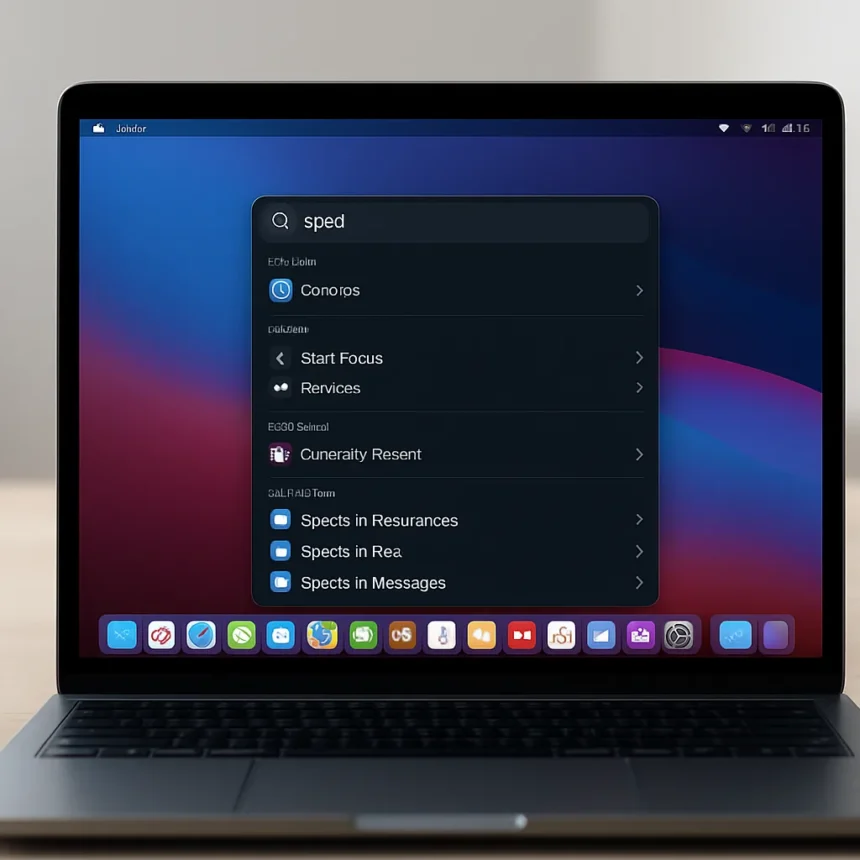
Spotlight in macOS Tahoe is a native Mac search and productivity tool built into macOS Tahoe 26, available free on compatible Mac computers, and described by Apple as the “biggest Spotlight update ever”. What was once a simple search bar has become a genuine command center — one that takes direct aim at paid third-party tools like Alfred and Raycast, and largely lands its punches.
How to Launch and Navigate Spotlight in macOS Tahoe
The basics remain familiar. Press Command + Space to open Spotlight, and a blinking cursor appears ready for input. You can also trigger it with the F4 key. What is new is what happens once it opens: instead of a single unified results list, Spotlight now organises itself into distinct browse modes, each accessible with a keyboard shortcut. Applications mode is Command + Space + 1, Actions mode is Command + Space + 3, and Clipboard mode is Command + Space + 4. Navigating between these modes feels natural after a short learning curve, and the visual overhaul makes the whole interface feel far less like an afterthought.
Apps launch instantly by typing their name and pressing Return. Arrow keys let you navigate results before confirming. In Applications mode, you can toggle between Grid and List views, and if you use iPhone Mirroring, iPhone apps appear here too — though they can be hidden via the options menu if you prefer a cleaner list.
Spotlight in macOS Tahoe vs Alfred and Raycast
For years, power users reached for Alfred or Raycast precisely because Spotlight felt too passive — good for finding files, useless for doing things. Spotlight in macOS Tahoe closes that gap substantially. The new Actions mode integrates App Intents, meaning apps that support it can expose their functions directly inside Spotlight. You can start a timer, create a new note, send a message, create a calendar event, or run a Shortcut without touching the mouse. Apple claims users can take hundreds of actions without lifting their hands off the keyboard. The depth of what is available will depend on how many developers adopt App Intents, but even at launch, the breadth is impressive for a free, built-in tool.


Quick Keys push this further. Inside Actions mode, you can assign a custom key sequence to any action — for example, typing “st” to trigger Start Timer. These are set inside Actions view by clicking “Add Quick Keys,” and can be reset at any time in System Settings > Spotlight. It is a workflow accelerator that previously required a paid app subscription to replicate.
Search, Web, and Cloud Features
Spotlight’s search has also grown smarter. Type a service name like Amazon or YouTube, press Tab, and Spotlight switches into a site-specific search mode for that destination. Results can be filtered by app, file type, provider, or folder, and cloud content from services like Dropbox and Google Drive surfaces alongside local files. Recent and suggested files appear automatically, as do open windows and browser tabs. For questions that go beyond file search, Spotlight can route queries directly to Siri or ChatGPT.



Finding where a file actually lives on your Mac is now a one-key operation: highlight the file in results and hold the Command key to reveal its location. Enhanced result rankings factor in your personal usage patterns, so the things you reach for most often rise to the top. You can also recenter rankings via control-click if the suggestions drift out of sync with your habits.
Clipboard History and Privacy Controls
Clipboard mode is one of the most practically useful additions. Press Command + Space + 4 to open a searchable history of everything you have copied — text, links, images, and files. You can navigate with arrow keys and paste directly from Spotlight without switching apps. The history syncs across your Apple devices via Universal Clipboard, which makes it genuinely useful rather than just a novelty.
By default, clipboard history is retained for eight hours. macOS Tahoe 26.1 adds more granular control, letting you choose between 30 minutes, eight hours, seven days, or disabling history entirely. You can also clear the history manually at any time from System Settings > Spotlight — a necessary privacy option that Apple has sensibly made easy to find.
Is Spotlight in macOS Tahoe replacing Launchpad?
Effectively, yes. Launchpad has been deprecated, and Apple’s intended replacement is Spotlight’s Applications mode. The trade-off is that you cannot uninstall apps or rearrange them from within Spotlight — it is a launcher, not an organiser. For most users, that is a reasonable compromise given how much faster keyboard-driven launching is compared to hunting through a grid of icons.



How do you assign Quick Keys in Spotlight?
Open Spotlight and switch to Actions mode with Command + Space + 3. Find the action you want to assign, then click “Add Quick Keys” and type your preferred shortcut sequence — for example, “st” for Start Timer or “Stimer” for Start a Timer. Quick Keys can be reset at any time in System Settings > Spotlight.
Does Spotlight clipboard history sync between Macs?
Clipboard history in Spotlight syncs via Apple’s Universal Clipboard, which works across devices signed into the same Apple ID. The default retention period is eight hours, but macOS 26.1 adds options for 30 minutes, seven days, or disabling history entirely for users who prefer not to store copied content.
Spotlight in macOS Tahoe is the rare software update that genuinely changes how you use your computer. It will not replace Alfred or Raycast for every power user — particularly those with deeply customised workflows — but for the majority of Mac users, it makes those apps optional for the first time. That is a meaningful shift, and it costs nothing beyond the macOS update itself.
Edited by the All Things Geek team.
Source: TechRadar




