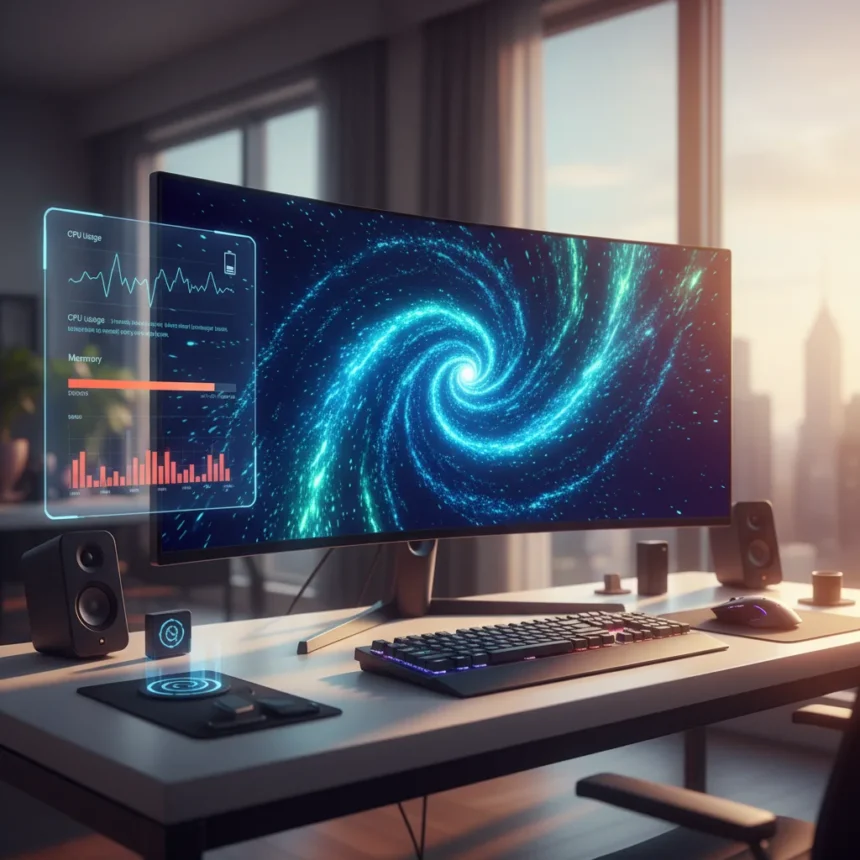
Lively Wallpaper customization has become the go-to solution for Windows 11 users who want animated desktops without paying for premium alternatives like Wallpaper Engine. The free, open-source app is available on the Microsoft Store and GitHub, and it delivers surprising depth for a zero-cost tool. But after spending time with it, the picture is more complicated than the hype suggests.
Key Takeaways
- Lively Wallpaper is free and open-source, available via Microsoft Store or GitHub for Windows 11.
- Supports animated wallpapers, videos, GIFs, interactive web backgrounds, and AI-generated parallax effects from 2D images.
- Native Windows 11 design and multi-monitor support with flexible display options.
- Per-wallpaper customization includes color adjustments and element resizing via the ellipsis menu.
- One specific feature consumes an astronomical amount of memory, making it impractical for daily use [summary].
What Lively Wallpaper Actually Does Well
Lively Wallpaper customization shines where it matters most: flexibility and ease of use. The app’s native Windows 11 look means it feels like part of the operating system, not a bolted-on third-party tool. Installation takes seconds via the Microsoft Store, and the pre-installed wallpaper library gives you immediate options without hunting for external sources.
The real strength lies in the variety of input formats. You can drop in local video files, GIFs, or animations. You can embed web-based backgrounds by pasting a URL directly into the app. The recent addition of Animated WebP support expands your options even further. For users who want to build a collection of custom wallpapers without jumping between multiple apps, this breadth is genuinely useful.
Multi-monitor support deserves mention. The app offers three distinct modes: Selected Screen Only (different wallpaper per monitor), Span Across Screens (one wallpaper stretched across all displays), or Duplicate Same Wallpaper (identical background on each screen). Most users will never need this level of control, but it exists and it works.


Lively Wallpaper Customization Features That Fall Short
Customization depth varies wildly depending on which wallpaper you choose. The ellipsis menu next to each wallpaper name opens a “Customize wallpaper” panel where you can adjust colors and resize elements. This works fine for basic tweaks. But many wallpapers offer no customization at all—they are static presets with no adjustment options, which defeats the purpose of choosing an app built on the idea of personalization.
The AI parallax effect that generates depth from 2D images sounds innovative on paper. In practice, performance is unpredictable. Some users report smooth operation; others hit frame rate drops or stuttering depending on their hardware. The app provides no built-in performance presets or quality settings to dial in the effect for your specific system, forcing you to either accept whatever the defaults deliver or abandon the feature entirely.



One feature in particular—unnamed in the available documentation—consumes what the source describes as an “astronomical amount of memory.” This is not a minor memory leak. This is the kind of memory drain that forces the app to minimize to the system tray just to keep your wallpaper active while preserving system stability [summary]. The fact that the developers have not publicly identified or fixed this issue is a red flag.
How Lively Wallpaper Compares to Paid Alternatives
Wallpaper Engine, available on Steam, is the paid alternative that dominates the enthusiast space. It costs money upfront, but it also demands performance tuning to run smoothly—users frequently report that they need to adjust settings to avoid frame rate issues. Lively Wallpaper’s free-forever model eliminates the financial barrier, but the memory issue and inconsistent customization depth mean you are trading dollars for stability and polish. For casual users, Lively Wallpaper wins. For power users who want predictable performance, Wallpaper Engine’s maturity and community support may be worth the investment.
Getting Started with Lively Wallpaper Customization
Installation is straightforward. Search for “Lively” in the Microsoft Store, hit Get/Install, and open the app. You will see a library of pre-installed wallpapers. Click any one to apply it immediately to your desktop. The app minimizes to the system tray and stays there; close it and your wallpaper reverts to the Windows default.
To add your own content, click the plus icon in the top menu. You can drag and drop local video files or GIFs, or paste a URL for online sources. For multi-monitor setups, use the top-left options to choose how the wallpaper spans across your displays. To customize colors or element sizes, find the ellipsis button next to the wallpaper name and select “Customize wallpaper”.



Recent updates have improved the import process for better performance and added smarter wallpaper library organization, which makes managing a large collection less painful. If you prefer GitHub over the Microsoft Store, the source code is available there as well.
Is Lively Wallpaper worth your time?
Yes, if you want animated wallpapers without spending money and do not mind a little trial and error to find wallpapers that actually offer customization options. The free price tag and Windows 11 integration are genuine advantages. No, if you need rock-solid performance or expect every wallpaper to be deeply customizable—the memory issue and inconsistent feature depth will frustrate you.
Can I use Lively Wallpaper on Windows 10?
No. Lively Wallpaper is built for Windows 11 and requires the native Windows 11 design language. If you are on Windows 10, you will need to look elsewhere or upgrade your operating system.
Does Lively Wallpaper work with multiple monitors?
Yes. The app supports multi-monitor setups with three options: apply different wallpapers to each screen, span one wallpaper across all monitors, or duplicate the same wallpaper on every display. The flexibility here is one of the app’s genuine strengths.
Lively Wallpaper customization is a solid free option for Windows 11 users who want to personalize their desktop without opening their wallet. Just go in with realistic expectations. Not every wallpaper will offer deep customization, performance varies, and that one memory-hogging feature is a real problem. For casual animated backgrounds, it is hard to beat. For demanding customization workflows, you might find the limitations frustrating enough to justify Wallpaper Engine’s price.
Edited by the All Things Geek team.
Source: Windows Central