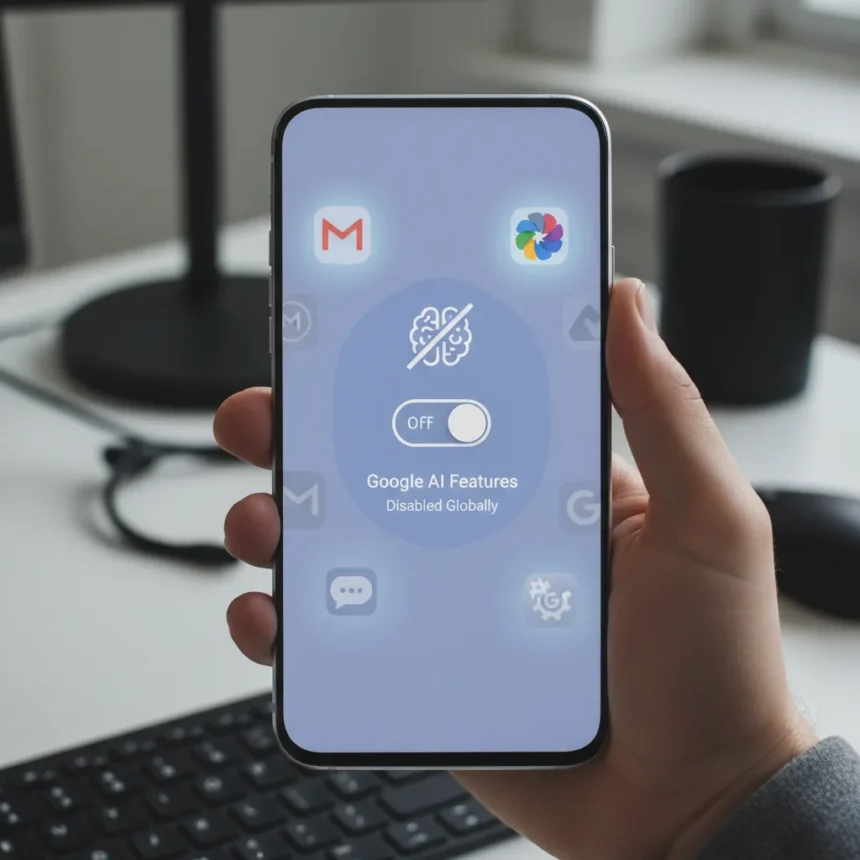
Google AI is spreading across your Android phone whether you asked for it or not. From Gmail and Google Photos to the Phone app and Messages, artificial intelligence now touches nearly every major Google service. If you want to disable Google AI Android features and take back control, you have options—though they vary by device and app.
Key Takeaways
- Google AI features are integrated into Gmail, Phone, Messages, and Google Photos on Android devices.
- Samsung Galaxy phones let you disable Galaxy AI through Settings, while Pixel phones require app-by-app disabling.
- You can decline Personal Intelligence when prompted in Gemini or reject it in AI mode settings.
- The Bye Bye, Google AI Chrome extension removes AI Overviews from Google Search results.
- Adding “-ai” to Google Search queries filters out AI-generated content from results.
Where Google AI Is Hiding on Your Phone
Google has woven AI into the fabric of Android in ways that aren’t always obvious. You’re using AI all the time and might not even know it, embedded in services you open daily. Gmail uses AI for writing suggestions and spam filtering. Google Photos applies AI-powered editing and search. The Phone app leverages AI for call screening. Messages relies on AI for smart replies. Unless you actively opt out, these features run quietly in the background, learning from your behavior and improving their predictions based on your usage patterns.
The deeper problem is discoverability. Most users don’t realize how pervasive AI has become because Google doesn’t force you to acknowledge it every time you open an app. It’s simply there, integrated so smoothly that disabling it requires knowing where to look.
How to Turn Off AI on Samsung Galaxy Phones
Samsung Galaxy devices offer the most straightforward path to disabling AI. On Samsung phones, you can disable Galaxy AI features through Settings > Galaxy AI, then toggle individual features like Call Assist on or off. This centralized approach means you’re not hunting through multiple app settings to find AI controls. If you don’t want Samsung’s AI handling your calls, managing your inbox, or analyzing your photos, this is where you go. The toggle-based interface makes it clear what’s active and what’s paused.



The advantage of Samsung’s approach is transparency. Rather than hiding AI controls deep in app preferences, Samsung groups them in one location, making it easier to audit which AI features are running on your device.
Disabling AI on Google Pixel and Other Android Phones
Google Pixel phones present a more fragmented challenge. AI features are integrated into Gmail, Phone, Messages, and Google Photos, making disabling them less straightforward. You can’t flip a master switch. Instead, you navigate to each app individually and look for AI-related toggles buried in settings. The inconsistency across apps means the path to disable Google AI Android varies depending on which service you’re targeting.



Personal Intelligence is one of the more aggressive AI features Google is rolling out. When prompted, you can decline Personal Intelligence in Gemini. If you’ve already enabled it, you can reject it in AI mode settings across the U.S.. The feature itself is designed to learn your habits and preferences, making it one of the most invasive AI tools on your phone if you don’t actively turn it off.
Blocking AI in Google Search
Google Search itself has become an AI delivery mechanism. AI Overviews now appear at the top of many search results, pushing traditional links further down the page. You have two tactics to fight back. First, add “-ai” to your Google Search queries to get results without AI Overviews. This simple syntax trick filters out the generated summaries and shows you only traditional web results. Second, install the Bye Bye, Google AI Chrome extension, which removes AI overviews from Google Search automatically. The extension works in the background, so you don’t have to remember the -ai syntax every time you search.
Neither method is permanent—Google continues to expand AI Overviews across more search categories—but they give you immediate control over what appears in your search results.
Why This Matters for Your Privacy and Phone Control
The spread of AI across Android isn’t just a feature creep issue. Every AI system that learns from your behavior is collecting data about your habits, preferences, and patterns. Even if Google isn’t selling this data to advertisers directly, it’s being used to improve ad targeting and refine Google’s own AI models. Disabling Google AI Android features is a privacy choice, not just a preference for simplicity. You’re deciding what Google gets to observe and learn about you.



The fragmented approach to disabling AI across different apps and devices also reflects a larger problem: users have little unified control. Samsung offers a centralized dashboard. Google doesn’t. This inconsistency means Android users have to become power users just to opt out of features they never explicitly opted into in the first place.
Can You Really Escape Google AI on Android?
Complete escape is nearly impossible if you use Google’s ecosystem. Gmail, Photos, Maps, and Search are too deeply integrated into Android to remove entirely. What you can do is minimize exposure by disabling individual features, using search syntax tricks, and installing browser extensions. On Samsung devices, the Galaxy AI controls give you more granular power. On Pixel and other Android phones, you’re working with scattered toggles across multiple apps.
The reality is that opting out of Google AI requires effort. Google makes opting in automatic and opting out manual, which is the opposite of what privacy-conscious design would suggest. But if you’re willing to spend the time navigating settings, you can reduce how much AI is actively learning from your phone behavior.
Is there a way to turn off all Google AI at once?
No single master switch exists for disabling all Google AI on Android devices. Samsung Galaxy phones come closest with their centralized Galaxy AI settings, but even that only controls Samsung-specific AI features, not Google’s own services. For Google Pixel and other Android phones, you must disable AI features individually within each app’s settings.
Does disabling Google AI affect app performance?
Turning off AI features generally doesn’t harm app performance. In fact, disabling AI might slightly improve battery life and reduce background processing since these features won’t be running continuously. However, you’ll lose the benefits AI provides—smarter search results, better photo editing suggestions, and faster call screening.
Will Google re-enable AI features after an update?
Android and app updates sometimes reset settings, potentially re-enabling AI features you’ve disabled. After major updates, it’s worth checking your AI settings again to confirm your preferences haven’t been overridden. Google tends to default to AI-on, so vigilance is necessary if you want to stay opted out.
Disabling Google AI Android is possible but requires navigating a deliberately fragmented landscape. Google benefits when AI runs quietly in the background, learning from millions of users. The company makes opting out harder than opting in, which is why most people never bother. But if you value privacy and prefer not to feed Google’s AI training pipeline, the tools exist—they’re just scattered across settings, extensions, and search syntax. Take the time to audit what’s running on your phone, and you’ll regain control over what Google knows about you.
Edited by the All Things Geek team.
Source: Android Central