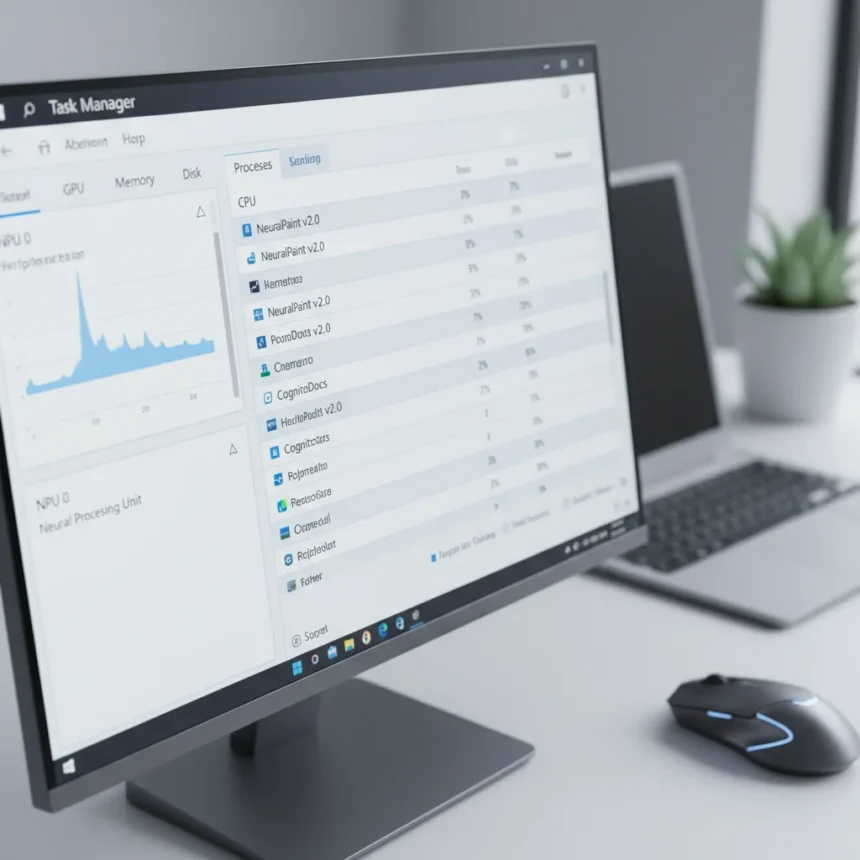
Windows 11 Task Manager NPU monitoring is finally here. Microsoft has added dedicated columns to track neural processing unit usage in real time, letting you see exactly which apps are using your AI PC’s specialized hardware instead of guessing.
Key Takeaways
- New NPU and NPU Engine columns appear on Processes, Users, and Details tabs for real-time usage tracking
- Details tab includes Dedicated NPU Memory and Total NPU Memory columns for granular visibility
- Feature rolls out via Windows Insider Preview builds 26300.8142 (Dev) and 26220.8138 (Beta)
- Performance tab now displays neural network engine activity from GPUs with NPUs, completing AI hardware monitoring
- Isolation column added for AppContainer apps on Processes and Details tabs
What Changed in Windows 11 Task Manager NPU Updates
The Windows 11 Task Manager NPU feature adds transparency that was missing from Windows as AI PCs became mainstream in 2026. Previously, you had no built-in way to see whether an app was tapping into your NPU—you relied on vendor utilities or vague system summaries. Now NPU monitoring works like CPU or memory tracking: transparent, real-time, and integrated into the OS.
Microsoft updated Task Manager to provide better insight into NPU usage for PCs that include an NPU. The new optional NPU and NPU Engine columns are now available on the Processes, Users, and Details pages. The Details tab goes deeper, showing Dedicated NPU Memory and Total NPU Memory (or Dedicated/Shared variants depending on your hardware) so you can see not just usage rate but memory allocation.
The Performance tab also displays neural network engine activity from GPUs with NPUs, completing the picture of your AI hardware’s workload. An Isolation column was added to Processes and Details tabs for AppContainer apps, improving visibility into sandboxed app behavior.


Windows 11 Task Manager NPU vs. Apple’s Approach
Apple’s hardware accelerator monitoring feels effortless because Apple controls the entire stack—silicon, drivers, OS, and apps. Windows faces a different challenge: it must support multiple NPU vendors, drivers, and third-party implementations. Instead of pretending this complexity doesn’t exist, Microsoft is using Task Manager to close the usability gap and create a coherent platform for AI workloads.
This is not a trivial engineering problem. By building NPU monitoring into Task Manager rather than leaving it to vendor utilities, Windows is signaling that AI hardware monitoring is now a first-class citizen in the OS, not an afterthought. That matters for developers building AI apps and for ordinary users trying to understand why their battery is draining or their fan is spinning up.



When You Can Use Windows 11 Task Manager NPU Monitoring
The feature is available now to Windows Insiders in the Beta and Dev Channels. Build 26300.8142 arrived in the Dev Channel on March 31, 2026, and Build 26220.8138 in the Beta Channel via KB5079491. A large-scale rollout to stable Windows 11 is pending, so if you are not running an Insider build, you will not see these columns yet.
You also need an NPU-equipped AI PC to benefit from this update. If your machine has a Qualcomm Snapdragon X, Intel Core Ultra, or AMD Ryzen AI processor with an integrated NPU, Task Manager will populate these columns. Older machines without an NPU will simply have empty columns or no columns at all.
Why This Matters for AI PC Transparency
As AI PCs proliferate, users need visibility into how their hardware is being used. The Windows 11 Task Manager NPU update addresses a real pain point: the performance black box. You could see your CPU and GPU working hard, but NPU activity was invisible. That meant you could not verify whether Copilot or other AI apps were actually using your specialized hardware, or whether they were falling back to slower CPU execution.
This transparency enables three practical outcomes: understanding which apps consume your NPU’s power budget, optimizing system efficiency by identifying power-hungry AI workloads, and verifying that software developers are actually using the hardware you paid for. For developers, it is a debugging tool. For users, it is accountability.



Known Issues and Caveats
Some Windows Insiders have reported unexpected NPU spikes after the update, occasionally tied to background processes like WorkLoadsSessionManager.exe or Recall-related services. These spikes may indicate third-party conflicts or background processes waking up the NPU, not a core feature flaw. Microsoft has not formally documented these as bugs, so treat them as edge cases rather than widespread issues.
Frequently Asked Questions
When will Windows 11 Task Manager NPU monitoring roll out to stable Windows?
Microsoft has not announced a stable release date. The feature is currently available only to Windows Insiders in the Beta and Dev Channels. General availability is pending, but no timeline has been shared.
Do I need an AI PC to see NPU columns in Task Manager?
Yes. You need an NPU-equipped machine for the columns to display meaningful data. Machines without an NPU will either show empty columns or no columns at all.
What is the difference between NPU and NPU Engine columns?
The NPU column shows real-time usage rate as a percentage. The NPU Engine or NPU Module column identifies which specific neural processing engine on your hardware is handling the workload, useful if your NPU supports multiple concurrent engines.
Windows 11 Task Manager NPU monitoring fills a gap that has existed since AI PCs entered the mainstream. You can now see what your specialized hardware is doing, verify that apps are using it, and optimize your system accordingly. For developers, it is a debugging win. For users, it is long-overdue transparency in an increasingly AI-driven OS.
Edited by the All Things Geek team.
Source: Windows Central