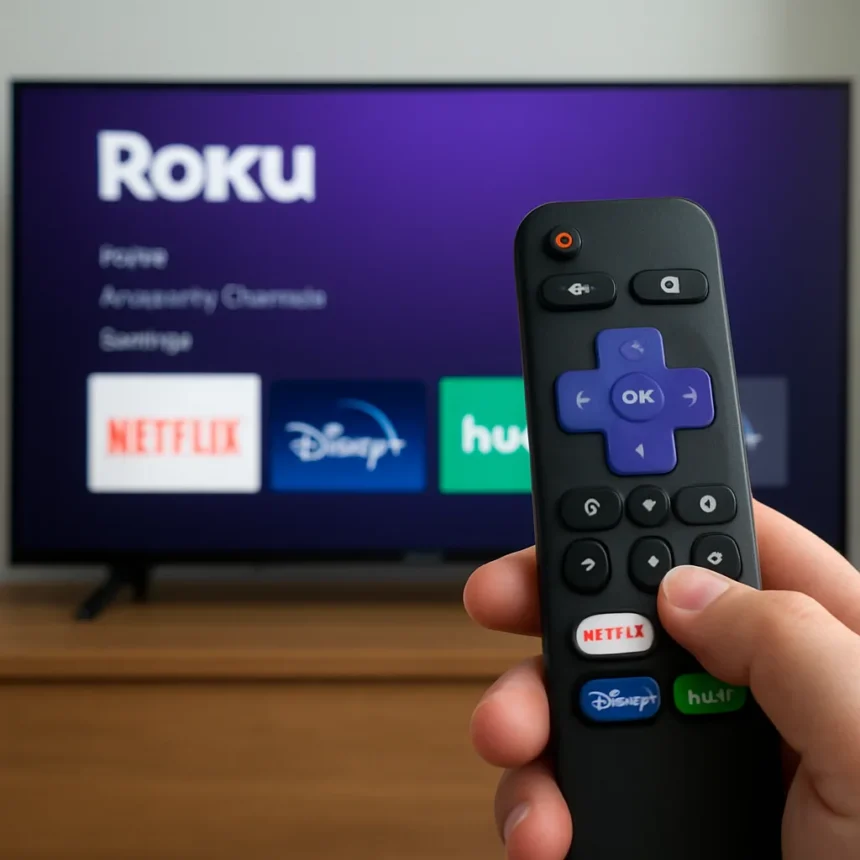
Your Roku is hiding useful features you’ve probably never discovered. Hidden Roku features range from a lost remote finder to secret settings screens, and most owners stumble through daily streaming without ever finding them. These shortcuts live in plain sight—buried in button combinations, tucked into settings menus, or accessible from the home screen—but Roku doesn’t advertise them.
Key Takeaways
- Roku Ultra owners can press a physical button on the device to make a lost remote beep.
- A secret screen accessed via a six-button sequence reveals screenshot and ad control options.
- Hidden Roku features solve common frustrations like finding lost remotes and navigating settings faster.
- Some hidden Roku features require specific remote button combinations; others live in standard menus.
- These tricks don’t transform your streaming experience but make everyday use more convenient.
The Remote Finder: Locate Your Lost Roku Remote in Seconds
Losing your Roku remote under couch cushions or between chair cushions is frustrating. If you own a Roku Ultra, there’s a physical button on the device itself that solves this instantly. Press that button and your remote will beep, even if it’s buried under blankets or sitting in another room. This feature works without needing your phone or the Roku app—just press the button on the device and listen for the chime.
For Roku owners without the Ultra model, the Roku mobile app offers an alternative: you can make your remote chime through the app, though this requires your phone to be nearby and the app to be installed. The physical button on the Roku Ultra is faster and more reliable when you’ve already lost the remote once.
The Secret Settings Screen: Access Hidden Roku Features via Button Sequence
One of the most useful hidden Roku features is a secret settings screen that most users never stumble upon. To unlock it, press Home five times on your remote, then press Up, Right, Down, Left, and Up again. This specific button sequence opens a hidden menu that lets you take screenshots and control ad settings.


The sequence sounds complicated, but once you memorize it, accessing this screen takes just a few seconds. This hidden Roku features menu doesn’t appear in standard settings—there’s no menu item pointing you toward it. Roku keeps it deliberately obscure, which means most casual users never learn it exists. The screenshot feature is particularly useful if you want to capture what’s on your screen without using your phone’s camera.
Why Roku Hides These Features
Roku doesn’t hide these features to frustrate users—they’re designed for specific use cases that don’t apply to everyone. The screenshot tool is primarily useful for troubleshooting or sharing what’s on your screen with support staff. Ad settings in a hidden menu suggest Roku prioritizes simplicity for most users over exposing every option upfront. The remote finder on the Roku Ultra is a premium feature that justifies the higher price of that model.



The trade-off is that casual users miss out on convenient shortcuts. A user who never loses their remote won’t care about the finder button. A user who never needs screenshots won’t stumble upon that secret screen. But for users who experience these specific frustrations, hidden Roku features offer real solutions that aren’t obvious from normal navigation.
How to Remember These Hidden Roku Features
The button sequence for the secret screen (Home, Home, Home, Home, Home, Up, Right, Down, Left, Up) is the trickiest part. Write it down or save it to your phone’s notes app the first time you use it. The Roku Ultra’s physical remote finder button is harder to forget—it’s a physical button on the device itself, so once you know it’s there, you’ll remember it when you need it.
These hidden Roku features won’t reshape how you stream, but they eliminate small frustrations that add up over time. Finding a lost remote in seconds beats tearing apart your living room. Taking a screenshot without a phone camera beats describing what’s on your screen to support staff. Small conveniences compound into a better user experience.
Are there other hidden Roku features I’m missing?
The five features highlighted in the original article represent the most useful shortcuts Roku buries in its interface. There may be other undocumented button combinations or settings, but these are the ones Roku itself acknowledges as hidden Roku features worth discovering. Your best bet is to explore the settings menu thoroughly and experiment with button combinations on your remote.



Do all Roku models support the remote finder button?
The physical remote finder button is confirmed to work on the Roku Ultra. Other Roku models may not have this physical button, though all Roku devices support the mobile app remote finder feature. If you own a standard Roku or Roku Streaming Stick, check your device for a physical button, but don’t expect one—the Ultra’s button is a model-specific feature.
Can I take screenshots on any Roku device?
The secret settings screen that enables screenshots is accessible via the button sequence on Roku devices. This suggests the feature is broadly available, though the research confirms it works on the devices where the hidden menu is accessible. If the sequence doesn’t work on your model, your device may not support this particular hidden Roku features menu.
Hidden Roku features exist because Roku assumes most users won’t need them—and for casual streamers, that’s probably true. But if you’ve ever lost your remote or wanted a quick way to take a screenshot, these shortcuts suddenly become essential. The real question isn’t whether Roku should hide these features, but whether you’ll bother learning them before frustration forces you to search for answers.
Where to Buy
Hisense U8N ULED TV | Samsung S95C 55-inch OLED TV | Samsung QN90D 75-inch Neo QLED 4K TV | Hisense 65U6K
Edited by the All Things Geek team.
Source: Tom's Guide