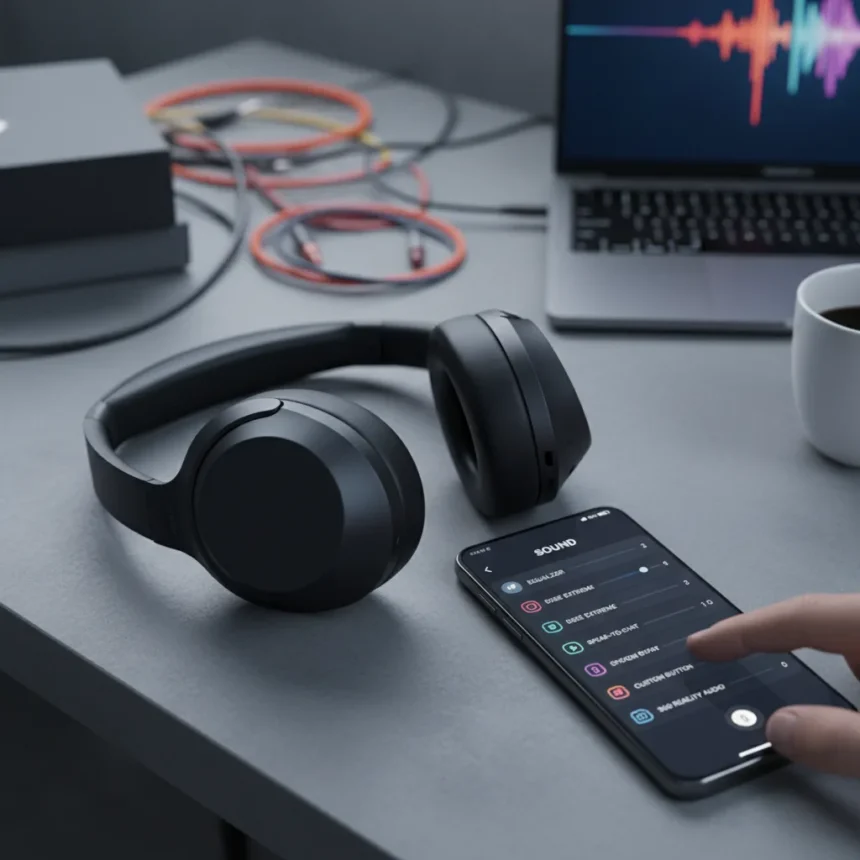
Sony wireless headphones sound quality out of the box is deliberately conservative. The default settings prioritize connection stability over audio fidelity, and the touch controls are mapped to functions you probably don’t want. Everything that matters lives in the Sony Sound Connect app, and most owners never open it.
Key Takeaways
- Switch Bluetooth connection priority from stable to sound quality for better audio in reliable signal areas
- Use the Find Your Equaliser feature to test nine presets on your favorite track before committing
- Remap touch controls to avoid accidental volume changes from repeated tapping
- Adjust earbud fit and tips for sound quality over stability once you’ve found a secure fit
- Enable LDAC codec on Android devices for superior Bluetooth audio transmission
Change Bluetooth Connection Priority to Sound Quality
By default, Sony wireless headphones prioritize a stable Bluetooth connection over sound quality. This makes sense in crowded urban environments where signal interference is constant, but it’s a handicap if you’re listening in a stable location. Switching to sound quality priority unlocks noticeably cleaner audio without dropouts, provided your connection is reliable. Open the Sony Sound Connect app, navigate to Device Settings, then select Bluetooth Connection Quality and toggle from stable connection to sound quality mode.
This single change matters more than any EQ tweak because it removes the artificial constraints on what your headphones can actually transmit. Testers have confirmed this works without issues in normal home and office environments. If you’re in a place with poor signal coverage—airports, dense city blocks with tall buildings—stick with stable connection. But if your phone stays connected reliably, sound quality mode is the obvious choice.
Run Find Your Equaliser to Match Your Ears
The Sony Sound Connect app includes a feature called Find Your Equaliser that lets you audition nine different sound presets on any track you choose. This is far smarter than guessing at EQ sliders. Play a song you know intimately—something with clear vocals, defined bass, and detailed instruments—then cycle through each preset while listening. Most people discover their preference within three or four attempts, then apply it permanently.



If none of the nine presets satisfy you, the app also allows manual frequency adjustment for fine-tuning bass and other response characteristics. This is where the real customization happens, but starting with Find Your Equaliser prevents the common mistake of chasing bass and losing detail. You’re training your ear to recognize what sounds right to you, not copying someone else’s settings.
Remap Touch Controls to Stop Accidental Volume Spikes
Sony wireless headphones default to repeated tapping on the left or right earbud for volume control. This is terrible in practice because you’ll accidentally trigger volume changes while adjusting fit or wiping your ears. The Sony Sound Connect app lets you remap these touch functions entirely. Spend five minutes customizing your controls—assign pause to a double-tap, skip track to a triple-tap, and disable the repeated-tap volume feature altogether.



This is one of those settings that seems minor until you’re in a meeting and your music suddenly blares because you touched your earbud the wrong way. Once you’ve customized it, you’ll wonder why Sony didn’t make this the default.
Adjust Earbud Fit and Tips for Sound Over Stability
Out of the box, Sony wireless headphones prioritize fit stability over sound quality. The Wearing section in the Sony Sound Connect app lets you test your current fit and swap earbud tip sizes. If you’re willing to sacrifice a tiny bit of stability for better seal and isolation, moving to a smaller or larger tip can transform the sound. The trade-off is real—a looser fit might shift slightly during vigorous movement—but for stationary listening, a tighter seal delivers noticeably better bass and clarity.
Check your wearing condition in the app first to confirm you have a secure baseline fit, then experiment with different tip sizes on the same track. You’ll hear the difference immediately. This is especially important for earbuds, where tip fit directly controls isolation and bass response.
Enable LDAC on Android for Superior Audio Transmission
If you’re using Sony wireless headphones with an Android device like a Samsung S22, enable the LDAC audio codec. LDAC transmits significantly more audio data over Bluetooth than standard codecs, resulting in noticeably better sound quality. This setting is buried in your Android device’s developer options, not in the Sony app, but it’s worth the five-minute setup. The difference is particularly noticeable on tracks with dense instrumentation or classical music where detail matters.



LDAC isn’t available on iOS, so iPhone users won’t see this option. Android owners who don’t enable it are leaving performance on the table.
Optimize Your Music Service Quality Settings
No amount of app tweaking matters if your music source is compressed. Set your streaming service—Spotify, Apple Music, YouTube Music, or any other platform—to the highest quality available. Many services default to standard or normal quality to save bandwidth. Switching to high fidelity or lossless streaming, paired with LDAC on Android, creates an end-to-end chain that actually justifies the hardware you own.
This is the easiest overlooked step. You’ve invested in good headphones and spent time configuring them perfectly, then you’re streaming at 128 kbps because you never changed the default setting. It defeats the purpose.
Should I change every setting at once or one at a time?
Change settings one at a time so you can hear the difference each one makes. Start with Bluetooth connection priority, listen for a day, then move to Find Your Equaliser. This approach trains your ear and prevents you from chasing multiple changes simultaneously and losing track of what actually helped. You’ll also discover which settings matter most to your listening habits.
Does LDAC work on all Android phones?
LDAC requires Android 8 or later and a compatible Sony device, but most modern Android phones support it. Check your phone’s developer options to confirm LDAC is available. If it’s not listed, your device likely doesn’t support it, but this is rare on recent flagship and mid-range phones.
Will changing these settings drain the battery faster?
Sound quality priority uses slightly more power than stable connection mode, but the difference is negligible in real-world use. If battery life is a concern, enable Auto Power Save in the Power/Battery section of the Sony Sound Connect app. This manages power consumption automatically without sacrificing the sound quality improvements you’ve unlocked.
Sony wireless headphones sound quality is entirely dependent on settings most owners never touch. The defaults are conservative by design, optimized for connectivity in noisy environments rather than audio fidelity. Spending twenty minutes in the Sony Sound Connect app to switch Bluetooth priority, run Find Your Equaliser, remap touch controls, and enable LDAC on Android transforms the listening experience from competent to genuinely impressive. These aren’t subtle tweaks—they’re the difference between hearing what your headphones are actually capable of and settling for a fraction of their potential.
Edited by the All Things Geek team.
Source: What Hi-Fi?