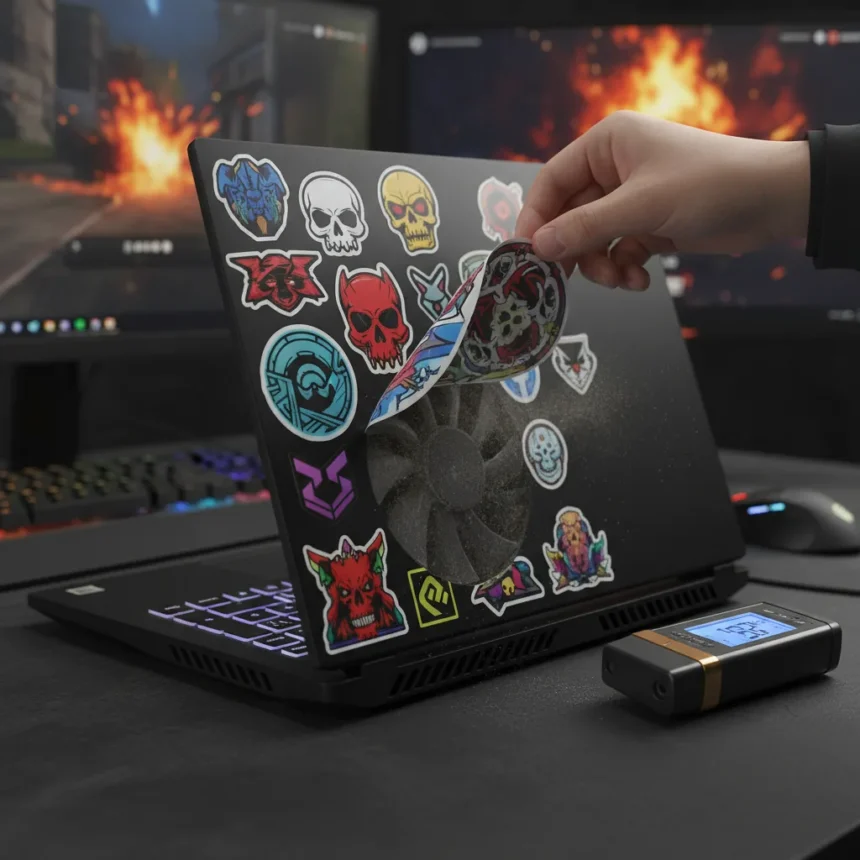
A gaming laptop brought to a repair shop with a serious overheating complaint was fixed in under 10 seconds—not with new thermal paste, not with a cooling pad, but by peeling off decorative stickers that were blocking the fan vents. This anecdote reveals a frustrating truth about gaming laptop overheating: sometimes the problem is sitting right on the surface, literally.
Key Takeaways
- Decorative stickers covering fan vents directly block airflow and cause rapid heat buildup in CPUs and GPUs.
- Stickers represent external blockage, distinct from dust accumulation, the most common overheating culprit.
- Soft surfaces like blankets and objects resting on vents also impede airflow and trigger thermal throttling.
- Laptop skins on non-vent areas do not cause overheating or thermal insulation problems.
- Checking external vent access should be the first troubleshooting step before attempting complex repairs.
Why Gaming Laptop Overheating Happens So Easily
Gaming laptop overheating occurs when airflow to the cooling system is restricted, causing the CPU and GPU to build up dangerous temperatures. Stickers covering vents directly impede this airflow, leading to heat accumulation that forces the system into thermal throttling—a protective mechanism that slows performance to reduce heat generation. The problem escalates quickly because gaming laptops already run hot under load; any additional blockage compounds the issue. What makes this particular failure mode so embarrassing for users is its simplicity: the fix requires no tools, no expertise, and literally seconds of time.
The repair shop incident underscores a broader pattern. Gamers customize their laptops with stickers for aesthetic reasons, often without realizing they are placing them directly over critical cooling infrastructure. Unlike laptop skins from brands like dbrand or DecalGirl, which can be applied to non-vent areas without thermal impact, stickers placed over fan vents create an immediate and severe cooling problem. The distinction matters: decorative customization is fine if it does not obstruct airflow, but any covering of vents is a thermal liability.
Gaming Laptop Overheating: Common Causes Beyond Stickers
Stickers are an unusual culprit compared to the most common overheating cause—dust and debris accumulation inside vents and fans. Dust buildup is insidious because it develops gradually, reducing airflow incrementally until thermal problems become obvious. Users often do not notice until performance tanks or the laptop shuts down from heat. Soft surfaces like blankets, beds, or even a closed laptop bag while the device is running also block vents and restrict airflow, triggering gaming laptop overheating. These environmental factors are easy to overlook because they seem passive—the user is not actively placing something on the vent, so the connection between behavior and heat goes unrecognized.


More involved causes include dried thermal paste between the CPU/GPU and heatsink, which reduces heat transfer efficiency and requires disassembly to fix. Damaged or failing fans that spin poorly or not at all represent another serious issue. These problems demand actual repair work: cleaning dust requires opening the chassis, reapplying thermal paste requires removing the cooler, and replacing a fan is a multi-step process. The sticker scenario is humbling because it bypasses all this complexity. It is also a lesson in the value of basic troubleshooting: before you assume your gaming laptop overheating is a hardware failure, check the obvious external factors first.
The Customization Trap: Stickers vs. Skins
Gamers love personalizing their machines, and that impulse is not inherently problematic. The problem arises when customization choices interfere with thermal design. Laptop skins, tested on gaming laptops like the Razer Blade, show no difference in heat dissipation whether applied or removed, provided they do not cover vents or ports. Skins work because they are thin, flexible, and applied to non-critical areas—typically the lid, palm rest, or keyboard surround. They do not create an insulating layer over components that need to breathe. Stickers, by contrast, are often applied haphazardly. A user might place a sticker over what looks like a decorative vent grille without realizing it is a functional air intake or exhaust path. Gaming laptop overheating caused by stickers is entirely preventable if users understand the thermal layout of their machine before personalizing it.



The repair technician who resolved the overheating issue in seconds by removing the stickers was not performing a miracle—they were applying basic troubleshooting. Yet the fact that this scenario reached a repair shop at all suggests many users do not perform this check themselves. Some may assume the stickers are decorative only, not realizing they are positioned over active cooling components. Others might blame the laptop manufacturer for poor design, when the real issue is user error. This is not a judgment; it is a reminder that gaming laptop overheating is often a symptom of something external and fixable, not a sign of a defective machine.
Preventing Gaming Laptop Overheating: Start with the Basics
Before investing in cooling pads, replacing thermal paste, or disassembling your laptop, take these steps. First, inspect the exterior for any stickers, tape, or objects covering vent grilles. Peel away anything that blocks airflow. Second, check the surface where you use the laptop. Soft surfaces like beds and blankets trap heat and restrict vents; use a hard, flat desk instead. Third, clean visible dust from vent grilles using compressed air, blowing outward from the laptop to push debris away rather than deeper into the chassis. These three actions address the most common external causes of gaming laptop overheating and cost nothing.
If gaming laptop overheating persists after these checks, then consider more involved fixes: internal dust cleaning, thermal paste replacement, or professional inspection. But the sticker scenario is a powerful reminder that the simplest explanation is often correct. A gaming laptop brought to a repair shop with a serious thermal problem, fixed in seconds by removing decorative stickers, is not a one-off oddity—it is a cautionary tale about the importance of understanding your machine before personalizing it.
Can laptop skins cause overheating?
Laptop skins applied to non-vent areas like the lid or palm rest do not cause overheating or thermal insulation problems, even on gaming laptops. The issue arises only when stickers or skins cover active fan vents or air intake grilles, blocking the airflow that cooling systems depend on.



What is the fastest way to fix gaming laptop overheating?
Check for external blockages first: remove any stickers covering vents, move the laptop off soft surfaces, and clear dust from vent grilles with compressed air. If gaming laptop overheating continues, the problem likely requires internal cleaning or thermal paste replacement.
Why do gaming laptops overheat more than regular laptops?
Gaming laptops run hotter because their CPUs and GPUs consume significantly more power under load, generating more heat. Cooling systems must work harder to dissipate this heat, so any restriction to airflow—including stickers or dust—causes gaming laptop overheating faster than it would on a lower-power machine.
The lesson from the repair shop is clear: gaming laptop overheating is not always a sign of hardware failure. Sometimes it is a sign that someone applied a sticker without thinking about thermal design. Check your vents before you check your warranty.
Edited by the All Things Geek team.
Source: Tom's Hardware