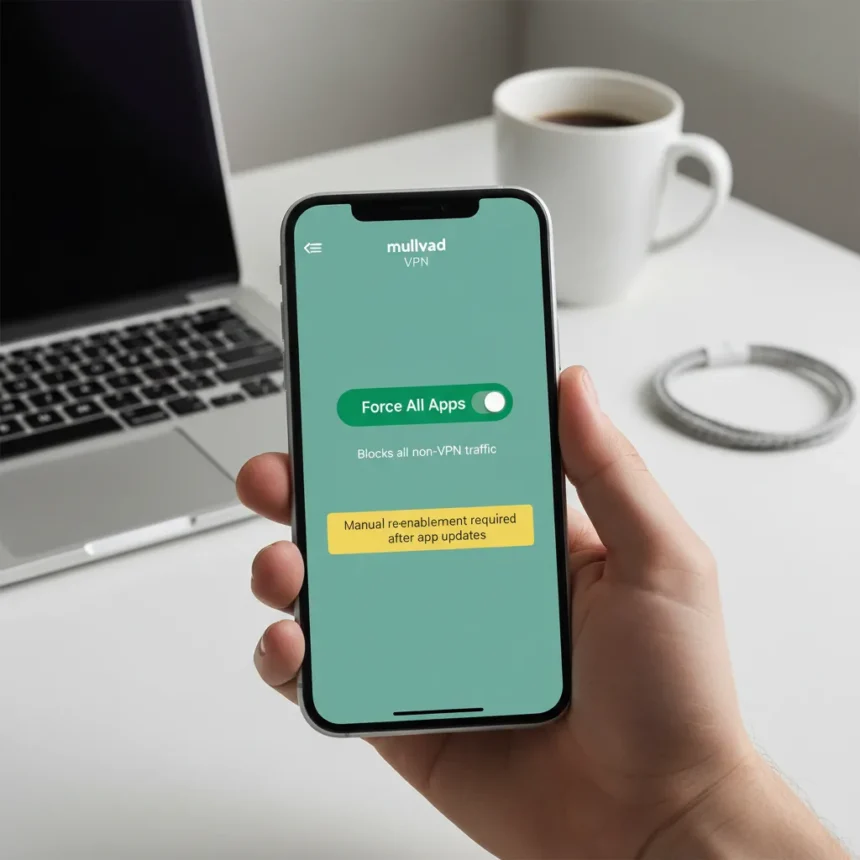
Mullvad iOS VPN just shipped a feature that solves a problem the app has struggled with since its iOS launch: traffic leaks that bypass the VPN tunnel entirely. Version 2026.2 introduces “Force all apps,” a setting that forces every app on your iPhone or iPad to route through Mullvad’s encrypted tunnel, blocking known vulnerabilities like TunnelCrack and connections established before the VPN connects. The catch is real, though—updating the app with this feature enabled can trap you in a broken loop unless you follow specific steps.
Key Takeaways
- Force all apps sets Apple’s includeAllNetworks configuration to true, forcing all traffic through the VPN tunnel
- Blocks TunnelCrack attacks and pre-VPN connections that normally bypass the tunnel
- Requires manual intervention during app updates to avoid broken update loops
- Mullvad uses WireGuard protocol exclusively for speed and battery efficiency
- Feature is opt-in and prompts users to understand the risks before enabling
What Mullvad iOS VPN’s Force All Apps Actually Does
Mullvad iOS VPN’s new Force all apps feature sets Apple’s includeAllNetworks configuration option to true within the NetworkExtension framework, a technical move that forces every app’s traffic into the VPN tunnel. This addresses a long-standing architectural weakness: iOS allows apps and certain Apple services to bypass VPN connections entirely, creating leaks that no traditional kill switch can prevent. “Due to the intricacies of Apple’s NetworkExtension framework, we have been stuck with a VPN app that we knew would leak traffic in some circumstances on iOS,” Mullvad’s developers explained in their official blog. The feature specifically mitigates TunnelCrack attacks, which exploit the gap between app launches and VPN reconnection, as well as connections to iCloud, Maps, Siri, and system notifications that normally slip past the tunnel.
Enabling Force all apps is not automatic. The app walks users through the feature, explains its risks, and requires deliberate activation. Once enabled, the setting persists even after app updates, providing consistent protection. However, this persistence is exactly where the problem emerges.
The Update Problem That Makes This Feature Complicated
Mullvad developers previously avoided implementing Force all apps for a critical reason: Apple’s NetworkExtension framework creates a broken update loop when the feature is active. When your iPhone auto-updates the Mullvad app while Force all apps is enabled, the app can enter a state where it cannot reconnect to the VPN, leaving your device stuck in a cycle of failed connection attempts. Mullvad’s recent update partially addresses this by notifying users of new versions before auto-updates occur, but the underlying problem remains. “There is a known fix for this but it comes with significant downsides. The biggest one being the way this breaks the app update and the user get stuck in a broken update loop,” the developers noted.


To update Mullvad iOS VPN without triggering this loop, you have two options, both requiring manual action. First, you can disconnect the VPN before the app updates, then manually reconnect afterward—the Force all apps setting stays enabled but the app will not reconnect automatically after the update completes. Alternatively, disable Force all apps temporarily while the update installs, allow the app to reconnect automatically, then re-enable the feature once the update finishes. Neither approach is seamless, and both demand user awareness. For a privacy-focused app, this friction is a real drawback, though it is the price of closing a genuine security gap.
How Mullvad iOS VPN Compares to Other VPN Approaches
Most VPN apps on iOS use multiple protocols—OpenVPN, IKEv2, and proprietary options—to balance speed, stability, and compatibility. Mullvad takes a different approach, committing exclusively to WireGuard, a modern protocol designed for speed and battery efficiency. This architectural choice means Mullvad sacrifices protocol flexibility for performance consistency. The Force all apps feature amplifies this philosophy: rather than accepting iOS’s inherent leaks, Mullvad forces a technical solution that works but demands user discipline during updates. Other VPN providers might accept the leak as an unavoidable cost of iOS design; Mullvad chose to solve it, even if the solution is awkward.



The app also includes a workaround for connections established before the VPN tunnel opens. If you suspect a pre-VPN leak, the app instructs users to connect to Mullvad, enable Airplane mode, turn off Wi-Fi if active, then disable Airplane Mode. This sequence forces the system to re-establish connections through the active VPN tunnel, closing the window where leaks can occur. It is a manual fix, but it exists.
What Else Changed in Version 2026.2
Beyond Force all apps, Mullvad iOS VPN version 2026.2 added recently used locations for faster reconnection, a refreshed location view, LWO obfuscation support, and Ukrainian language support. The recently used locations feature is a quality-of-life improvement for users who switch between the same few server regions. LWO obfuscation helps mask VPN traffic from network monitors, useful in restrictive environments. These additions are incremental, but they show Mullvad is iterating on usability alongside security.
Should You Enable Force All Apps?
If you are a privacy-conscious iPhone user who understands the manual update workaround, Force all apps is worth enabling. It closes real attack vectors that affect all iOS VPNs, not just Mullvad. The feature is opt-in, so you retain control—the app does not force it on you. If you prefer seamless automatic updates and do not mind accepting iOS’s inherent traffic leaks, leaving the feature disabled is reasonable. The decision depends on your threat model and tolerance for manual intervention.
One limitation worth noting: Force all apps does not prevent Apple services like iCloud and Siri from functioning; it only forces their traffic through the tunnel. Some users may prefer these services to bypass the VPN for performance reasons, though Mullvad’s documentation does not claim this is avoidable.



How Do You Enable Force All Apps on Mullvad iOS VPN?
Open the Mullvad VPN app, navigate to settings, locate the Force all apps toggle, and enable it. The app will prompt you to confirm that you understand the risks, including the update loop issue. Once activated, the setting persists across app launches until you manually disable it.
What Should You Do Before Updating Mullvad iOS VPN?
If Force all apps is enabled, either disconnect the VPN before the update completes, or temporarily disable Force all apps during the update and re-enable it afterward. Mullvad will notify you of new versions before auto-updating, giving you time to prepare. This extra step is not ideal, but it is the current cost of using the most aggressive leak-blocking approach available on iOS.
Mullvad iOS VPN’s Force all apps feature represents a genuine security advancement for iOS users willing to accept the friction of manual update management. It is not a perfect solution—no iOS VPN can be, given Apple’s framework constraints—but it is the most comprehensive defense against traffic leaks currently available. For privacy-focused users, that trade-off is worth making.
Edited by the All Things Geek team.
Source: TechRadar