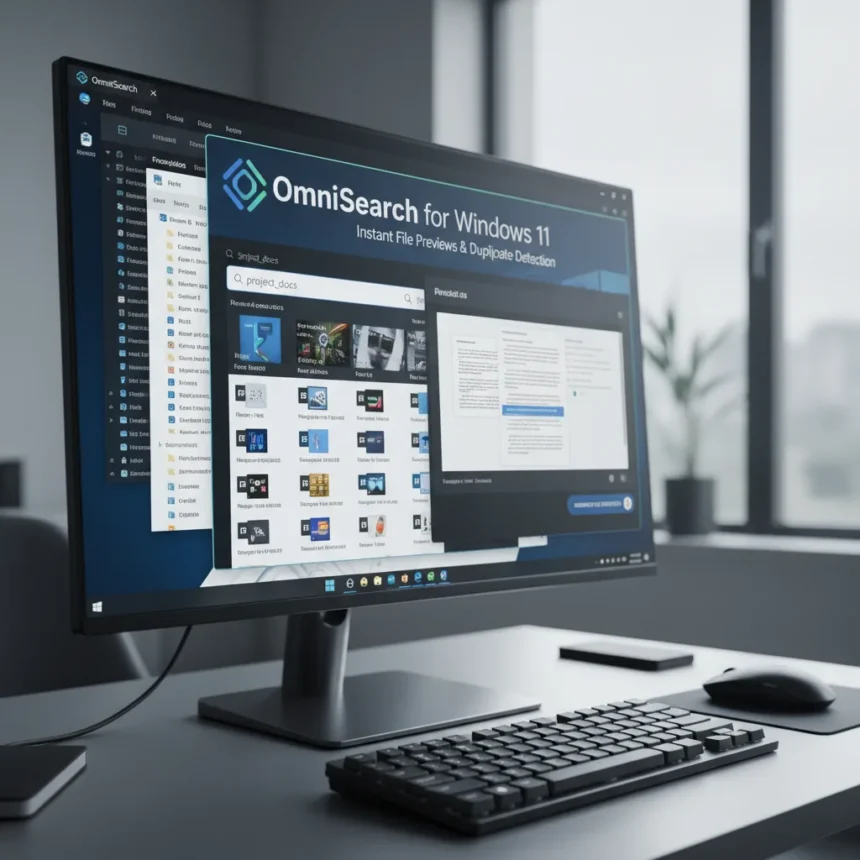
OmniSearch for Windows 11 is a third-party file search app designed as a modern alternative to Windows Search, offering instant results across drives, file previews, and a built-in duplicate finder tool. If you have spent hours digging through folders because Windows 11’s native search feels sluggish or incomplete, OmniSearch addresses exactly that frustration.
Key Takeaways
- OmniSearch delivers instant file search results across all drives without indexing delays.
- File preview thumbnails let you identify files visually before opening them.
- Duplicate finder tool identifies and removes redundant files automatically.
- Windows 11’s native search is limited to filename searching and known folders by default in Classic mode.
- Enhanced mode in Windows Search requires tweaking and increases system resource use.
Why Windows 11’s Native Search Falls Short
Windows 11’s built-in search has a reputation problem, and it is earned. The default Classic mode searches primarily by filename and restricts results to known folders like Documents and Pictures. If your files are scattered across custom folders or external drives, Windows Search either misses them or takes minutes to return results. Many users resort to third-party tools simply because the native option feels broken.
Microsoft offers Enhanced mode as a fix, accessible through Settings > Privacy & security > Searching Windows. This mode indexes your entire system and searches file contents, not just names. But it comes with a cost: larger indexing databases, increased disk activity, and slower system performance during indexing cycles. For users who cannot tolerate that overhead, or who need faster results than even Enhanced mode delivers, OmniSearch for Windows 11 provides an escape hatch.
What OmniSearch for Windows 11 Delivers
OmniSearch for Windows 11 changes the file-finding workflow by returning instant results the moment you type. Unlike Windows Search, which waits for indexing to complete or searches only pre-indexed folders, OmniSearch scans across drives on demand. The killer feature is file previews: visual thumbnails appear inline, so you can identify the right file without opening it. For users managing hundreds of documents, screenshots, or design files, this single feature saves hours per month.


The duplicate finder tool is where OmniSearch for Windows 11 separates itself from competitors. Windows has no native duplicate detection. Users typically rely on external utilities or manual folder reviews, both tedious and error-prone. OmniSearch identifies redundant files automatically and lets you delete them in bulk, reclaiming disk space without the guesswork.
OmniSearch for Windows 11 vs. Windows Search Tweaks
You can improve Windows Search without third-party tools. Restarting Windows Explorer via Task Manager sometimes clears search cache issues. Enabling indexing on specific drives through Properties > Allow files on this drive to have contents indexed can accelerate results. Using search operators like *.pdf or kind:folder narrows results faster. These tweaks help, but they are band-aids on a fundamentally limited system.



OmniSearch for Windows 11 does not require you to learn operators or navigate buried settings. It works out of the box. The trade-off is that it is a separate app you must launch, whereas Windows Search integrates into File Explorer. For power users who search frequently, that friction is worth eliminating. For casual users who search once a week, the native tools, even with tweaks, may suffice.
Performance and Resource Use
OmniSearch for Windows 11 avoids the indexing overhead that makes Enhanced mode Windows Search a resource hog. By searching on demand rather than maintaining a constantly updated database, it keeps your system lighter. This matters on older machines or laptops where battery life and responsiveness are critical. The instant results feel snappier than waiting for Windows Search to crawl through an index, especially on first run when the index is stale.
Is OmniSearch for Windows 11 Worth Switching?
If you regularly search for files and find Windows Search slow or incomplete, OmniSearch for Windows 11 is worth trying. The file preview feature alone justifies the switch for visual workers. The duplicate finder adds genuine value for storage management. If you are already comfortable with Windows Search and rarely hit its limitations, the native tool remains adequate. But for anyone frustrated by the current state of file search on Windows 11, OmniSearch for Windows 11 delivers the modern, responsive experience Microsoft has not yet provided.
Does OmniSearch for Windows 11 require indexing?
No. OmniSearch for Windows 11 searches on demand without maintaining a background index database. This makes it lighter on system resources than Windows Search in Enhanced mode, which continuously indexes files in the background.



Can you use OmniSearch for Windows 11 alongside Windows Search?
Yes. OmniSearch for Windows 11 runs as a separate app and does not disable Windows Search. You can use both, switching between them depending on your needs, though most users find OmniSearch for Windows 11 faster for most tasks.
How does the duplicate finder in OmniSearch for Windows 11 work?
OmniSearch for Windows 11 scans your drives and identifies files with identical content or names. It then lets you review and delete duplicates in bulk, recovering disk space without manual folder reviews.
OmniSearch for Windows 11 solves a real problem that Windows users have complained about for years. If you are tired of slow searches and folder diving, this app is a straightforward upgrade to how you find files on Windows 11.
Edited by the All Things Geek team.
Source: Windows Central