





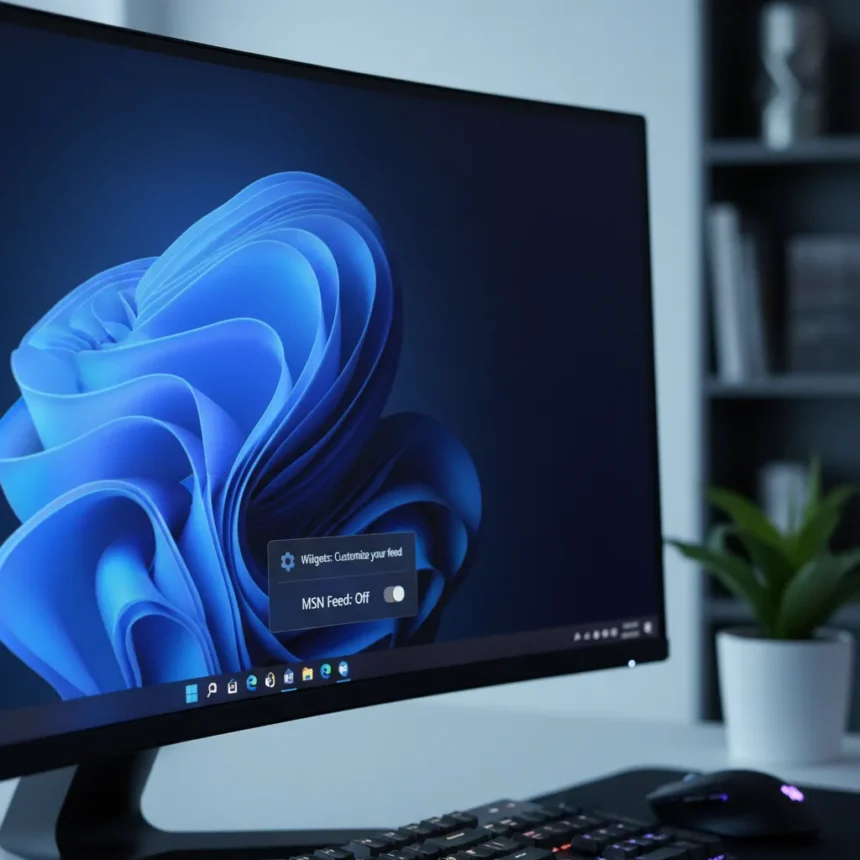
Windows 11 MSN feed is finally getting the off switch users have demanded for years. Microsoft announced at Build 2023 that a native toggle would arrive later that year, and it has now rolled out via the Windows Web Experience Pack, giving users the option to display widgets without the news feed cluttering the interface. The move signals a broader Microsoft effort to reduce noise and advertising clutter across Windows 11.
Key Takeaways
- Windows 11 MSN feed can now be hidden via a native toggle in widgets settings.
- Users can choose “widgets only” layout, removing the news feed entirely.
- The feature rolled out early via Windows Web Experience Pack (Moment 5).
- System-wide disabling available via Group Policy (Pro/Enterprise editions) or PowerShell.
- Widgets panel accessed by pressing Win + W; toggle found in gear icon settings.
Windows 11 MSN Feed Toggle: The Native Solution
For the first time, Windows 11 users can disable the Windows 11 MSN feed directly from the widgets board without resorting to registry hacks or PowerShell commands. The update introduces a “Show or hide feeds” option in the widgets settings, allowing per-user control over whether the feed appears. This native toggle is the cleanest way to manage the feed and requires no administrator access or system-wide changes.
To access it, press Win + W to open the widgets board, click the gear icon in the top-right corner, and select “Show or hide feeds.” From there, toggle off the “Feed” or “Microsoft Start/My Feed” option. The change takes effect immediately, leaving you with a widgets-only interface if you prefer. This approach differs from older workarounds because it is built into Windows 11 itself rather than requiring manual registry edits.
Disabling Windows 11 MSN Feed System-Wide
Users running Windows 11 Pro, Enterprise, or Education editions can disable the widgets panel entirely using Group Policy, which enforces the setting across the system. This is useful for IT administrators managing multiple machines or users who want a permanent, system-level block. The process requires accessing the Local Group Policy Editor and navigating to the policy path that controls the Widgets and news feed behavior, then setting it to disabled.


For those preferring PowerShell, a command-line method exists that works across Windows 11 editions. Open PowerShell as administrator and run: `New-Item -Path “HKLM:SOFTWAREPoliciesMicrosoftDsh” -Force; Set-ItemProperty -Path “HKLM:SOFTWAREPoliciesMicrosoftDsh” -Name “AllowNewsAndInterests” -Value 0`. After running this command, restart your system if needed. This approach disables the entire Widgets panel at the registry level, preventing the Windows 11 MSN feed and related features from appearing.
Alternative Methods to Remove the Feed
Beyond the native toggle and system-wide disabling, users can hide the Widgets button from the taskbar entirely. Right-click the taskbar, select Taskbar settings, and toggle off Widgets under “Taskbar items”. This removes the visual shortcut but does not uninstall the feature. For users who want to go further, the Microsoft News app itself can be uninstalled through Settings > Apps > Apps & features, though this is a more aggressive approach that removes the application entirely rather than just hiding the feed.



The Windows 11 MSN feed exists because Microsoft integrates advertising and content recommendations into the operating system. Users who find the feed intrusive have historically had limited options—hiding individual stories or accepting the clutter. The new toggle acknowledges years of user feedback demanding simpler, ad-free widget experiences. Unlike previous workarounds that required technical knowledge or system-level changes, the native toggle makes it accessible to any user without technical expertise.
Why This Matters Now
Microsoft’s decision to hide the Windows 11 MSN feed by default reflects a shift in how the company views the balance between monetization and user experience. For years, the feed was a prominent fixture on the widgets board, displaying news, weather, and personalized content alongside actual widgets like calendar and to-do lists. The feature served as a channel for Microsoft to display ads and engage users with content, but it also contributed to what many users perceived as bloat. By making the feed opt-in rather than opt-out, Microsoft is acknowledging that not everyone wants personalized news recommendations mixed with their productivity tools.
This update does not eliminate the Windows 11 MSN feed entirely—it simply makes widgets the default view. Users who enjoy the feed can re-enable it anytime through the same settings menu. The rollout via the Windows Web Experience Pack allowed Microsoft to test the change with early adopters before a broader rollout, reducing the risk of unexpected issues. The move also positions Windows 11 as a cleaner, less ad-heavy operating system compared to how it launched, potentially addressing one of the most common complaints from users.
Is the Windows 11 MSN feed still there if I hide it?
Yes. Hiding the Windows 11 MSN feed via the native toggle or Group Policy disables its display, but the underlying feature remains installed on your system. You can re-enable it at any time through the same settings menu. Uninstalling the Microsoft News app removes the feature entirely, but the native toggle is the reversible approach.



Can I disable the Windows 11 MSN feed on Home edition?
Yes, but with limitations. Windows 11 Home users can disable the feed using the native settings toggle or PowerShell registry method. Group Policy is not available on Home edition—that option is limited to Pro, Enterprise, and Education versions. The settings toggle is the simplest method for Home users.
Does hiding the widgets remove the Windows 11 MSN feed completely?
Hiding the Widgets button from the taskbar removes the visual shortcut but does not disable the Windows 11 MSN feed itself. To actually disable the feed, use the native toggle in widgets settings or the system-wide methods via Group Policy or PowerShell. Hiding the taskbar button is a cosmetic change, not a functional one.
The Windows 11 MSN feed update represents a meaningful shift in how Microsoft balances user control with its monetization goals. For years, users asked for a simple way to disable the feed, and Microsoft finally delivered a native toggle that works across all Windows 11 editions. Whether you prefer a clean widgets-only interface or want to remove the feature entirely, the tools are now available without requiring advanced technical knowledge or risky registry edits. The change should reduce frustration for users who view the feed as unnecessary clutter, while keeping it available for those who find value in personalized news and content recommendations.
Edited by the All Things Geek team.
Source: Windows Central




