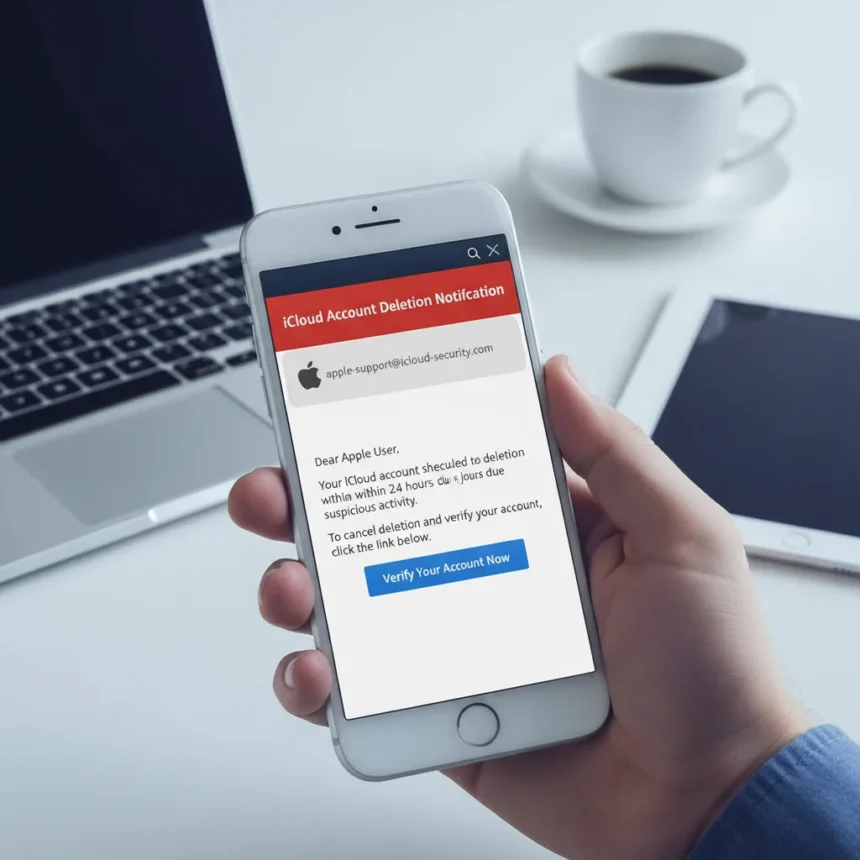
The iCloud deletion scam is a sophisticated phishing attack that tricks Apple users into revealing their credentials by falsely claiming their iCloud data will be deleted unless they act immediately. Scammers send emails designed to look like official Apple warnings, complete with spoofed sender addresses and authentic branding, to panic users into clicking malicious links that lead to counterfeit login pages.
Key Takeaways
- Fraudulent emails claim iCloud data deletion is imminent, creating false urgency to trick users
- Clicking links in scam emails leads to fake Apple login pages that harvest Apple ID credentials
- Legitimate Apple emails about account issues include your billing address; scams omit this detail
- Apple never threatens account deletion via email—real restrictions appear only upon login attempt
- Forward suspicious emails to [email protected] and change your password immediately if compromised
How the iCloud Deletion Scam Works
The attack begins with an email that mimics Apple’s visual style and branding, typically with a subject line warning of imminent data deletion. The message includes a button or link labeled something like “Verify Account” or “Prevent Deletion,” designed to create panic and bypass critical thinking. When clicked, the link directs users to a counterfeit Apple login page that appears nearly identical to the real thing. Users who enter their Apple ID, password, or two-factor authentication code on these fake pages hand scammers direct access to their accounts.
Once compromised, accounts become targets for data theft, unauthorized purchases, or further exploitation through password reset attacks. The sophistication of these scams makes them particularly dangerous—they leverage perfect visual imitation combined with psychological pressure tactics that exploit users’ fear of losing their data.
Red Flags That Reveal the iCloud Deletion Scam
Apple never sends unsolicited emails threatening account deletion or suspension. If your account is actually restricted, you’ll discover it when you attempt to log in, not through an email warning. This distinction is crucial: legitimate account restrictions appear in the Settings app or upon login, never as a preemptive threat.


Check the sender address carefully. Scammers often use addresses that look similar to Apple’s official domain but contain subtle variations. Legitimate Apple emails about purchases always include your billing address on the receipt—scammers typically omit this or fabricate it because they lack access to your actual account details. Apple also never requests sensitive information like your Social Security number, full credit card number, CCV code, or mother’s maiden name via email.
Another red flag: requests to disable two-factor authentication or Stolen Device Protection. Apple never asks users to turn off these security features through email or any unsolicited communication. If you receive such a request, it’s a scam.



Protecting Yourself From the iCloud Deletion Scam
The safest approach is to never click links in unsolicited emails claiming to be from Apple. Instead, verify your account status independently by navigating directly to appleid.apple.com in your browser or opening the Settings app on your device. Check your purchase history directly in the App Store or iTunes settings to confirm whether any charges are legitimate.
If you’ve already entered your credentials on a suspicious website, change your Apple ID password immediately by visiting iforgot.apple.com. Enable two-factor authentication if you haven’t already, as this adds a critical layer of protection against account takeover. Forward the suspicious email as an attachment to [email protected] so Apple can investigate and block similar attacks.
Related scams often use similar tactics: fake App Store receipts for purchases you never made, spoofed calls from numbers appearing to be Apple Support, and emails with malicious attachments. The underlying mechanism is identical—create urgency, imitate Apple’s appearance, and direct you to a fake login page or trick you into disabling security features.
What Legitimate Apple Communications Look Like
Real Apple emails about account activity come from addresses ending in @apple.com with no variations or misspellings. They include specific details about your account, such as your billing address on purchase receipts, and they never request passwords or sensitive personal information. If you’re unsure about a message, log into your account independently through official Apple channels rather than clicking any links in the email.



What should I do if I already clicked a link in an iCloud deletion scam email?
If you clicked a link but didn’t enter your credentials, you’re likely safe—simply delete the email and move on. If you entered your Apple ID or password on the fake page, change your password immediately at iforgot.apple.com and enable two-factor authentication. Consider checking your account activity for any unauthorized changes or purchases.
Can Apple recover my data if my account is compromised?
Apple’s support team can help you regain access to a compromised account and reverse unauthorized changes, but the faster you act, the better your chances of preventing further damage. Contact Apple Support directly through the official website or call their support line to report the compromise.
How do I report the iCloud deletion scam?
Forward the suspicious email as an attachment to [email protected]. If you received a scam call impersonating Apple Support, report it to reportfraud.ftc.gov in the United States or contact your local authorities.
The iCloud deletion scam succeeds because it exploits real user concerns about account security and data loss. By learning to recognize the telltale signs—unsolicited urgency, requests to click links, and threats delivered via email rather than your device—you can protect yourself and your data. When in doubt, always verify account status through official channels independently rather than responding to email prompts. Apple’s security depends not just on technology but on informed users who refuse to panic when pressured.
Edited by the All Things Geek team.
Source: TechRadar