






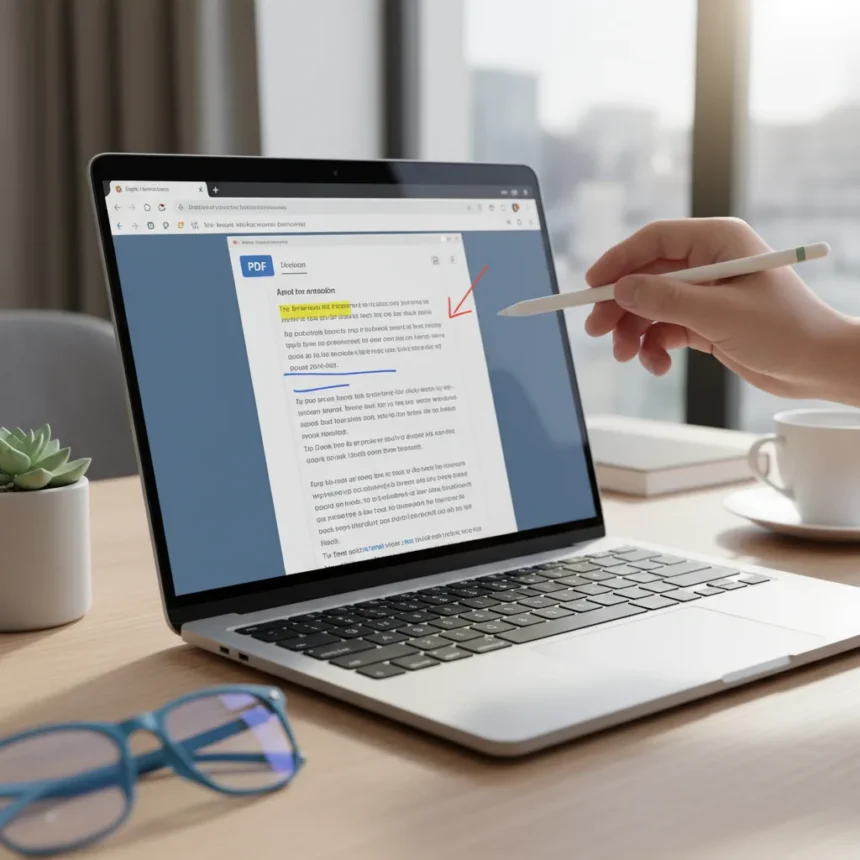
Chrome’s PDF annotation tool is a native browser feature that lets you mark up PDFs without installing additional software or paying for subscriptions. The tool supports highlighting, underlining, strikethrough, squiggly underlines, and freehand drawing—all embedded directly into Chrome’s PDF viewer. Once you annotate a document and download it, your markups save permanently within the PDF file itself.
Key Takeaways
- Chrome’s PDF annotation tool is completely free and built into the browser with no login required.
- Supports five annotation types: highlight, underline, strikethrough, squiggly underline, and freehand drawing.
- Annotations embed permanently in the PDF when you download the file.
- Works on Windows, macOS, and Linux desktop versions; mobile support limited to viewing only.
- Safer alternative to online PDF converters, which carry malware risks flagged by the FBI.
How to Open and Annotate a PDF in Chrome
Getting started with Chrome’s PDF annotation tool requires just three steps: open a PDF in Chrome, locate the annotation toolbar, and select your marking tool. You can open a PDF by dragging and dropping a file directly into a new Chrome tab, using File > Open File from the menu, or pasting a PDF URL into the address bar. Once the PDF loads in Chrome’s viewer, look for the pencil icon in the top-right corner next to the download and print buttons—clicking it expands the full annotation toolbar.
The toolbar displays five distinct annotation options arranged horizontally. Click the highlight icon and drag over any text to apply yellow highlighting; the underline tool works the same way but adds a line beneath text instead. Strikethrough removes text visually by drawing a line through it, while the squiggly underline creates a wavy line for emphasis or correction marking. The freehand draw tool opens a color picker and line thickness slider, letting you sketch directly on the page with full customization.
Right-clicking any annotated area lets you add sticky note comments for longer feedback without cluttering the document itself. This combination of quick markup tools and optional note-taking covers most PDF review workflows without forcing you into complicated menu systems.



Why Chrome’s Annotation Tool Beats Third-Party Alternatives
Chrome’s native PDF annotation tool eliminates the friction of downloading and installing dedicated software. Adobe Acrobat’s online editor offers free conversion and basic editing but requires an internet connection and enforces file size limits that can block larger documents. Offline PDF editors like Foxit or PDF-XChange provide more advanced features such as form filling, but they demand a separate download and installation step that many users skip entirely.
The real advantage lies in speed and safety. Free online PDF converters carry significant security risks—the FBI has issued multiple warnings about converters that inject malware and steal passwords. By using Chrome’s built-in tool, you avoid third-party websites entirely and keep your documents on your own device. The annotation feature works offline once the PDF loads, so you never upload sensitive files to an external service. Edge and Firefox offer similar built-in PDF annotators, but Chrome’s toolbar remains more intuitive for users unfamiliar with the feature, partly because it remains overlooked by the vast majority of Chrome users.



Saving and Sharing Your Annotated PDFs
Once you finish marking up a PDF, click the download icon in the top-right corner of the viewer to save the file with all annotations embedded. Unlike some online tools that strip markup when you export, Chrome preserves every highlight, underline, and drawing you added—the annotations become a permanent part of the PDF itself. This means anyone who opens your downloaded file will see your markups exactly as you created them, whether they use Chrome, Adobe Reader, or any other PDF viewer.
Printing annotated PDFs works the same way. Click the print icon, and all your markups appear in the printed output. This makes Chrome’s tool useful for collaborative reviews where you need to share feedback on paper or in PDF form without relying on email attachments or cloud storage services.
What You Need to Use Chrome’s PDF Annotation Tool
Chrome version 120 and later includes the full annotation feature set on Windows, macOS, and Linux. The tool is completely free—no account login, no subscription, no hidden costs. If you’re running an older version of Chrome, updating to the latest stable release takes seconds through Settings > About Chrome, which automatically downloads and installs updates. Mobile versions of Chrome can view and open PDFs but do not currently support the annotation toolbar, so markup work remains a desktop-only feature for now.
Is Chrome’s PDF annotation tool as powerful as Adobe Acrobat?
No. Acrobat offers form filling, signature insertion, and advanced redaction tools that Chrome’s viewer does not include. However, for basic markup tasks like highlighting, underlining, and adding comments, Chrome’s tool handles the job without forcing you to pay for a subscription or upload documents to the cloud.



Can I use Chrome’s PDF annotation tool offline?
Yes. Once a PDF loads in Chrome’s viewer, the annotation tools work completely offline. You do not need an internet connection to highlight, underline, or draw on the document. The only time you need a connection is to download or print the annotated file.
Do annotations stay in the PDF file permanently?
Yes. When you download an annotated PDF from Chrome, all markups embed permanently into the file. Open it later in any PDF viewer—Chrome, Adobe Reader, or anything else—and your annotations remain intact and visible.
Chrome’s PDF annotation tool solves a real problem that most users don’t realize they have: the need to review and mark up documents without installing software or risking malware from sketchy online converters. It sits quietly in your browser, free and ready whenever you need it. If you’ve been wrestling with third-party PDF editors or avoiding markup altogether, this built-in feature deserves a try.
This article was written with AI assistance and editorially reviewed.
Source: Tom's Guide