





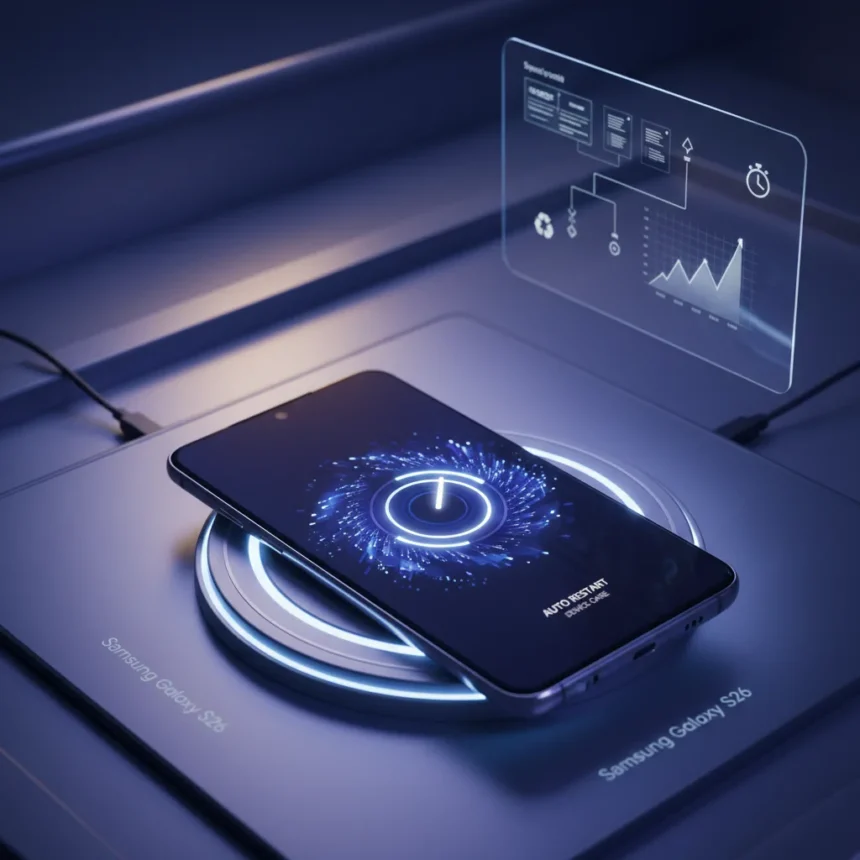
Samsung Galaxy S26 Auto Restart is a built-in Device Care feature designed to maintain device performance by automatically restarting your phone on a schedule. Buried three menus deep in Settings, this tool clears background processes, apps, and temporary system clutter without requiring manual intervention. Most Galaxy S26 owners never find it—but those who do report noticeably snappier performance over time.
Key Takeaways
- Auto Restart is located in Settings > Device Care > More options > Auto restart and is fully user-configurable.
- Schedule automatic restarts daily, weekly, or manually trigger them to clear background bloat and prevent slowdowns.
- The feature performs a soft restart that keeps some background processes running, unlike a full cold boot.
- Inactivity Restart, a related feature, automatically restarts phones locked for 72 hours, now rolling out to Galaxy Z Fold 7 and other models.
- Available on Galaxy S26 series post-launch; check Settings > Software Update to ensure you have the latest version.
How Samsung Galaxy S26 Auto Restart Works
Auto Restart performs scheduled soft restarts that prompt for your PIN or unlock pattern but do not fully power down the device like a cold boot would. This means some background apps and the system uptime clock continue running in the background. The feature excels at clearing temporary cache, closing hung processes, and resetting memory without the full system reset that a manual power-down delivers. Think of it as a targeted performance refresh rather than a complete device reset.
The distinction matters. Forum users report that Auto Restart feels more cosmetic than transformative—it does not match the performance boost of a true cold restart where you fully power off and on. However, for users who rarely manually restart their phones, scheduling daily 2 AM restarts captures the performance benefits of regular maintenance without requiring any thought.
How to Enable Samsung Galaxy S26 Auto Restart
Enabling Auto Restart takes under two minutes. Open Settings, tap Device Care, then tap the three-dot menu labeled More options. Select Auto restart, toggle the feature on, and choose your preferred schedule—daily, weekly, or custom intervals. Most users set it to run at 2 AM when the phone is charging and idle. Once enabled, the feature runs silently in the background without notifications or interruptions.



If you prefer manual control, you can trigger a restart anytime by pressing and holding the power button for two seconds, then tapping Restart. On Galaxy S26 models with Bixby bound to the power button, press and hold power plus volume down instead. This gives you immediate performance relief without waiting for the scheduled restart.
Related Feature: Inactivity Restart Expands Across Samsung Phones
Samsung has expanded a companion feature called Inactivity Restart beyond the Galaxy S26 series to devices like the Galaxy Z Fold 7. This feature automatically restarts your phone if it remains locked for 72 hours—a safety net for devices left idle in bags, drawers, or desks. Enable it by going to Settings > Security & Privacy > More Security and toggling Restart your phone if it remains locked for 72 hours. The expansion signals Samsung’s broader push to make automatic restarts a standard maintenance tool across its lineup.

The combination of scheduled Auto Restart and passive Inactivity Restart means your Galaxy S26 can maintain performance without you lifting a finger. One runs on your schedule; the other runs only when your phone sits unused for three days. Together, they cover most real-world use patterns.
Does Auto Restart Really Keep Your Phone Running Like New?
The honest answer is no—not completely. Auto Restart helps, but it is not a miracle cure. Users who expect it to match the performance boost of a full cold restart will be disappointed. The feature clears background cruft and resets some memory, but does not fully reset the system state the way powering off and on completely does.
That said, for users experiencing gradual slowdowns after weeks of heavy use, scheduling daily Auto Restarts often prevents the problem from getting worse. It is maintenance, not resurrection. If your Galaxy S26 is already sluggish, a manual full restart or clearing your cache might deliver faster relief than waiting for the next scheduled Auto Restart.
Software Update Requirements
Auto Restart became widely available on Galaxy S26 models via post-launch software updates. To ensure you have access to the feature, check Settings > Software Update and tap Download and install if an update is available. Samsung continues rolling out related performance features through security patches, so keeping your phone current unlocks the latest Device Care capabilities.


How does Auto Restart compare to manual restarts?
Auto Restart performs a soft restart that keeps some background processes and the system uptime clock running, while a manual full restart completely powers off the device and resets everything. Manual restarts deliver a bigger performance boost, but Auto Restart provides consistent maintenance without user effort. For most people, scheduled Auto Restarts prevent slowdowns; manual restarts fix them.
Can I customize the Auto Restart schedule on my Galaxy S26?
Yes. Once you enable Auto Restart in Device Care, you can set it to run daily, weekly, or at custom intervals. Most users choose 2 AM to avoid interruptions, but you can pick any time your phone is typically idle and charging. You can also disable it anytime or manually trigger a restart whenever you want.
What should I do if my Galaxy S26 is still slow after enabling Auto Restart?
If Auto Restart alone does not improve performance, try a manual full restart by pressing and holding the power button, then tapping Restart. You can also clear your app cache through Settings > Apps, or uninstall apps consuming excessive background resources. Forum users report that problematic apps or SIM lock issues sometimes cause slowdowns that Auto Restart cannot fix.
Samsung Galaxy S26 Auto Restart is the kind of feature that works best when you forget about it. Enable it, set it to run nightly, and let it quietly maintain your phone’s performance in the background. It will not make an aging device feel brand new, but for Galaxy S26 owners who want to stretch out that fresh-from-the-box speed, it is a free and effortless win.
Where to Buy
Samsung Galaxy S26 Ultra | Samsung Galaxy S26 Plus | Samsung Galaxy S26
Edited by the All Things Geek team.
Source: Android Central