





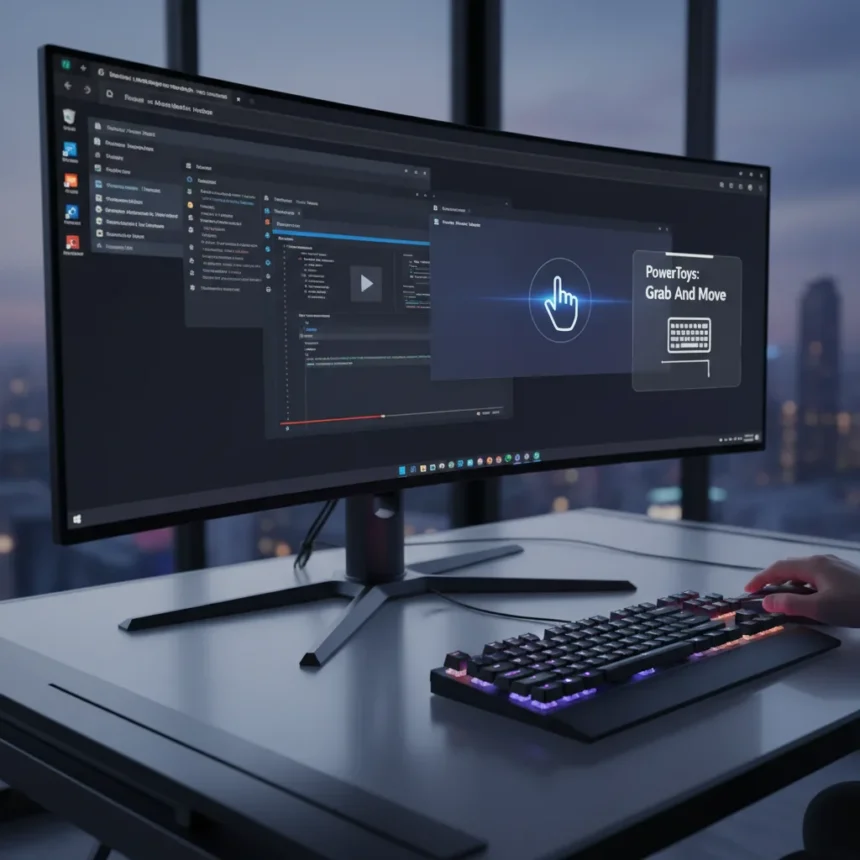
Windows 11 Grab And Move is a new module in Microsoft’s free PowerToys utility suite that solves one of Windows’ most frustrating daily annoyances: hunting for the title bar just to move a window. Available in PowerToys version 0.87.0 and later, this feature lets you drag and resize windows from anywhere on the window—not just the tiny title bar—using simple keyboard shortcuts.
Key Takeaways
- Hold Ctrl+Shift and left-click to drag windows from anywhere; right-click to resize from any edge.
- Windows 11 Grab And Move is completely free and open-source, available on GitHub and Microsoft Store.
- Requires Windows 11 version 22H2 or later; no performance impact on system resources.
- Solves the longstanding frustration of chasing title bars on maximized windows and thick borders.
- Works smoothly with multiple monitors and virtual desktops without additional configuration.
How Windows 11 Grab And Move Works
The Windows 11 Grab And Move feature operates through two core keyboard shortcuts. Hold Ctrl+Shift, then left-click and drag anywhere on a window to move it to a new position; the same modifier key combined with a right-click and drag lets you resize from any edge or corner. This eliminates the precision clicking required to grab a thin title bar, especially on maximized windows where the draggable area shrinks to almost nothing. The feature works on any part of the window—the client area, borders, or even when a window is already at full screen.
The shortcuts are customizable through PowerToys Settings, though the defaults cover most use cases immediately. Activation delay is set to 0ms by default, meaning the drag responds instantly to your input. For users who want tighter control, advanced options include snap-to-edges functionality, which automatically aligns windows to screen edges during a drag operation, and a toggle to restrict dragging to the title bar if you prefer the traditional behavior.
Setting Up Windows 11 Grab And Move in PowerToys
Installation is straightforward. Download PowerToys from either the official GitHub releases page (github.com/microsoft/PowerToys) or the Microsoft Store, then launch the application. Navigate to Grab And Move in the left sidebar and toggle Enable Grab And Move to ON. That’s it—the feature is immediately active with default shortcuts. If you want to customize the keyboard combination or adjust settings like move-only-on-titlebar behavior, the Settings panel offers those options without requiring a restart.
PowerToys is completely free and open-source, meaning there are no subscription fees, no ads, and no data collection tied to this feature. The entire utility suite, including Grab And Move, is maintained by Microsoft’s PowerToys team and updated monthly. The latest stable release as of September 2025 is version 0.87.0, which introduced Grab And Move as a response to years of user feedback on GitHub requesting easier window management in Windows 11.
Why This Matters for Windows 11 Users
Windows 11’s native window management tools—Snap Layouts (Win+Z) and drag-to-top snapping—require you to grab the title bar. On a 1440p monitor, that title bar is a thin target, and on maximized windows it’s even thinner. Grab And Move eliminates this friction entirely. Compare this to macOS, where dragging from anywhere has been native for decades, or to third-party tools like AutoHotkey scripts that require custom coding. Windows 11 Grab And Move offers the same convenience as a plug-and-play solution with no scripting required.



The feature integrates naturally with Windows 11’s existing window management ecosystem. It doesn’t replace Snap Layouts or FancyZones (another PowerToys module for window zoning); instead, it complements them by making basic window movement faster and less frustrating. Users with multiple monitors report no issues, and the feature works across virtual desktops without additional configuration. There’s no measurable system performance impact, so enabling it costs nothing in terms of responsiveness or battery life.
Is Windows 11 Grab And Move Worth Using?
Yes, if you move windows frequently or work with multiple applications side by side. Power users who spend hours rearranging windows, developers juggling code editors and terminals, and anyone frustrated by the title bar hunt will feel the difference immediately. The feature is so low-friction—just enable it and start using it—that there’s no reason not to try it. Since PowerToys is free and open-source, there’s zero financial risk. The only minor downside is that it requires Windows 11 build 22H2 or later, so older installations need an update first.
Casual users who rarely move windows might not notice the benefit, but even they’ll appreciate the feature once they discover it. The keyboard shortcut becomes muscle memory within minutes, and the time saved across hundreds of window drags adds up over weeks and months.
Does Windows 11 Grab And Move work with all window types?
Yes. The feature works with standard application windows, maximized windows, borderless windows, and resizable dialog boxes. It functions across multiple monitors and virtual desktops. Some edge cases with certain older or third-party applications may behave unexpectedly, but the vast majority of Windows software responds correctly to the Ctrl+Shift drag commands.



Can I customize the Windows 11 Grab And Move shortcuts?
Absolutely. Open PowerToys Settings, navigate to Grab And Move, and modify the activation shortcut to any key combination you prefer. You can also toggle the move-only-on-titlebar setting to restrict dragging to the title bar if you want traditional behavior, though that defeats the purpose of the feature.
Does Windows 11 Grab And Move slow down my system?
No. The feature runs with zero measurable performance impact. PowerToys is lightweight, and Grab And Move adds only a minimal keyboard-monitoring overhead that is negligible on modern hardware. Users report no change in system responsiveness or battery life after enabling the module.
Windows 11 Grab And Move is a small quality-of-life improvement that Microsoft quietly shipped to address a decade-old frustration. It costs nothing, takes 30 seconds to enable, and saves time every single day. For anyone spending hours in front of a Windows 11 machine, it’s one of the easiest wins available in PowerToys right now.
Edited by the All Things Geek team.
Source: Windows Central