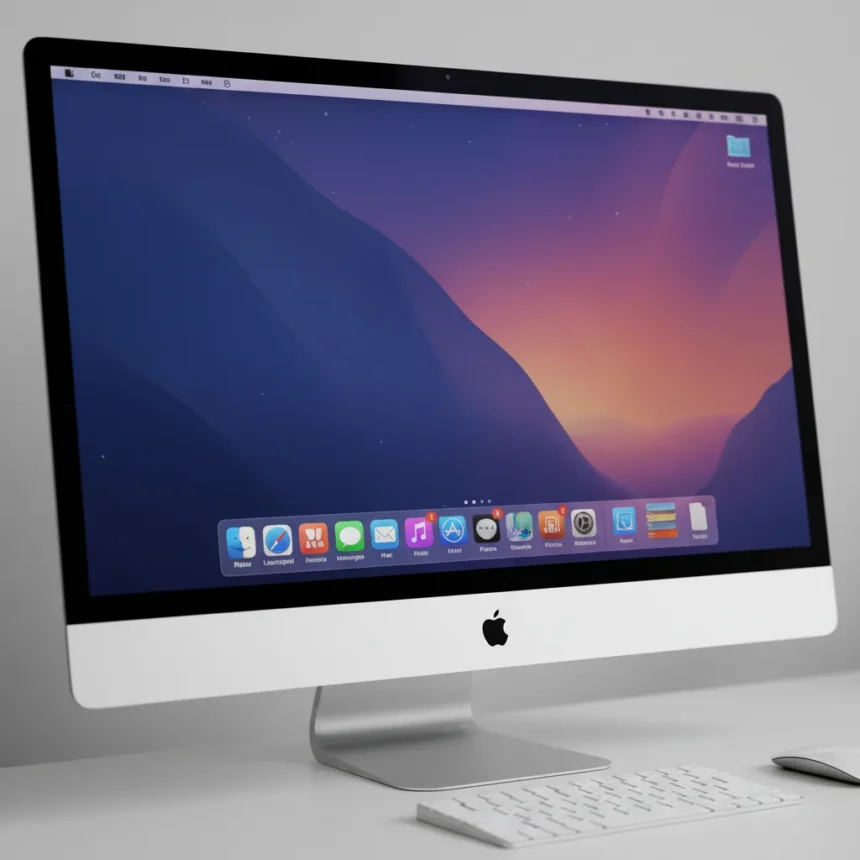
The macOS Dock is an icon-laden shelf typically positioned at the bottom of your screen that serves as Apple’s answer to the Windows taskbar, providing quick access to apps, files, folders, and your Trash. Unlike the traditional taskbar, the macOS Dock organizes content into distinct zones and includes features like magnification, folder stacks, and keyboard navigation that set it apart. Whether you’re new to Mac or returning after years away, understanding how to customize and navigate the Dock transforms it from a passive launcher into a genuinely useful productivity tool.
Key Takeaways
- The macOS Dock divides into three sections: apps on the left, open applications in the middle, and files or folders on the right.
- Customize Dock size, position, magnification, and auto-hide behavior through System Settings > Desktop & Dock.
- Add apps by dragging them from Finder; remove them by dragging off the Dock without deleting originals.
- Keyboard shortcuts like Command + Option + D toggle the Dock, while Fn + Control + F3 focuses it for arrow-key navigation.
- Folder stacks display contents as Fan, Grid, or List views, accessible via right-click menu.
What the macOS Dock Actually Does
The macOS Dock functions as a centralized hub for launching applications and accessing frequently used files and folders. It’s divided into three distinct zones separated by a dividing line: the left side holds apps you’ve deliberately added, the middle shows currently open applications marked with a black dot beneath their icon, and the right side contains files, folders, minimized windows, and Trash. By default, Apple includes Finder and a Downloads folder, with recently used apps appearing automatically if you enable that setting.
What makes the Dock different from Windows’ taskbar is how it handles organization. Rather than cramming everything into one horizontal bar, the Dock uses spatial separation to create visual hierarchy. Open apps display a telltale black dot, while closed apps remain static. This visual distinction matters: you can immediately see what’s running without hovering or clicking, a small but meaningful advantage when you’re juggling multiple projects.
Customizing the macOS Dock to Your Workflow
Customizing the macOS Dock begins in System Settings under Desktop & Dock, where you control size, position, magnification, animation, and auto-hide behavior. Size adjustment ranges from tiny to expansive—drag the separator line with the double arrow to resize on the fly, or use the slider in System Settings for finer control. Position options let you anchor the Dock to the bottom, left, or right edge of your screen, a flexibility the Windows taskbar doesn’t offer.


Magnification amplifies icons as your cursor hovers over them, making small icons readable without consuming permanent screen space. Auto-hide reclaims real estate by hiding the Dock until you move your cursor to its edge, useful on smaller displays or when you want maximum workspace. Animation settings control how windows minimize into the Dock—options range from smooth Genie effects to instant Scale animations.
Adding items to the Dock is straightforward: open Finder, locate an app or file, and drag it to your preferred zone. Apps belong on the left side of the separator; files and folders go on the right. Removing items is equally simple—drag any icon off the Dock and it vanishes, leaving the original file or application untouched on your Mac.



Advanced macOS Dock Features Worth Using
Folder stacks transform the Dock from a flat launcher into a browsable file system. Right-click any folder in the Dock and select Stack to choose how its contents display: Fan spreads items in an arc you click to browse, Grid shows a compact matrix with a parent folder link at the top, and List hovers a submenu when you move your cursor over it. This feature alone eliminates the need for nested Finder windows when accessing frequently used directories.
Keyboard navigation deserves attention if you prefer your hands on the keyboard. Press Fn + Control + F3 to focus the Dock, then use arrow keys to navigate and Return to launch. This workflow bypasses the mouse entirely, a productivity win for power users. Command + Option + D toggles the Dock’s visibility, perfect for maximizing screen space during presentations or focused work sessions.
Option-clicking an app icon switches to that application while hiding your current window, a gesture that streamlines context switching. Command-clicking any Dock item opens it in Finder, letting you navigate to its location without launching it. These gestures feel natural once learned and compound into genuine time savings across a workday.
macOS Dock vs. Windows Taskbar: Key Differences
The macOS Dock and Windows taskbar serve identical purposes but embody different design philosophies. The Dock uses spatial zones and visual separation to organize content; the taskbar relies on pinning and grouping. The Dock includes native folder stacks and magnification; the taskbar uses jump lists and preview windows. The Dock hides on demand; the taskbar typically remains visible. Neither approach is objectively superior—they reflect how each operating system prioritizes space, visibility, and interaction.



For Mac users transitioning from Windows, the Dock’s learning curve is shallow. Within a few minutes of dragging apps and adjusting settings, the Dock becomes intuitive. The key mental shift is understanding that the Dock is not just a launcher but a contextual display of what’s running and what you’ve chosen to keep accessible.
Can I move the macOS Dock to a different location?
Yes. Open System Settings, navigate to Desktop & Dock, and select your preferred position: bottom, left, or right. The Dock will reposition immediately, and all your pinned apps and files remain in place.
What’s the difference between closing an app and minimizing it to the Dock?
Minimizing moves the window to the Dock as a preview you can click to restore; the app continues running in the background. Closing (or quitting) stops the app entirely, though you can Control-click an app icon and select Quit to close it while keeping the Dock icon visible. A red dot indicates a closed window; a black dot shows an open, running app.
How do I add a file or folder to the macOS Dock permanently?
Drag the file or folder from Finder and drop it on the right side of the Dock separator. It will remain there until you drag it off. This creates an alias, not a copy, so the original file stays in its original location.
The macOS Dock rewards customization. Spend ten minutes configuring its position, size, and contents, and you’ll unlock a navigation system that genuinely accelerates your workflow. It’s not flashy, but it’s one of the few interface elements that pays dividends every single day you use your Mac.
Edited by the All Things Geek team.
Source: TechRadar