





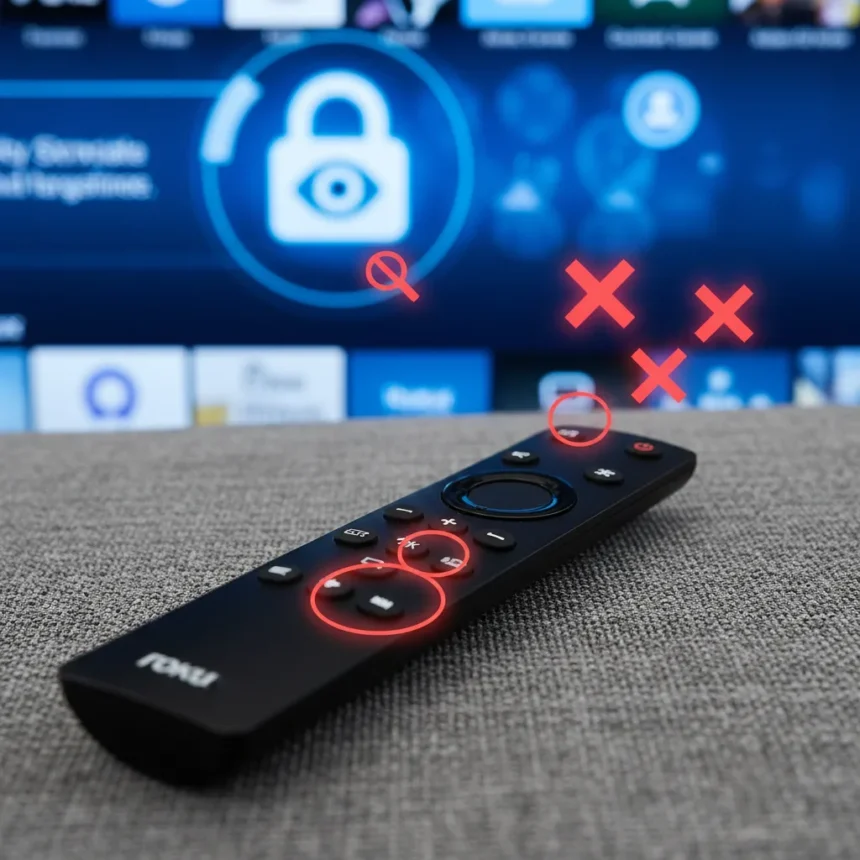
Roku TV tracking is enabled by default on most Roku devices and televisions made by TCL, Hisense, and Roku’s own brand. Your viewing habits—what you watch, when you watch it, and what you search for—are collected and used to serve personalized advertisements and build detailed profiles of your interests. The good news: you can disable most of this tracking by changing three privacy settings in your TV’s menu.
Key Takeaways
- Roku collects viewing data from apps, cable boxes, and broadcast channels by default across all Roku devices.
- Access all privacy controls via Settings > Privacy; menu names vary by model and software version.
- Disabling “Use Info from TV Inputs” stops tracking of external content; adjusting advertising settings limits ad personalization.
- Some limited diagnostic data may persist even after opting out of tracking.
- Samsung, LG, and Android TV platforms offer similar privacy controls with different menu paths.
How Roku TV Tracking Works
Roku TV tracking operates through a system similar to Automatic Content Recognition (ACR) used on competing platforms. The Roku platform monitors what you watch across all inputs—streaming apps, cable boxes, broadcast television, and external devices—and sends this data back to Roku’s servers. This information is then used to build an advertising profile, allowing Roku and third-party advertisers to target you with personalized ads based on your viewing history.
Unlike traditional cable boxes, which only track what channel you’re watching, Roku TV tracking captures granular details about content consumption across your entire entertainment ecosystem. The company does not have a traditional ACR function labeled as such, but uses equivalent settings like “Use Info from TV Inputs” and advertising controls to achieve the same tracking outcome. This happens quietly in the background without explicit user notification on most models.
The Three Privacy Settings to Change on Roku TV Tracking
Disabling Roku TV tracking requires navigating to your TV’s privacy menu and changing three specific settings. The process is straightforward, though menu names and exact paths can vary depending on your Roku TV model, software version, and region. Start by going to Settings > Privacy on your remote—this menu contains all privacy-related options.

First, disable “Use Info from TV Inputs.” This setting is found under Smart TV Experience. When enabled, it tracks content from external devices like cable boxes, apps, and broadcast channels. Disabling this option stops Roku from collecting viewing data from these sources. This is the most important setting to change if you want to prevent comprehensive tracking of your entertainment habits.
Second, adjust your advertising settings. Go to Settings > Privacy > Advertising and look for options related to personalized ads, interest-based advertising, or ad tracking. Disabling these settings prevents Roku from using your viewing history to serve targeted advertisements. You may also see an option to “Do not share/sell my information” or “Limit use of sensitive information”—enable these if available.



Third, control microphone access if your remote has voice features. Navigate to Settings > Privacy > Microphone and disable “Channel Microphone Access” and “Channel Permissions”. This prevents voice commands and microphone data from being collected by Roku or individual apps.
What Happens After You Disable Roku TV Tracking
After changing these three settings, most viewing-based tracking and ad personalization will stop. Your TV will continue to function normally—disabling these options does not impact performance, streaming quality, or app functionality. However, it is important to understand that some limited diagnostic data collection may continue even after you opt out. Roku may still collect information about app crashes, system errors, or device health, but this data is not used for advertising purposes.
The tracking opt-outs work similarly to privacy controls on competing smart TV platforms. Samsung TVs require disabling Viewing Information Services in Settings > Support > Terms & Privacy > Privacy Choices. LG webOS TVs use Settings > General > System > Additional Settings > Live Plus to disable their equivalent tracking system. Android TV and Google TV devices have similar controls in their settings menus. Roku’s privacy controls are functionally equivalent to these options on other brands.
Why Smart TV Tracking Matters Now
Smart TV tracking has become increasingly aggressive as manufacturers compete for advertising revenue. Recent studies have revealed how extensively smart televisions monitor viewing behavior, sparking consumer concerns about privacy and data security. Roku, like most smart TV manufacturers, profits from advertising and data insights, making these tracking features a core business model rather than an optional service.



The difference between Roku and traditional cable or satellite TV is scale and precision. Cable companies know what channel you’re watching; Roku knows what you’re watching, when you paused it, what you searched for, and what ads you clicked. This granular data is valuable to advertisers and is collected automatically unless you actively disable the settings. Taking control of your privacy requires a few minutes of menu navigation now rather than months or years of unwanted tracking.
Can You Disable All Roku TV Tracking?
You cannot disable all data collection on a Roku TV, but you can disable most viewing-based tracking and ad personalization. Some limited diagnostic data—information about app crashes, system errors, or device performance—may continue to be collected. This data is not used for advertising purposes and is necessary for Roku to maintain the platform and fix bugs. The three privacy settings described above target the advertising and content-tracking features specifically.
Menu names and exact setting paths can vary by Roku TV model, software version, and region. If you cannot find the exact settings described here, check your TV’s user manual or Roku’s support website for your specific model. The general structure—Settings > Privacy—remains consistent across most Roku devices.
How does Roku TV tracking compare to other smart TV brands?
Roku TV tracking uses similar technology to Samsung’s Viewing Information Services, LG’s Live Plus, and Android TV’s Samba Interactive TV systems. All of these platforms collect viewing data for advertising purposes by default. The main difference is the menu path and setting names—the underlying tracking mechanism is functionally equivalent across brands. If you own multiple smart TVs from different manufacturers, you will need to disable tracking on each device separately using brand-specific privacy menus.
Will disabling these settings slow down my Roku TV?
No. Disabling Roku TV tracking settings does not impact performance, streaming speed, or app functionality. These privacy controls only affect data collection and ad personalization—they do not change how your TV operates. Your streaming apps, picture quality, and remote responsiveness will remain unchanged.
Taking three minutes to change these privacy settings protects your viewing data from being collected and sold to advertisers. Smart TV tracking is not always visible or obvious, but it is happening in the background on most devices unless you explicitly disable it. The effort required to opt out is minimal, and the privacy benefit is substantial—making these three changes one of the quickest wins available to anyone concerned about data collection on their television.
Where to Buy
Hisense U8N ULED TV | Samsung S95C 55-inch OLED TV | LG OLED65G4 | Hisense 65U6K
Edited by the All Things Geek team.
Source: Tom's Guide




