





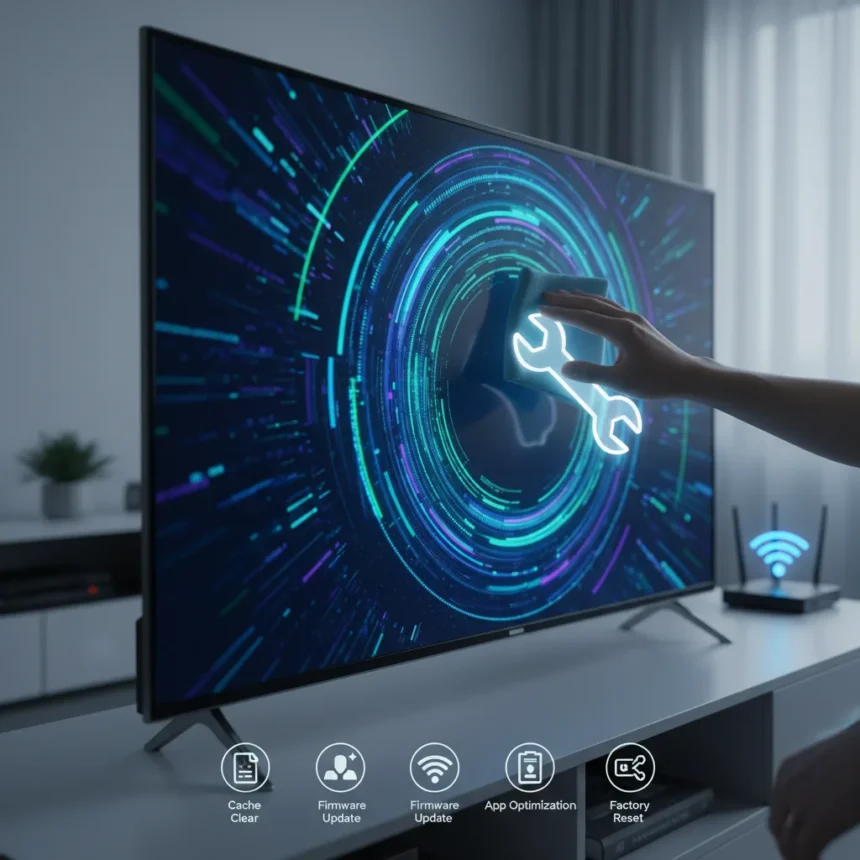
Your smart TV isn’t old—it’s just clogged. A smart TV lag fix doesn’t require a new TV or expensive repairs. Most lag comes from temporary cache files, outdated software, and network bottlenecks that accumulate over time, exactly like a computer slowing down. Smart TVs function like computers with temporary cache storage for quick access to thumbnails, login info, and app data, but buildup slows performance. The good news: five simple, free tweaks restore speed in under an hour.
Key Takeaways
- Cache buildup slows apps and menus; clearing it frees storage without losing data.
- Outdated firmware causes lag; enable auto-updates or check manually every month.
- Wired Ethernet beats Wi-Fi for speed and reliability, especially for 4K streaming.
- Disabling animations (Window/Transition scales) can cut app load times by seconds.
- Uninstalling unused apps frees RAM and reduces background processes.
Clear Your TV’s Cache to Reclaim Speed
Cache clearing is the single fastest smart TV lag fix. Your TV stores temporary files—thumbnails, login sessions, app data—in cache to load them faster next time. Over weeks and months, this cache balloons. Clearing it frees storage and forces apps to reload fresh data, often cutting load times noticeably. This works on Android TV, Google TV, and most streaming platforms.
Go to Settings, then Apps or Application Manager. Select each app you use frequently—Netflix, YouTube, Prime Video—and tap Clear Cache. This removes temporary files without deleting your login credentials or watch history. Repeat for three to five apps. The entire process takes five minutes. One user reported reducing Netflix load time from 24 seconds to 21 seconds on a Xiaomi TV by combining cache clearing with animation adjustments.
Update Your TV’s Firmware Regularly
Outdated firmware is a hidden culprit behind smart TV lag fix needs. Manufacturers release software updates that patch bugs, optimize performance, and improve streaming stability. A TV running firmware from six months ago is slower than one running current code. Check for updates monthly, or enable auto-updates where available.



Navigate to Settings, then System, then Software Update. Tap Check for Updates. If an update is available, install it immediately—this usually takes 10 to 15 minutes and requires no user input beyond confirming the prompt. Enable automatic updates in the same menu if your TV offers the option. This single habit prevents most performance drift that users mistake for aging hardware.
Switch to Wired Ethernet or Optimize Wi-Fi
Network speed directly affects how fast apps load and how smoothly 4K video streams. Wi-Fi is convenient but slower and less stable than a wired connection. A smart TV lag fix often hinges on network quality. If your TV is near your router, run an Ethernet cable to it. Generic Ethernet cables cost under $10 and provide faster, more reliable speeds than Wi-Fi, especially for gaming and 4K content.



If Ethernet isn’t practical, optimize Wi-Fi instead. Connect to the 5GHz band instead of 2.4GHz—it’s faster, though with shorter range. Keep your TV close to the router or use a Wi-Fi extender. Update your router’s firmware as well; outdated router software limits speed. These changes are free and take minutes.
Disable Animations to Speed Up Menus and Apps
This smart TV lag fix works on Android TV and Google TV but requires accessing Developer Options. Animations—the smooth transitions when you open apps or scroll menus—consume processing power. Disabling or reducing them cuts load times measurably. One test showed Netflix loading in 21 seconds with animations reduced versus 24 seconds with full animations enabled.
Go to Settings, then Device Preferences, then About. Tap the Build Number field seven times rapidly. This unlocks Developer Options. Return to Settings and open Developer Options. Find Window Animation Scale, Transition Animation Scale, and Animator Duration Scale. Set each to 0.5x or Off. You’ll notice menus respond faster and apps launch quicker. The trade-off: visual polish decreases slightly, but responsiveness improves noticeably.
Uninstall Apps You Don’t Use
Smart TVs have far less storage and RAM than phones or tablets. Every unused app running in the background consumes memory and slows your TV. Uninstalling them is a straightforward smart TV lag fix. Go to Settings, then Apps, select an app you never use, and tap Uninstall or Delete. Also remove these apps from your home screen and favorites for faster navigation. Delete five to ten unused apps and you’ll feel the difference immediately.



Frequently Asked Questions
How often should I clear my TV’s cache to maintain speed?
Clear cache monthly or whenever you notice apps loading slowly. Most users see good results clearing cache every four to six weeks. It takes just five minutes and requires no technical skill.
Will disabling animations void my TV’s warranty?
Disabling animations through Developer Options is a standard feature on Android TV and Google TV. It does not void warranties. However, other tweaks in Developer Options (like force GPU rendering) may carry risks—stick to animation scales unless you know what you’re doing.
Is a smart TV lag fix worth doing if my TV is five years old?
Yes. Cache buildup and outdated firmware affect TVs of any age. A five-year-old TV with fresh firmware and cleared cache often performs like new. These fixes are free and take under an hour, making them worthwhile before considering replacement.
Your smart TV doesn’t need replacing—it needs maintenance. Cache clogs, outdated software, and slow networks create the illusion of aging hardware. These five fixes cost nothing and take less than an hour combined. Start with cache clearing and firmware updates; they deliver the biggest speed boost for the least effort. If your TV still lags after these tweaks, then network optimization and animation adjustments finish the job. Most users report noticeably faster app loading and snappier menu navigation within a day of applying these changes.
Edited by the All Things Geek team.
Source: Tom's Guide




