





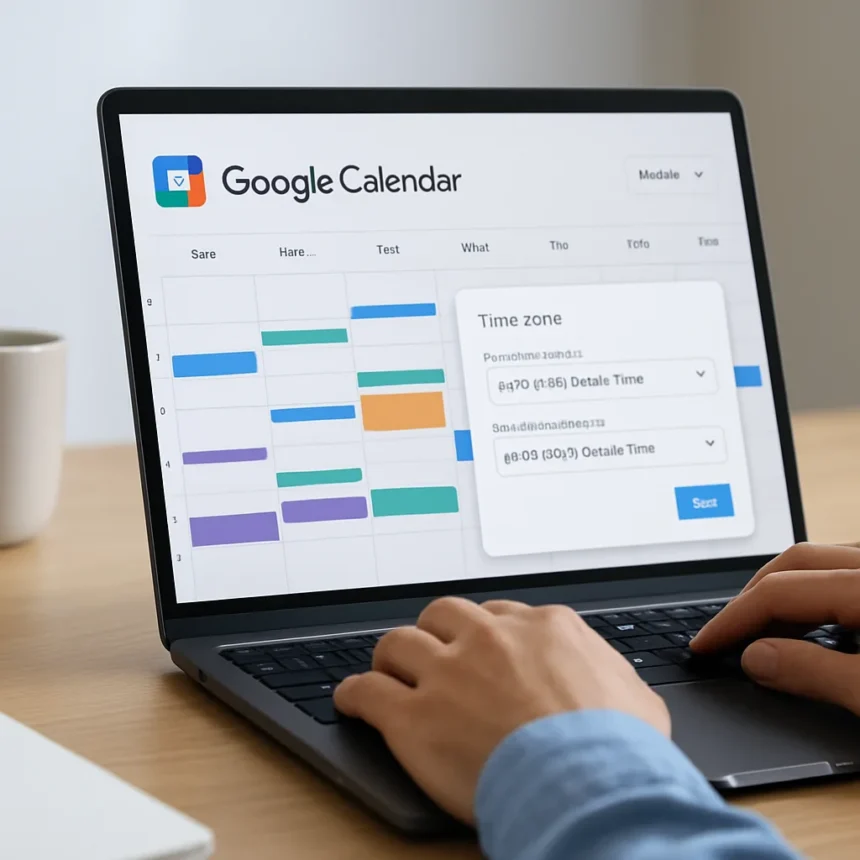
Google Calendar’s new time zone feature solves a problem that has plagued remote teams for years: the constant mental math of converting times across continents. The upgrade, now rolling out to over 500 million users globally, lets you set a primary time zone and optional secondary time zone directly in settings, with all events automatically displaying at the correct times without manual tweaking.
Key Takeaways
- Over 500 million Google Calendar users now have access to dual time zone settings
- Primary and secondary time zones sync automatically across web, Android, and iOS apps
- Changes take effect instantly with no save button required
- Feature is free for all Google Calendar users, including Google Workspace accounts
- World clock display option adds additional time zones for reference
How Google Calendar’s time zone feature works
The Google Calendar time zone feature strips away the friction of managing schedules across multiple regions. When you set a primary time zone in settings, every event on your calendar automatically displays in that zone—no per-event adjustments needed. Enable a secondary time zone and that appears alongside your primary, letting you glance at both simultaneously. The system syncs these settings across your web browser, phone apps, and third-party calendar integrations without requiring separate configuration on each platform.
What makes this upgrade genuinely useful is the automatic synchronization. Previously, users working across time zones had to either manually edit each event or maintain mental conversion tables. Now, accept a meeting scheduled for 3 PM EST and it instantly displays as 12 PM PST if that’s your secondary zone. No save button appears because Google Calendar applies changes the moment you select them.
Setting up Google Calendar time zone settings
Enabling the Google Calendar time zone feature takes under two minutes. Open Google Calendar on the web or mobile app, click the gear icon in the top right corner, and select Settings. Scroll down to the Time zone section under General and pick your primary time zone from the dropdown menu. If you want a secondary time zone visible at all times, enable the Display secondary time zone toggle, select your second zone from the dropdown, and optionally add a custom label to distinguish it.

For calendars you share with others or manage separately, you can set individual time zones per calendar. Navigate to My calendars in the left sidebar, click the three dots next to a specific calendar, select Settings and sharing, and update that calendar’s time zone independently. This proves useful when you manage calendars for different teams or regions—each maintains its own time zone context without affecting your primary view.
The world clock option adds even more flexibility for teams tracking multiple regions. In Settings, find the World clock section and add as many time zones as you need for reference. This keeps you from context-switching between tabs to check what time it is in Tokyo or London.



Why this upgrade matters for remote and hybrid teams
Global teams have suffered through the time zone problem for years. A single miscalculation—confusing AM and PM across zones, forgetting daylight saving changes, or scheduling calls that work for half the team—can derail productivity. The Google Calendar time zone feature eliminates this entirely by making time zone conversion automatic and always visible.
The scale of this rollout underscores how widespread the pain point is. With over 500 million users now able to access dual time zone display, Google is addressing a core friction point in hybrid and remote work. Teams spanning San Francisco to Singapore no longer need to maintain spreadsheets or use separate time zone converters. Your calendar becomes the source of truth, displaying times correctly for your workflow without extra steps.
Comparing Google Calendar to basic alternatives
Many calendar apps lack even basic secondary time zone support. Apple Calendar, for example, requires manual editing of individual events if you need to view them in multiple time zones—no built-in dual-zone display exists. Google Calendar’s automatic syncing across devices and third-party integrations gives it a structural advantage for users who juggle multiple platforms. You set the time zone once in Google Calendar settings and it propagates everywhere.
Is the Google Calendar time zone feature available everywhere?
Yes. The upgrade is free for all Google Calendar users, whether you use a personal account or Google Workspace. It rolls out globally with no regional restrictions—if you can access Google Calendar, you can use the time zone feature. Changes sync automatically to Android and iOS apps, so mobile users see the same time zones as the web version.



Can I set different time zones for different calendars?
Absolutely. Each calendar you manage can have its own time zone. This works well if you oversee calendars for different teams or regions. Your personal calendar might display in your local time while a client’s calendar shows in their zone, all viewable simultaneously without confusion.
What if my time zone changes or I travel frequently?
Updating your time zone takes seconds—just return to Settings, change your primary zone, and the calendar refreshes instantly. For frequent travelers, set your primary zone to wherever you spend most time and use the secondary zone for your home region. As your travel patterns shift, adjust the settings to match your current reality.
The Google Calendar time zone feature represents a quiet but significant quality-of-life improvement for anyone coordinating across regions. It removes a persistent source of scheduling friction and puts the burden on the calendar, not on you. For remote teams, that’s worth the two minutes it takes to set up.
Edited by the All Things Geek team.
Source: Tom's Guide




