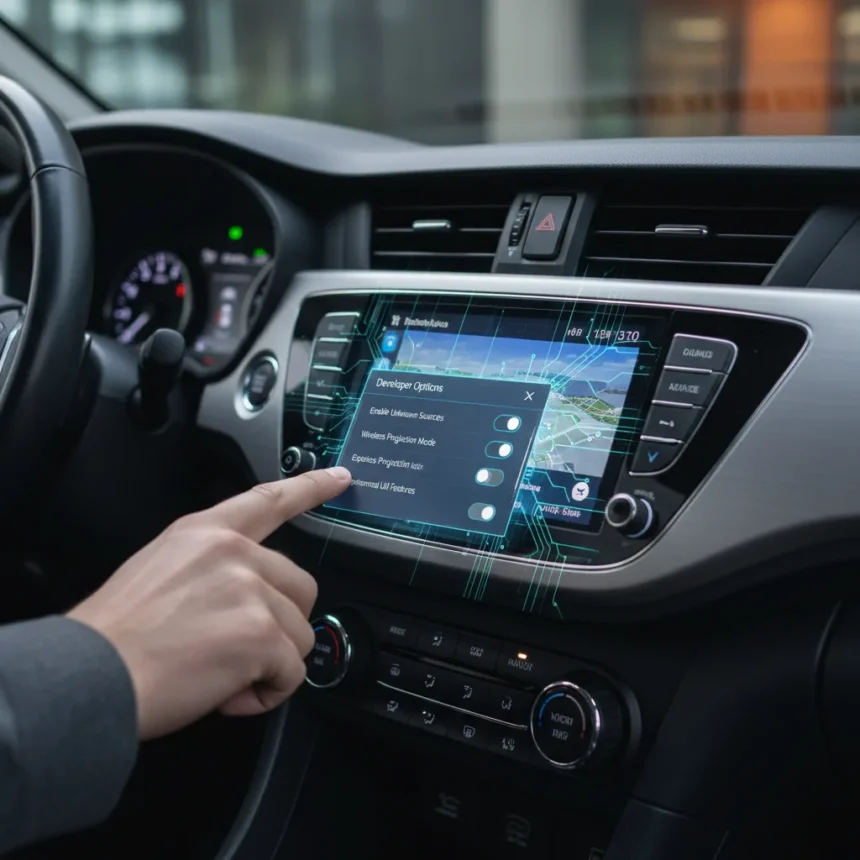
Android Auto hidden settings exist, and they’re far more useful than most drivers realize. These developer-level options sit buried in your phone’s settings menu, accessible only if you know where to look and what to enable. Once you find them, they fundamentally change how Android Auto works in your car.
Key Takeaways
- Android Auto hidden settings unlock developer features not visible in standard menus
- Accessing these settings requires enabling Developer Options on your Android device
- Unknown Sources setting allows sideloaded apps to appear in Android Auto
- Hidden settings provide customization options that improve the driving experience
- Most users never discover these features because they’re intentionally concealed
What Are Android Auto Hidden Settings?
Android Auto hidden settings refer to developer-level customization options that Google intentionally hides from the standard user interface. These settings control features and behaviors that most drivers never encounter because they require deliberate activation through the Developer Options menu. The Unknown Sources developer setting stands out as particularly powerful—it allows apps you sideload onto your phone to appear directly in Android Auto, bypassing Google’s curated app ecosystem.
The existence of these hidden settings reveals a deliberate design choice by Google. Rather than cluttering the main settings interface with advanced options, Google places them behind a developer gate. This protects casual users from accidentally breaking their setup while giving power users exactly what they need. The trade-off is that most people never discover what’s possible.
How to Access Android Auto Hidden Settings
Accessing Android Auto hidden settings requires a specific sequence. First, open your phone’s Settings app and navigate to About Phone. Look for the Build Number field and tap it repeatedly—usually seven times—until your phone announces that Developer Options are now enabled. This unlocks the Developer Options menu in your main settings.


Once Developer Options appear in your settings, the Android Auto hidden settings become accessible. The Unknown Sources option, which allows sideloaded apps to run in Android Auto, sits within this developer menu. Enable it, and third-party apps you’ve manually installed can now appear as options in your car’s Android Auto interface. This single setting opens possibilities that standard Android Auto users never access.
The process itself is straightforward, but the discovery barrier is intentional. Google doesn’t advertise this path because it assumes most drivers should use the official app store. However, for users who understand the implications and want deeper control over their driving experience, the effort to unlock these settings pays immediate dividends.



Why These Settings Matter for Your Driving Experience
Android Auto hidden settings matter because they give you control that the default interface refuses to offer. The ability to sideload apps into Android Auto means you’re not limited to Google’s approved selection. If you rely on a navigation app, messaging platform, or media player that Google hasn’t blessed for car use, hidden settings let you use it anyway.
This flexibility addresses a real limitation in Android Auto’s design philosophy. Google maintains tight control over which apps appear in the car interface, prioritizing safety and simplicity. That’s reasonable for average users. But drivers with specific needs—perhaps you use a regional navigation app, a preferred podcast client, or a specialized fleet management tool—find the restrictions frustrating. Hidden settings bypass those restrictions.
The practical impact extends beyond app selection. These settings also control developer-level logging, performance monitoring, and system behavior that power users leverage to optimize their setup. For someone who spends hours weekly in their car, these customizations accumulate into meaningful quality-of-life improvements.
Common Android Auto Hidden Settings You Should Know
Beyond Unknown Sources, Android Auto’s hidden settings include developer logging options, performance profiling tools, and system-level configurations that most users never touch. These settings appear in the Developer Options menu once you’ve enabled it, though they’re labeled with technical language that discourages casual exploration.



The Unknown Sources setting remains the most immediately useful for typical drivers. It’s the gateway to sideloading, and it’s the one setting that directly expands what Android Auto can do. Other hidden settings primarily serve developers testing apps or power users troubleshooting connectivity issues. Unless you’re actively developing for Android Auto or debugging a persistent problem, the Unknown Sources option delivers the most tangible benefit.
Google’s decision to hide these settings—rather than remove them entirely—suggests the company acknowledges their value for advanced users. The company simply doesn’t want casual users accidentally enabling features that might destabilize their experience. Respecting that boundary while taking advantage of what’s available is the smart approach.
Should You Enable Android Auto Hidden Settings?
Whether to enable Android Auto hidden settings depends entirely on your needs and technical comfort. If you’re satisfied with Google’s curated app selection and prefer simplicity, leaving these settings disabled is perfectly fine. Android Auto works reliably for most drivers without any tweaking.
However, if you’ve ever felt constrained by Android Auto’s app limitations, if you rely on a third-party app that isn’t officially supported, or if you want maximum control over your car interface, enabling these settings is worth the five-minute effort. The risk is minimal—you’re simply unlocking options that already exist. You’re not installing anything or modifying system files. If you change your mind, you can disable Unknown Sources and revert to standard behavior.
The decision ultimately comes down to whether you view Android Auto as a tool that should adapt to your preferences or whether you’re comfortable accepting Google’s design choices. Neither position is wrong. But if you’re the type who customizes your phone, your car, and your digital life generally, Android Auto hidden settings align with that mindset.
Are Android Auto hidden settings safe to enable?
Yes, enabling Android Auto hidden settings is safe. You’re not hacking your phone or bypassing security—you’re simply accessing features Google built into the system. The Unknown Sources setting does allow sideloaded apps, which carries a small risk if you sideload from untrusted sources, but the setting itself is stable and supported.
Can you sideload any app into Android Auto?
Not every app works in Android Auto even with Unknown Sources enabled. Apps must be designed with car-compatible interfaces to function properly. However, Unknown Sources removes the barrier that prevents compatible third-party apps from appearing in the interface.
Will enabling hidden settings void your Android phone warranty?
No. Enabling Developer Options and hidden settings is an officially supported feature of Android. Google provides documentation on how to access these settings, and enabling them does not void your warranty or break your phone.
Android Auto hidden settings transform a capable but restrictive interface into something genuinely customizable. Most drivers never discover them, which means they’re missing opportunities to optimize their driving experience. If you’ve felt limited by Android Auto’s app selection or interface options, these hidden settings might be exactly what you’ve been searching for. The effort to unlock them takes minutes, and the payoff lasts every time you drive.
Edited by the All Things Geek team.
Source: Tom's Guide