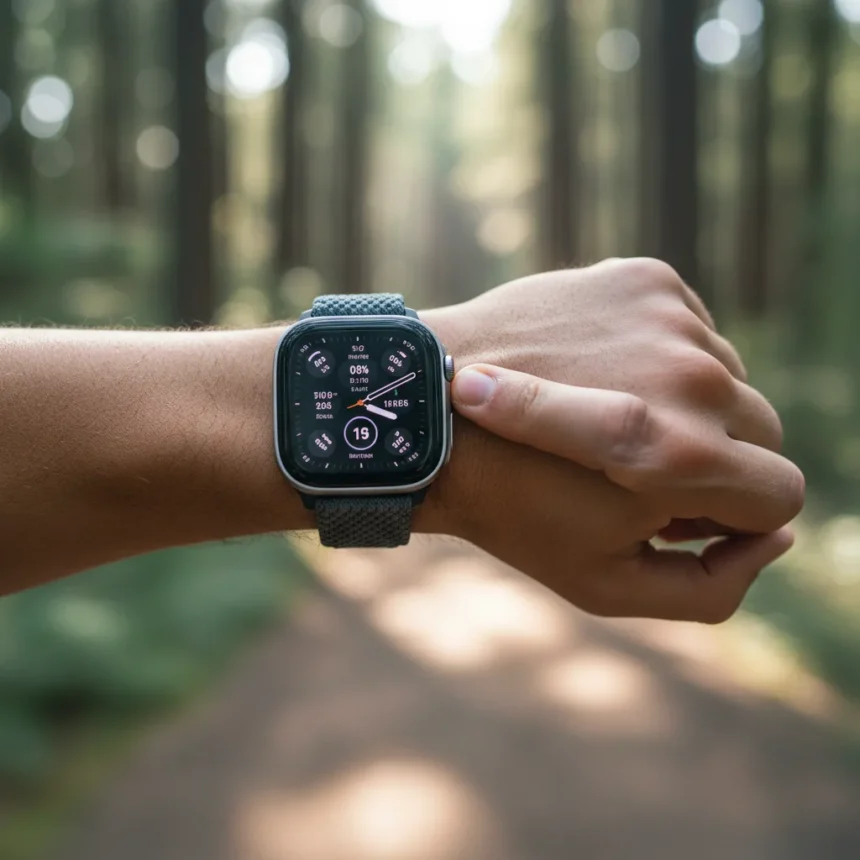
The Apple Watch Ultra Action button is one of the device’s defining features—but only if you can actually reach it while running. A single orientation change fixes this entirely, placing the button exactly where your thumb naturally lands during a workout.
Key Takeaways
- Changing the Digital Crown orientation from top to bottom repositions the Action button to the top edge of the watch.
- This adjustment makes the Action button far more accessible during runs without awkward hand contortions.
- The setting change is found in Settings > General > Watch Orientation on the Apple Watch Ultra.
- The Action button can start workouts, record laps, or trigger custom shortcuts during exercise.
- Many runners never discover this setting despite its dramatic impact on usability during training.
Why the Default Apple Watch Ultra Action Button Position Fails Runners
Out of the box, the Apple Watch Ultra positions the Action button on the bottom edge when the Digital Crown sits at the top. This arrangement forces runners to grip the watch awkwardly or reach around the device to press the button—exactly the wrong moment to fumble with your wrist. The Action button is meant to be your quick-fire control for starting workouts, taking laps, or triggering shortcuts without breaking stride, yet the default layout makes it feel like an afterthought.
The problem compounds during intense running. Your thumb naturally sits on the top edge of a watch worn on your left wrist. Asking it to reach down to the bottom edge means either rotating your wrist, repositioning your grip, or using your opposite hand—all moves that break rhythm and concentration. For a button designed to be instantly accessible, the default orientation is counterintuitive.
How Flipping the Apple Watch Ultra Orientation Solves It
Changing the watch orientation moves the Digital Crown to the bottom, which automatically repositions the Action button to the top edge. Suddenly, your thumb lands directly on the button without any reach or adjustment. This is not a subtle difference—it transforms the button from an awkward peripheral control into an ergonomic necessity that feels intentional.


The process takes less than a minute. Open Settings on your Apple Watch Ultra, navigate to General, select Watch Orientation, and choose the option that places the Digital Crown at the bottom when wearing the watch on your left wrist. The watch face and interface will flip to match, but your hands will thank you immediately on your next run.
The trade-off is real: the entire watch interface inverts, which takes a few hours to stop noticing. But runners who use the Action button regularly report that the ergonomic gain far outweighs the minor cognitive adjustment. Your thumb becomes the primary interface, not an afterthought.



What the Apple Watch Ultra Action Button Actually Does
The Action button is programmable, which means its function depends on your setup. Most runners use it to start and stop workouts without swiping through menus. Others assign it to take a lap marker mid-run, which is invaluable for tracking split times on the fly. Power users configure it to trigger custom shortcuts—opening a specific app, sending a message, or activating a focus mode with a single press.
With the button now positioned at the top edge, all of these functions become genuinely quick-access controls rather than emergency overrides you reach for only when absolutely necessary. The button transforms from a feature you tolerate into one you actually rely on.
Apple Watch Ultra vs. Other Running Watches: Where Ergonomics Matter
The Apple Watch Ultra’s button-based control philosophy differs from competitors that rely primarily on touchscreen interaction. A physical button is objectively faster to activate mid-workout—no need to look at the screen, tap precisely, or worry about sweat affecting responsiveness. But a physical button only works if you can reach it. The orientation setting reveals that Apple designed the feature correctly; the default setup simply didn’t account for how runners actually hold their wrists. Once corrected, the Action button becomes one of the watch’s strongest advantages for fitness tracking.
Is the orientation change permanent, or can I switch back?
You can toggle the orientation setting anytime—there is no permanent commitment. If you find the inverted interface distracting, switching back takes the same minute. Most runners who make the change keep it permanently because the ergonomic benefit outlasts the adjustment period, but the flexibility is there if you need it.



Does this setting affect battery life or performance?
No. Changing the watch orientation is purely a display and interface adjustment. It does not alter how the processor, sensors, or battery function. Your Apple Watch Ultra will perform identically in terms of workout tracking, battery drain, or any other metric—only the physical layout of controls changes.
Will the Apple Watch Ultra still work normally if I flip the orientation?
Completely. The watch functions exactly as intended; only the directional layout shifts. All apps, notifications, and features work identically. Your wrist gestures, swipes, and button presses simply come from a different direction relative to the watch body.
The Apple Watch Ultra Action button was always powerful—the orientation setting just reveals how powerful it can be when ergonomics finally align with intent. If you run regularly and have never adjusted this setting, your next workout will feel noticeably smoother. That is not hyperbole; it is the difference between a control that frustrates and one that flows.
Where to Buy
Edited by the All Things Geek team.
Source: Tom's Guide