





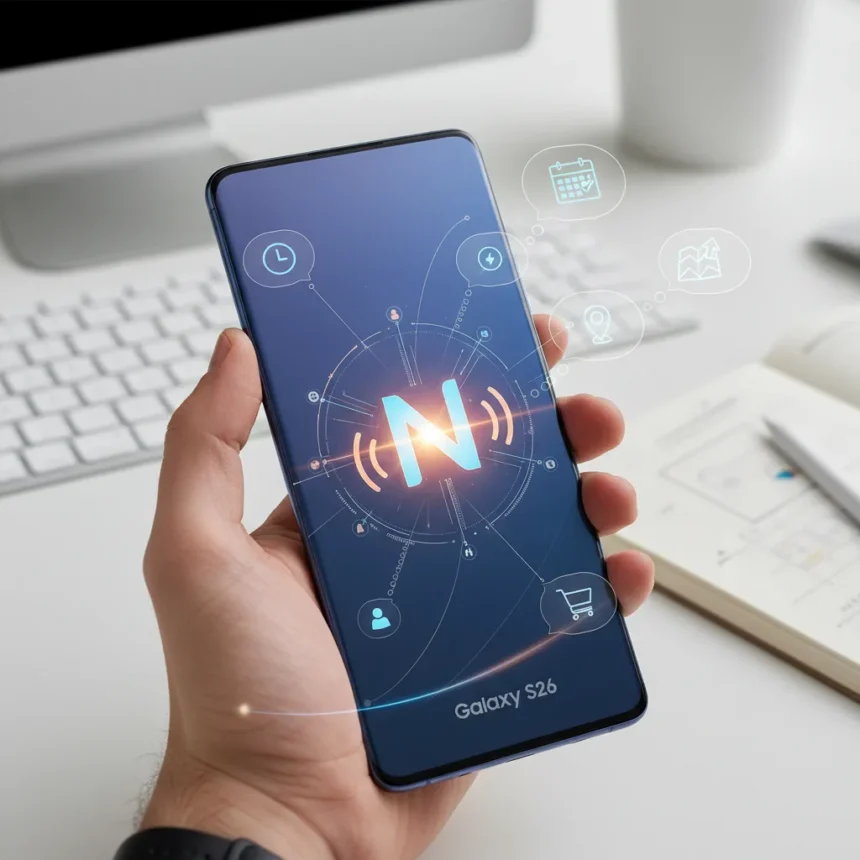
Galaxy S26’s Now Nudge is Samsung’s latest AI feature that proactively surfaces relevant suggestions based on what you’re doing on your phone. It’s the company’s answer to Google’s Magic Cue on the Pixel 10, offering context-aware shortcuts that appear at the right moment without you hunting for them.
Key Takeaways
- Now Nudge is a Galaxy AI feature that provides proactive suggestions based on your phone activity and app context
- It works similarly to Google’s Magic Cue but is more personalized than the previous Now Brief on the S25
- You can activate it manually through Quick Settings or set it to turn on automatically for specific apps
- The feature requires initial data collection to personalize suggestions effectively
- Now Nudge can surface shortcuts in apps like Messages based on conversation topics
What is Galaxy S26’s Now Nudge?
Galaxy S26’s Now Nudge is Samsung’s take on intelligent, context-aware assistance. Unlike passive notification systems, it actively monitors what you’re doing on your phone and offers shortcuts or suggestions that match your current task. If you’re messaging about weekend plans, it might suggest pulling up your calendar. If you’re on a call, it can handle screening based on learned context.
The feature represents a meaningful step up from the Galaxy S25’s Now Brief. Where Now Brief was more general, Galaxy S26’s Now Nudge learns your habits and patterns, delivering increasingly personalized suggestions over time. Samsung designed it to feel less like an intrusive notification and more like a helpful assistant that understands what you’re trying to do in the moment.
How to Turn On Galaxy S26’s Now Nudge Manually
The simplest way to activate Galaxy S26’s Now Nudge is through your phone’s Quick Settings menu. Swipe down from the top of your screen twice to open the full Quick Settings panel, then look for the Now Nudge toggle. Tap it to switch the feature on immediately.


If you prefer to access it through the full Settings menu, navigate to Settings, then find the Galaxy AI features section. From there, you’ll see the Now Nudge option. Toggle it on, and the feature will start working across your phone. This manual activation works right away, though Samsung recommends allowing some time for the feature to gather data about your usage patterns before it becomes fully personalized.
Setting Up Automatic Activation for Specific Apps
For more control, you can configure Galaxy S26’s Now Nudge to activate automatically only when you’re using certain apps or features. Go to Settings, then navigate to Galaxy AI features or the dedicated Now Nudge section. Select the option to enable automatic switching, which opens a list of apps and features you can choose from.



Select the specific apps where you want suggestions to appear—Messaging is a popular choice because it can detect conversation context and offer relevant shortcuts. Once you’ve chosen your apps, confirm the permissions for contextual data access. This step is important: Now Nudge needs permission to scan what’s on your screen and understand app context to work effectively.
You can also configure whether Now Nudge appears as a popup, an inline suggestion, or a subtle indicator. This flexibility means you control how intrusive the feature feels. Some users prefer minimal notifications; others want full suggestions. The choice is yours.
How Galaxy S26’s Now Nudge Works in Practice
Open your Messages app and start a conversation about making plans. If Galaxy S26’s Now Nudge is enabled for Messaging, it will detect the context of your discussion. When the right moment arrives—perhaps when someone mentions a specific date—a suggestion appears offering a calendar shortcut. Tap it, and your calendar opens to that date without leaving the conversation.
This is where Galaxy S26’s Now Nudge differs from Magic Cue. The feature doesn’t just notify you that something is available; it actively watches your behavior and learns what suggestions matter most to you. If you always ignore calendar suggestions but frequently use translation shortcuts, the system adapts and prioritizes what you actually find useful.



The system works by scanning real-time on-screen activity. It understands not just which app you’re in, but what you’re doing within that app. This requires initial data collection—your phone learns from your patterns over days and weeks. That’s why Samsung says Now Nudge becomes more powerful the longer you use it.
Comparing Galaxy S26’s Now Nudge to Google’s Magic Cue
Both Galaxy S26’s Now Nudge and Google’s Magic Cue serve the same purpose: proactive AI assistance. They both monitor what you’re doing and offer contextual shortcuts. The key difference lies in personalization depth. Galaxy S26’s Now Nudge is designed to learn your individual habits more aggressively, whereas Magic Cue tends toward more universal suggestions.
Another distinction is ecosystem integration. Now Nudge is built into Samsung’s One UI and works smoothly with Galaxy AI features like Privacy Display and photo editing tools. Magic Cue is tied to Google’s ecosystem and works best with Google services. If you’re deep in Samsung’s world, Now Nudge will feel more native. If you rely on Google services, Magic Cue may feel more natural.
Neither feature is objectively better—it depends on your phone, apps, and preferences. What matters is that Samsung is finally offering the kind of proactive AI assistance that Google pioneered, and it’s competitive enough to matter.
Does Galaxy S26’s Now Nudge Require Special Permissions?
Yes. Galaxy S26’s Now Nudge needs permission to access contextual information about what’s on your screen and which apps you’re using. When you first enable the feature, your phone will ask for these permissions explicitly. You must grant them for the feature to work, as Now Nudge cannot function without understanding your phone activity.
The data collection happens on your device—Samsung emphasizes that Now Nudge processes context locally rather than sending detailed activity logs to servers. However, some baseline data does sync with Samsung’s servers to enable cross-device personalization and to power features like phone call screening. Review Samsung’s privacy policy if you have concerns about data handling.
Can You Customize Which Apps Trigger Now Nudge?
Absolutely. When you set up automatic activation, you choose exactly which apps trigger the feature. You’re not forced to enable it everywhere. If you only want suggestions in Messages and Calendar, that’s your choice. You can also disable it entirely for apps where you find suggestions distracting.
This granular control is important. Some users want Now Nudge active everywhere; others prefer it only in productivity apps. Samsung built the feature flexible enough to match different preferences. You can also adjust these settings at any time—revisit Galaxy AI features in Settings to add or remove apps from your Now Nudge trigger list.
What Should You Know Before Enabling Galaxy S26’s Now Nudge?
Galaxy S26’s Now Nudge works best when you give it time to learn. Enabling it and expecting perfect suggestions immediately will disappoint you. The feature needs days or weeks of data to understand your patterns and preferences. Be patient during the early stages.
Also, understand that Now Nudge is always watching your screen activity. If privacy is a top concern, review what data you’re comfortable sharing before enabling the feature. You can disable it anytime without affecting other Galaxy AI features like photo editing or voice commands.
Finally, Now Nudge is part of Samsung’s broader Galaxy AI push on the S26 series. It works alongside other new features introduced at Galaxy Unpacked 2026, creating a more intelligent phone overall. If you’re upgrading from an older Galaxy phone, Now Nudge is one reason the S26 feels noticeably smarter.
Galaxy S26’s Now Nudge is Samsung’s most ambitious attempt yet at proactive AI assistance. It’s not perfect—no AI feature is—but it’s thoughtfully designed and genuinely useful once it learns your habits. If you value a phone that anticipates your needs rather than waiting for commands, enable it and give it time to prove itself. The feature won’t reshape how you use your phone, but it will eliminate small friction points throughout your day, and that’s worth the minimal setup effort.
Edited by the All Things Geek team.
Source: Tom's Guide




