




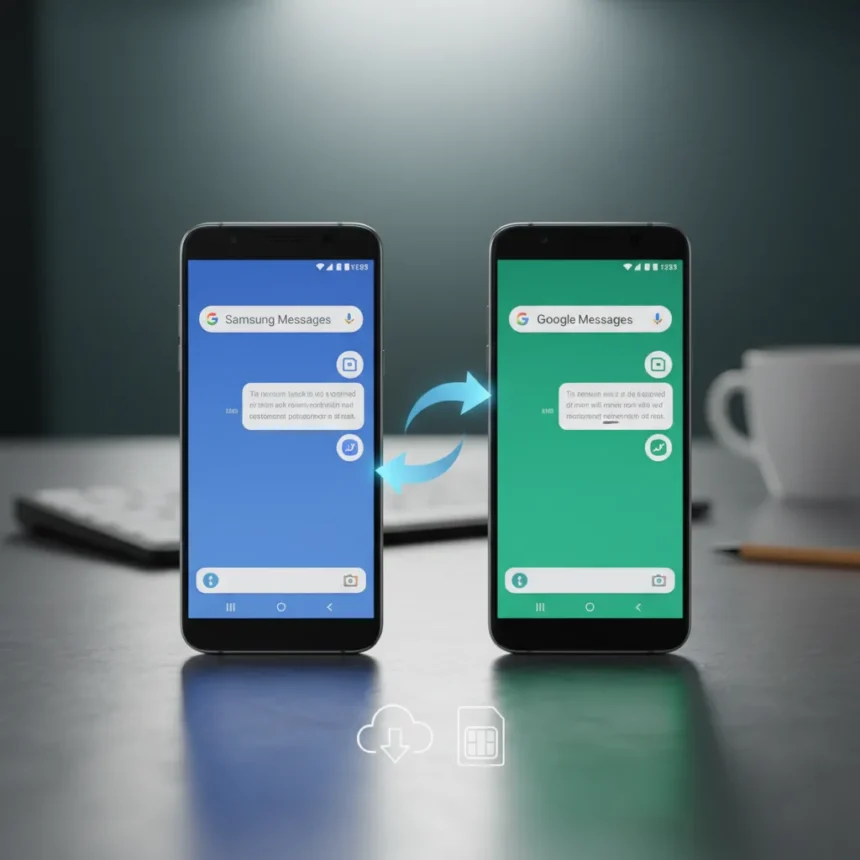
Samsung Messages transfer is becoming urgent as Samsung phases out its native messaging app in favor of Google Messages, starting with the Galaxy S22 series and continuing through newer devices. If you’re still using Samsung Messages, your conversations won’t vanish overnight, but the shift signals the end of Samsung’s messaging ambitions—and you should move sooner rather than later.
Key Takeaways
- Samsung Messages is being replaced by Google Messages as the default app on Galaxy S22 and later devices.
- RCS (Rich Communication Services) support is more reliable in Google Messages across all major U.S. carriers.
- Samsung Messages transfer can fail partially, especially with RCS chats that may split or duplicate.
- Google Messages automatically backs up SMS, MMS, and RCS media on Android 9 and newer.
- Smart Switch migration claims success but often leaves RCS conversations incomplete or fragmented.
Why Samsung Messages is disappearing
Samsung’s decision to default to Google Messages reflects a broader shift in Android messaging strategy. Google Messages offers stable RCS support across all major U.S. carriers, while Samsung Messages RCS compatibility varies wildly depending on your device model and carrier. This fragmentation has made Samsung Messages unreliable for users who depend on RCS features like read receipts, typing indicators, and high-quality media sharing. Rather than maintain two competing messaging platforms, Samsung is consolidating behind Google’s solution.
The move also signals that Samsung recognizes Google Messages as the industry standard. By pre-installing Google Messages on new Galaxy devices and demoting Samsung Messages, Samsung is acknowledging that its own app cannot compete on carrier compatibility or feature parity. For users, this means fewer support headaches down the road—assuming the transfer process goes smoothly.
How to transfer Samsung Messages to Google Messages
The Samsung Messages transfer process sounds straightforward but carries real risk. Samsung offers two primary paths: using the built-in export/import feature within the messaging apps, or relying on Samsung Smart Switch for bulk migration. Both methods work in theory. In practice, neither guarantees a complete transfer, particularly for RCS conversations.


Start by downloading Google Messages from the Google Play Store and setting it as your default messaging app. Then open Samsung Smart Switch on your phone and select the option to transfer data. The app will attempt to copy your message history from Samsung Messages to Google Messages. If you encounter issues—and many users do—try clearing the cache and data for both apps, then restart your phone and attempt the transfer again.
For RCS chats specifically, prepare for disappointment. Users report that RCS conversations frequently fail to transfer completely, sometimes splitting into separate threads or appearing as unwanted group chats. This is not a user error; it reflects limitations in how RCS data is stored and transferred between apps. If your RCS history is critical, back up your phone to Google Drive before transferring, then restore it with Google Messages set as the default—though this risks losing some chat context.

Setting up RCS in Google Messages
Once you’ve transferred your basic SMS and MMS history, enable RCS in Google Messages to unlock the full feature set going forward. Open Google Messages and tap your profile picture in the top right corner. Select Message Settings, then tap RCS chats at the top. Toggle RCS chats to On, then log out and back in—you’ll be prompted to enter your display name. This process takes under two minutes and ensures you’ll receive all future RCS benefits.
RCS support in Google Messages is far more comprehensive than Samsung Messages ever was. Every major U.S. carrier now supports RCS through Google Messages, eliminating the carrier-dependent inconsistencies that plagued Samsung’s implementation. If you frequently message people on different carriers, this reliability alone justifies the switch.
What to expect during and after transfer
Be realistic about what a Samsung Messages transfer will and won’t accomplish. Google Messages automatically backs up your SMS, MMS, and RCS media to your Google account on Android 9 and newer, so future messages are protected. Your past message history, however, may arrive incomplete or reorganized. Some conversations will transfer cleanly. Others will show gaps or duplicated threads. RCS chats are the biggest problem area—accept that you may lose some RCS message history in the transition.
One critical limitation: Google Messages does not natively sync across multiple devices. If you use a Galaxy Fold 5 and a Galaxy Flip 5, or any combination of Android devices, you’ll need to manually back up and restore messages on each phone separately. This is a significant usability step backward compared to iMessage’s seamless multi-device sync, but it’s the reality of Android’s current architecture.


Samsung also restricts MMS access to third-party apps, preventing full backups through alternative tools. This means you cannot use third-party backup apps to create a complete message archive before switching. Your only options are Samsung Smart Switch and the built-in Google Messages backup—both of which have documented limitations.
Alternative: SMS Organizer for backup
If you want a more reliable backup of your text messages before switching, consider SMS Organizer, which excels at backing up SMS and MMS to Google Drive. Open SMS Organizer, tap the three vertical dots, select Settings, then choose Backup and restore. Add your Google account, set your backup frequency, and hit Back Up. This creates a separate archive you can restore independently if the Samsung Messages transfer fails catastrophically.
Is the Samsung Messages transfer worth doing right now?
Yes, but manage expectations. Samsung’s decision to phase out its messaging app is final—you will need to switch eventually. The sooner you move to Google Messages, the sooner you’ll benefit from stable RCS support and automatic cloud backups. The transfer process is not seamless, particularly for RCS chats, but it’s the only path forward. Delaying the switch only postpones the inevitable disruption.
Will my RCS chats transfer to Google Messages?
Probably not completely. RCS conversations frequently fail to transfer in full, sometimes splitting into separate threads or appearing as group chats even when they were one-on-one exchanges. If your RCS history is important, back up your phone before transferring and be prepared to manually check key conversations afterward.
Can I sync Google Messages across multiple Android phones?
No. Google Messages does not natively sync message history across devices. If you use multiple Android phones, you’ll need to set up Google Messages on each device separately and manually back up and restore messages if you switch phones. This is a known limitation of Android’s messaging ecosystem.
What if Smart Switch fails to transfer my messages?
If Smart Switch claims success but your messages don’t appear in Google Messages, clear the cache and data for both apps, restart your phone, and try again. If that fails, use SMS Organizer to back up your SMS and MMS to Google Drive as a fallback. For RCS chats that don’t transfer, accept that some history may be lost—this is a known issue with no reliable workaround.
The Samsung Messages transfer is inevitable, not optional. Google Messages offers better carrier support, automatic backups, and a clearer roadmap than Samsung’s app ever did. The transition won’t be perfect—expect some lost RCS history and minor reorganization of your conversations—but staying on Samsung Messages leaves you on a sinking ship. Move to Google Messages now, set up RCS, and accept that some legacy chat context will be left behind. That’s the cost of Samsung’s exit from the messaging business.
Edited by the All Things Geek team.
Source: Android Central