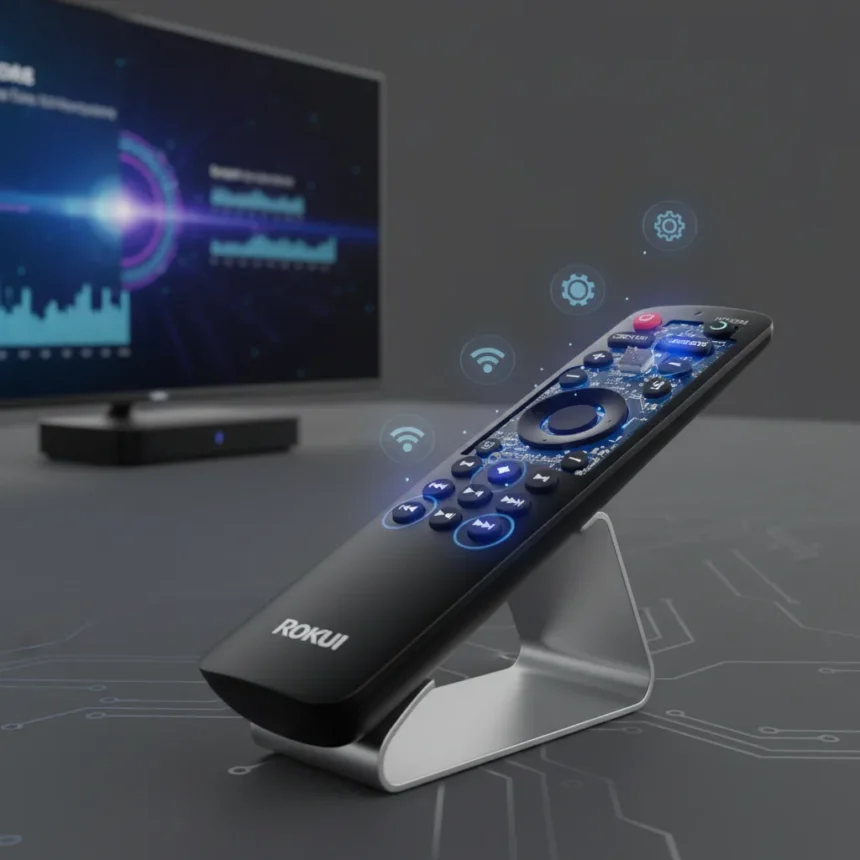
Hidden Roku shortcuts exist on every Roku device and TV, accessible through simple remote button combinations that unlock five secret diagnostic menus most users never discover. These hidden Roku shortcuts require nothing more than your standard Roku remote and a few seconds of your time, making them one of the most practical tools for troubleshooting connection problems, checking system specs, and rebooting your device without wading through standard settings menus.
Key Takeaways
- Five hidden Roku shortcuts open diagnostic menus using only your remote control.
- Secret Wireless Menu reveals network speed and connection performance details.
- Secret Platform Menu displays remote battery status, wireless info, and system data.
- Secret Network Menu provides network diagnostic information for troubleshooting.
- Secret Reboot shortcut forces a device restart without accessing settings.
What Are Hidden Roku Shortcuts?
Hidden Roku shortcuts are button sequences on your remote that bypass the standard menu system and open diagnostic screens designed for troubleshooting and system inspection. Unlike regular settings, which are consumer-facing and limited in detail, these hidden Roku shortcuts reveal raw system information: wireless performance metrics, device specifications, network diagnostics, and direct reboot functions. Roku engineers built these menus into every compatible device as a quick way to diagnose problems without calling support.
The beauty of hidden Roku shortcuts is their speed. When your Roku is buffering, dropping connection, or acting sluggish, you can access detailed diagnostic data in seconds rather than navigating through layers of standard menus. Each shortcut uses a specific pattern of Home button presses followed by directional or playback button sequences.
The Five Hidden Roku Shortcuts Explained
Each of the five hidden Roku shortcuts opens a different diagnostic screen. Here is exactly how to access them and what you will find in each menu.



Secret Wireless Menu: Check Your Network Speed
The Secret Wireless Menu reveals your current wireless connection quality, signal strength, and network speed in real time. This is the hidden Roku shortcut to use when your streaming is buffering or dropping frames. To access it: press Home five times quickly, then press Up, Down, Up, Down, Up in sequence. The menu displays detailed wireless performance data that standard settings never show, letting you determine if your connection is the culprit behind playback issues.
This hidden Roku shortcut is especially useful if you have moved your device to a different room or are troubleshooting why one Roku performs better than another on the same network. The wireless diagnostics show exactly what bandwidth your device is getting, which helps you decide whether to move your router, switch to 5GHz, or investigate other network problems.



Secret Screen Menu: View Display Configuration
The Secret Screen Menu displays information about your Roku’s display settings and resolution handling. To access this hidden Roku shortcut: press Home five times, then press Up, Right, Down, Left, Up. This menu is useful if you are experiencing picture quality issues, aspect ratio problems, or resolution mismatches with your TV.
Unlike the wireless menu, the screen menu focuses on how your Roku is outputting video to your television. If your picture looks stretched, cut off, or incorrectly scaled, this hidden Roku shortcut can reveal whether the problem is a configuration issue or a hardware problem.
Secret Platform Menu: Access System and Remote Data
The Secret Platform Menu is one of the most comprehensive hidden Roku shortcuts, displaying wireless connection information, remote battery status, system data, and comprehensive device specifications. To access it: press Home five times, then press Fast Forward, Play/Pause, Rewind, Play/Pause, Fast Forward in sequence. This hidden Roku shortcut consolidates information scattered across multiple standard menus into one diagnostic screen.



The platform menu is invaluable when your remote is behaving erratically—you can check the battery level directly without guessing. It also shows system-level data that helps you understand your device’s capabilities and current state. This is the hidden Roku shortcut to use when contacting Roku support, as the information displayed here is exactly what support technicians need to diagnose problems.
Secret Network Menu: Diagnose Connection Issues
The Secret Network Menu provides detailed network diagnostic information for troubleshooting connectivity problems. To access this hidden Roku shortcut: press Home five times, then press Down, Left, Up, Up, Up in sequence. This menu focuses specifically on network layer diagnostics, complementing the wireless menu by showing different aspects of your connection.
When your Roku is having trouble connecting or maintaining a stable connection, this hidden Roku shortcut reveals whether the problem is with the wireless signal, IP configuration, or network availability. The information here helps distinguish between local network problems and internet-wide outages.
Secret Reboot Shortcut: Force a Device Restart
The Secret Reboot shortcut forces your Roku to restart without navigating through settings. To access this hidden Roku shortcut: press Home five times, then press Up, Rewind, Rewind, Fast Forward, Fast Forward in sequence. The device will immediately reboot. This is the fastest way to perform a hard reset when your Roku is frozen, unresponsive, or experiencing software glitches.
A reboot often solves temporary streaming issues, app crashes, and connection drops. Using this hidden Roku shortcut takes five seconds, whereas navigating to Settings and finding the restart option takes much longer. If your Roku is misbehaving, try this shortcut before attempting more complex troubleshooting.
When Should You Use These Hidden Roku Shortcuts?
Use hidden Roku shortcuts whenever you encounter streaming problems, connection issues, or unexplained device behavior. The wireless and network menus are your first stop when video buffering or apps are loading slowly. The platform menu is essential when your remote is not responding or you need to provide system information to support. The screen menu helps diagnose picture quality problems. The reboot shortcut is your nuclear option for any unresponsive behavior.
These hidden Roku shortcuts are designed for troubleshooting, not daily use. Most users will never need them. But when problems arise, knowing these sequences can save you hours of frustration and eliminate the need for support calls.
Are These Shortcuts Safe to Use?
Yes. These hidden Roku shortcuts open read-only diagnostic screens—they display information but do not allow you to change system settings or damage your device. The only shortcut that performs an action is the reboot sequence, which simply restarts your device the same way a power cycle would. Using any of these hidden Roku shortcuts will not void your warranty or cause problems.
Do These Hidden Roku Shortcuts Work on All Roku Devices?
These hidden Roku shortcuts work on Roku devices and Roku TVs that use the standard Roku remote. Older devices with different remote designs may not support all sequences, but most modern Roku hardware released in recent years supports these diagnostic menus. If a shortcut does not work on your device, your remote model may differ from the standard layout.
Can You Bookmark or Save These Secret Menus?
No. These hidden Roku shortcuts open temporary diagnostic screens that close when you exit or press Home. You cannot save them or create shortcuts to them—you must enter the button sequence each time you want to access them. This is by design, as these are diagnostic tools rather than consumer-facing features.
Knowing these five hidden Roku shortcuts transforms you from a passive user into someone who can diagnose and solve problems independently. The next time your Roku acts up, skip the standard troubleshooting and go straight to the diagnostic menus—you will have answers in seconds.
Where to Buy
Hisense U8N ULED TV | Samsung S95C 55-inch OLED TV | Samsung QN90D 75-inch Neo QLED 4K TV | Hisense 65U6K
Edited by the All Things Geek team.
Source: Tom's Guide