







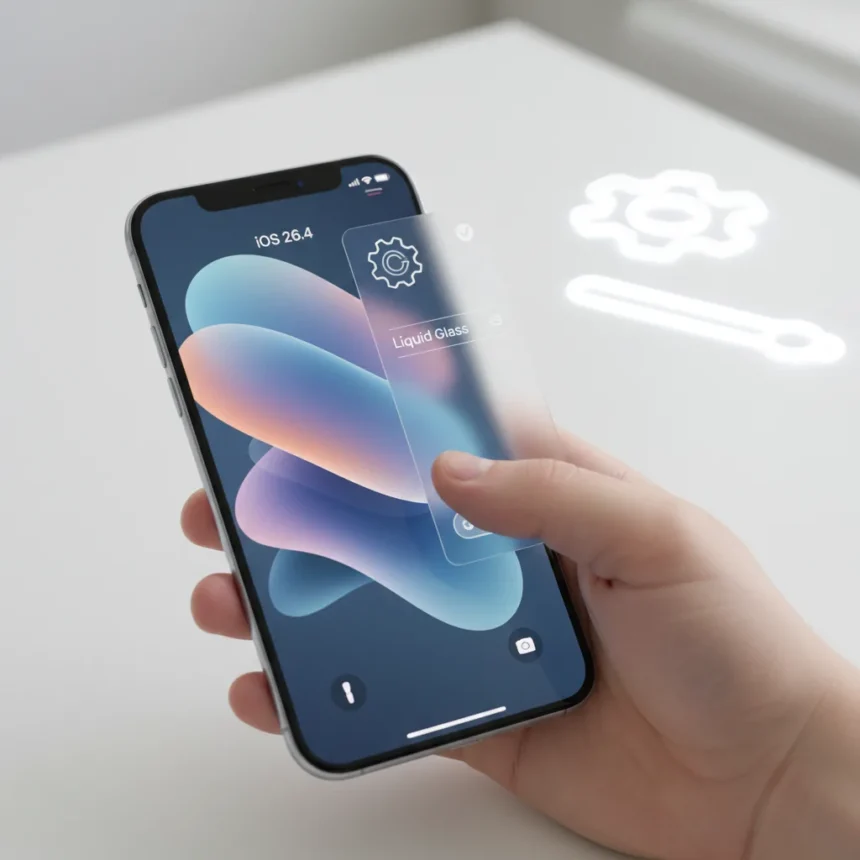
iOS 26.4 Liquid Glass controls finally give users the ability to dial back the flashy, motion-heavy design that frustrated many since iOS 26 launched. Apple is rolling out new and updated accessibility settings that let you minimize the bright highlights, animations, and glassy distortions without removing the feature entirely.
Key Takeaways
- iOS 26.4 introduces Reduce Bright Effects, a new toggle that minimizes flashing and highlighting on buttons and keyboards.
- Reduce Motion is updated in iOS 26.4 to more reliably reduce Liquid Glass animations for motion-sensitive users.
- The Tinted option under Liquid Glass settings changes notifications and controls from clear to tinted.
- Combining all four settings nearly eliminates the glassy appearance.
- iOS 26.4 is a free software update launching soon for compatible iPhones.
What Is Liquid Glass and Why Users Want to Tone It Down
Liquid Glass is a dynamic material introduced in iOS 26 that combines optical glass properties with fluid animations. It appears across toolbars and navigation in Mail, Notes, Messages, and other apps, creating a frosted-glass effect with motion-based distortions. While Apple designed it to focus attention on content, many users found the bright highlights and constant motion distracting or even nauseating. iOS 26.4 addresses these complaints by offering granular control over its appearance.
iOS 26.4 Liquid Glass Controls: Step-by-Step Setup
Apple has buried the controls across three different settings menus, but combining them creates a dramatically toned-down interface. Start with the newest feature: Reduce Bright Effects. Open Settings, navigate to Accessibility, then Display & Text Size. Toggle on Reduce Bright Effects to minimize highlighting and flashing when you interact with onscreen elements like buttons or the keyboard. This alone removes much of the visual noise that made Liquid Glass feel overwhelming.
Next, enable Reduce Motion, which Apple updated specifically for iOS 26.4 to handle Liquid Glass animations more reliably. Go to Settings > Accessibility > Motion and toggle on Reduce Motion. This reduces app zoom animations and glass distortions, particularly benefiting users sensitive to screen motion.


Then adjust the Liquid Glass appearance directly. Open Settings > Display & Brightness > Liquid Glass and toggle on Tinted. This changes notifications and controls from clear glass to a tinted version, further reducing the glassy appearance. Finally, enable Reduce Transparency under Accessibility settings to affect additional glassy distortions and background effects.
Does Combining All Settings Actually Work?
Yes. Enabling Reduce Bright Effects, Reduce Motion, Reduce Transparency, and Tinted together nearly eliminates the Liquid Glass look. Video comparisons show the difference starkly: keyboard highlights and search bar flashes vanish, animations slow to a crawl, and the interface takes on a matte, functional appearance rather than a shiny, motion-heavy one. You won’t fully erase Liquid Glass—the material still exists in the UI structure—but you’ll strip away the elements that bothered users most.

This layered approach reveals Apple’s philosophy: rather than remove Liquid Glass entirely in response to complaints, the company is letting users customize it away piece by piece. It’s a compromise that satisfies both those who love the visual design and those who find it exhausting.
How iOS 26.4 Compares to Earlier Liquid Glass Customization
iOS 26 introduced Liquid Glass with no way to tone it down beyond the existing Reduce Transparency and Reduce Motion toggles. Many users felt trapped—they either accepted the flashy design or manually disabled every accessibility feature that might help. iOS 26.4 closes that gap by adding Reduce Bright Effects, a dedicated control that targets the specific brightness flashes users complained about. The updated Reduce Motion is also more effective, addressing the animation component directly rather than as a side effect of motion reduction.
When Does iOS 26.4 Launch?
iOS 26.4 is launching soon as of March 2026 reports and will be available as a free software update. Once released, you’ll find it via Settings > General > Software Update on any compatible iPhone. No hardware purchase is required—these controls apply immediately after updating.
What About Future Liquid Glass Customization?
Rumors suggest iOS 27 may introduce slider-based Liquid Glass adjustments, giving even finer control over the effect’s intensity. That would let you dial the glass aesthetic up or down on a spectrum rather than toggling binary on-off switches. For now, iOS 26.4 is the most granular control available.


Can you completely remove Liquid Glass from iOS 26.4?
No. The controls in iOS 26.4 reduce Liquid Glass effects but do not eliminate them entirely. The material remains part of the UI structure; you’re just hiding its most visually prominent properties. If you want the interface to feel completely matte and motion-free, combining all four settings gets you very close, but traces of the design remain.
Does Reduce Motion affect apps outside of Liquid Glass?
Yes. Reduce Motion is a broader accessibility feature that minimizes animations across iOS, not just Liquid Glass distortions. Enabling it will slow down app transitions, notification animations, and other motion effects system-wide. If you only dislike Liquid Glass motion and want normal animations elsewhere, Reduce Bright Effects and Tinted alone may be sufficient.
iOS 26.4 proves Apple listens to user feedback, even when it comes slowly. The Liquid Glass backlash wasn’t universal—plenty of users love the design—but those who found it distracting now have real options. Whether you want to tone it down slightly or strip it away almost entirely, iOS 26.4 gives you the controls to do it. That flexibility is what accessibility should always look like.
Edited by the All Things Geek team.
Source: Tom's Guide




