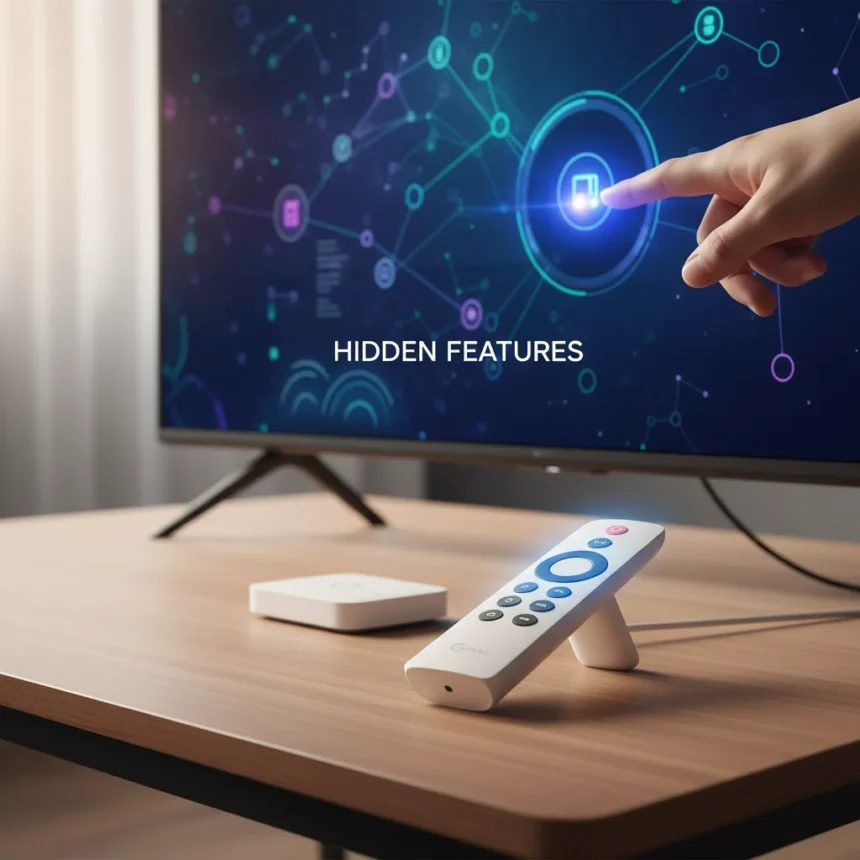
The Google TV Streamer 4K tips that make the biggest difference are the ones buried in settings menus most people never explore. This device delivers 4K resolution and HDR content on compatible TVs, but its real power lies in customization options and AI-driven features that elevate the streaming experience beyond basic playback.
Key Takeaways
- Customize the star button on your remote to launch favorite apps or switch TV inputs instantly.
- Use the Google Home app to set up a virtual remote on your phone for text input and remote control.
- Enable AI dialogue enhancement in Display & Sound settings to boost dialogue clarity during movies and shows.
- Configure Ambient Mode with personal Google Photos or gallery art for intelligent screensavers.
- Disable controller sound and set auto shut-off timers to personalize device behavior.
Customize Your Remote’s Star Button for Instant Access
The star button on your Google TV Streamer 4K remote is a blank canvas. By default, it opens the Google Home panel during onboarding, but you can reassign it to any app or TV input you actually use. Hold the star button or navigate to Settings > Remotes & Accessories > Google TV Streamer remote > Customize buttons. Assign it to Netflix, YouTube, your favorite streaming service, or even a specific TV input. This single tweak saves dozens of button presses monthly and makes the remote feel genuinely personal to your viewing habits.
The customization extends beyond apps. You can map the button to switch between HDMI inputs if you have multiple devices connected—a game console, soundbar, or cable box. This eliminates the friction of hunting through menus every time you want to switch sources. For households with multiple people, the star button becomes a shortcut to whoever’s favorite service gets used most.
Set Up a Virtual Remote on Your Phone
Your smartphone can become a full-featured remote control for the Google TV Streamer 4K. This matters most when you need to enter text—searching for a show, typing a password, or filling in login credentials. Open the Google Home app on your phone, find your Google TV Streamer device tile, and tap Open Remote. The TV will display a 6-character code; enter it on your phone to pair. Once connected, tap the keyboard icon to switch to text input mode.



The virtual remote works only when your TV and phone are on the same Wi-Fi network, but the convenience is immediate. No more pecking at on-screen keyboards with the directional pad. Type naturally on your phone’s keyboard and watch the text appear on screen. This feature also gives you access to all remote functions—volume, power, navigation, and voice commands—without needing the physical remote nearby.
Unlock AI Features for Smarter Streaming
The Google TV Streamer 4K includes AI enhancements that transform how you watch. One of the most useful is dialogue enhancement, hidden in Settings > Display & Sound. Scroll to the bottom of this menu to find the audio settings that boost dialogue clarity during movies and shows. If you struggle to hear conversations over background music or action sequences, this feature makes dialogue pop without distorting other audio elements.



The device also offers AI-powered screensavers through Ambient Mode. Navigate to Settings > System > Ambient screensaver > Settings and choose between personal Google Photos, curated gallery art, or custom configurations. You can remove the time display, change temperature formatting, or cycle through your photo library while the device sits idle. This transforms your TV from a black rectangle into a living canvas that reflects your taste.
Fine-Tune System Settings for Your Household
The Google TV Streamer 4K supports multiple user profiles and a dedicated Kids profile with parental controls, meaning different family members can have personalized home screens and recommendations. Voice Match enables the device to recognize individual voices and deliver customized responses through Google Assistant. Set this up in Settings to unlock voice-activated personalization.
Game mode deserves attention if you connect a gaming console to your TV. Enable it in settings to reduce latency and improve responsiveness during gameplay. The device also lets you configure auto shut-off timers, disable controller sound in remote settings, and toggle TV volume and power control through the Google Home app. These granular tweaks accumulate into a system that feels tailored rather than generic.
For a cleaner home screen, explore Apps Only Mode to remove ads and clutter, or customize which app rows appear. The device runs Android TV OS with the Google TV interface, giving you flexibility to organize apps by how you actually use them rather than how Google arranges them by default.



Organize Your Apps and Explore Accessibility Features
The home screen can become overwhelming with dozens of apps vying for attention. The Google TV Streamer 4K lets you rearrange app rows and customize the UI in home settings, putting the apps you use daily front and center. Remove rows you never touch. Prioritize your most-watched services. This organizational control transforms the interface from a cluttered storefront into a personal dashboard.
Accessibility options matter for all users. High contrast modes, text enlargement, and other visual aids are available for people with low vision. If you use Google Assistant voice commands frequently, Voice Match learns your voice patterns and delivers more personalized results over time. The remote itself includes a directional pad with center select, Home button, Back button, dedicated Netflix and YouTube buttons, and a voice button for hands-free control.
How do I find a lost remote for my Google TV Streamer?
The device includes a Find My Remote feature accessible through the settings menu. This helps locate a physical remote that has slipped between cushions or under furniture. For situations where you cannot find the remote, the virtual remote in the Google Home app serves as a complete backup control method.
Can I use the Google TV Streamer 4K with smart home devices?
Yes. The Google Home app integrates the device with your broader smart home ecosystem, allowing you to control lights, thermostats, and cameras alongside your TV. This centralized control makes the Google TV Streamer 4K more than just a streaming device—it becomes a hub for your connected home.
Does the Google TV Streamer 4K support HDMI 2.1?
The device supports HDMI 2.1 for enhanced 4K visuals and sound. This ensures compatibility with the latest TV standards and future-proofs your setup for upcoming content formats and higher bandwidth requirements.
The Google TV Streamer 4K tips covered here transform a capable streaming device into a genuinely personalized entertainment system. Customizing the remote’s star button, setting up the virtual remote, enabling AI features, and organizing your apps takes less than an hour but pays dividends in daily convenience. These are not flashy upgrades—they are the practical refinements that separate a device you tolerate from one you actually enjoy using.
Where to Buy
Edited by the All Things Geek team.
Source: Android Central