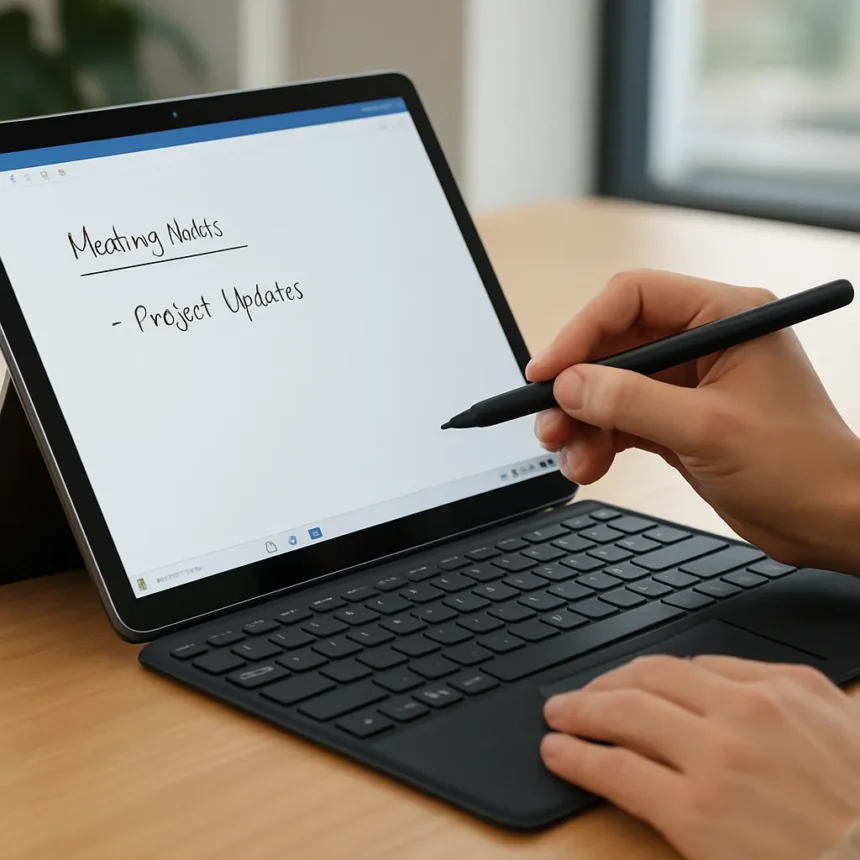
The Surface Pro 11 for Business has finally received the firmware fix it desperately needed. Microsoft released an update addressing the Intel model’s persistent hover-inking problem, where the Surface Slim Pen 2 would ink while simply hovering over the screen, along with loss of tracking at lower pen pressure settings, delayed inking after pen placement, and inaccurate, unresponsive touchscreen behavior. This issue plagued the device for a year since its launch, making it effectively unusable for note-taking and productivity workflows that business users depend on.
Key Takeaways
- Microsoft released a firmware fix for Surface Pro 11 for Business addressing hover-inking and touchscreen accuracy issues
- The problem persisted for a year, affecting the Intel-based model with Surface Slim Pen 2
- Community reports confirmed the issue was critical and widespread before the fix
- Users can install the update via Windows Update or Surface support tools
- Additional driver reinstalls and UEFI tests can help resolve remaining touch issues
What Was Wrong With the Surface Pro 11 for Business
The Surface Pro 11 for Business suffered from a constellation of input problems that made the device unsuitable for its intended business audience. The hover-inking issue meant that users couldn’t rest their hand near the screen without triggering unwanted marks. This wasn’t a minor quirk—community reports described it as a critical and seemingly widespread issue affecting the pen input on the new Surface Pro 11 for Business with Slim Pen. Users also experienced loss of tracking when applying lighter pen pressure, delays between placing the pen and seeing ink appear on screen, and a touchscreen that would become unresponsive or inaccurate mid-task.
One user on a related Microsoft support thread reported their touchscreen would stop working mid-word, with the problem recurring three times in under two hours. For a device marketed to business professionals who rely on handwriting, note-taking, and touch input throughout the workday, these failures were unacceptable. The fact that the issue persisted for a full year after launch suggests Microsoft took longer than expected to diagnose and resolve the root causes.
How the Firmware Fix Addresses Surface Pro 11 for Business Issues
Microsoft’s firmware update directly targets the root causes of these input failures. According to the company’s statement, the fix resolves issues where the Surface Slim Pen 2 inks while hovering, loses tracking at lower pen pressure settings, and delays inking after you set the pen to the screen. The update also addresses the broader touchscreen accuracy and responsiveness problems that made the device frustrating to use.


The firmware fix is part of a broader Surface Pro 11 update targeting various touchscreen issues. Rather than requiring a full device reset or hardware replacement, users can install the fix through standard Microsoft channels—Windows Update or the Surface support tools. This approach is less disruptive than the workarounds that plagued earlier Surface models, which sometimes required full shutdowns, driver reinstalls, or UEFI-level diagnostics to restore basic functionality.
Installation and Additional Troubleshooting Steps
To apply the firmware fix, users should check for updates through Windows Update or visit the Surface support website to download the latest firmware for their device. The update should install automatically once downloaded.


If touch or pen issues persist after the firmware update, Microsoft support recommends reinstalling touch drivers. Open Device Manager, expand Human Interface Devices, then right-click Intel(R) Precise Touch Device and select Uninstall device. Repeat this for HID-compliant touch screen (you may see two entries), then use the Action menu to Scan for hardware changes. Windows will automatically reinstall the drivers online, though you may need to restart your device.
For more advanced troubleshooting, users can test touch input directly in UEFI by shutting down the device completely, then holding volume up while pressing power until the logo appears. Additional fixes from the community include disabling power-saving features for touch drivers in Device Manager properties, enabling the setting to ignore touch input when using the pen in Settings, and using the Tablet PC Settings calibration tool.
How This Compares to Earlier Surface Models
The Surface Pro 11 for Business isn’t the first Surface device to suffer from pen and touch problems. Older Surface models like the Pro 7 experienced similar glitches, though those were typically resolved through driver reinstalls, full shutdowns with specific button combinations (holding power and volume up for 15 seconds), or disabling power-saving modes. The key difference is that the Surface Pro 11 for Business required a firmware update rather than just driver-level fixes, suggesting the problem was more deeply rooted in the device’s hardware or firmware interaction.
the Snapdragon-based variants of the Surface Pro 11 did not report the same widespread issues, indicating the problem was specific to the Intel model’s implementation. This distinction matters for business buyers still deciding between configurations—if you’ve been holding off on purchasing, the Intel version is now viable again with the firmware fix applied.


Should You Install the Update Now?
If you own a Surface Pro 11 for Business with an Intel processor, installing the firmware update is essential. The fix directly addresses the problems that made the device unreliable for daily business use. While the update has not been independently verified across all units in the wild, community reports confirm the issue was critical and widespread before the fix, making this update a priority rather than an optional enhancement.
For users who have already returned their devices or switched to alternatives due to frustration, the fix may be worth reconsidering the Surface Pro 11 for Business. Business users who depend on pen input for note-taking, sketching, or annotation work should see immediate improvement in responsiveness and accuracy once the update is installed and any remaining touch driver issues are resolved through the troubleshooting steps above.
Will this fix work on all Surface Pro 11 for Business devices?
The firmware fix targets the Intel-based Surface Pro 11 for Business model. Snapdragon variants did not report the same widespread pen and touch issues, so the fix is not necessary for those devices. Install the update through Windows Update to ensure you have the latest version.
Can I fix hover-inking without waiting for the firmware update?
The firmware update is the official fix for hover-inking on the Surface Pro 11 for Business. However, you can try disabling power-saving features for touch drivers or enabling the setting to ignore touch input when using the pen in Windows Ink settings. These are temporary workarounds, not permanent solutions.
What if the firmware update doesn’t completely fix my touchscreen?
If issues persist after the firmware update, reinstall your touch drivers through Device Manager by uninstalling Intel(R) Precise Touch Device and HID-compliant touch screen, then scanning for hardware changes. You can also test touch input in UEFI mode and calibrate your screen using Tablet PC Settings. If problems continue, contact Microsoft support, as your device may require hardware service.
The Surface Pro 11 for Business is finally living up to its promise. After a year of frustration, business users can now rely on their pen and touchscreen again—as long as they install the firmware fix and take a few minutes to ensure their touch drivers are current. This update doesn’t erase the year-long ordeal, but it does make the device usable for the productivity work it was designed to handle.
Edited by the All Things Geek team.
Source: Windows Central