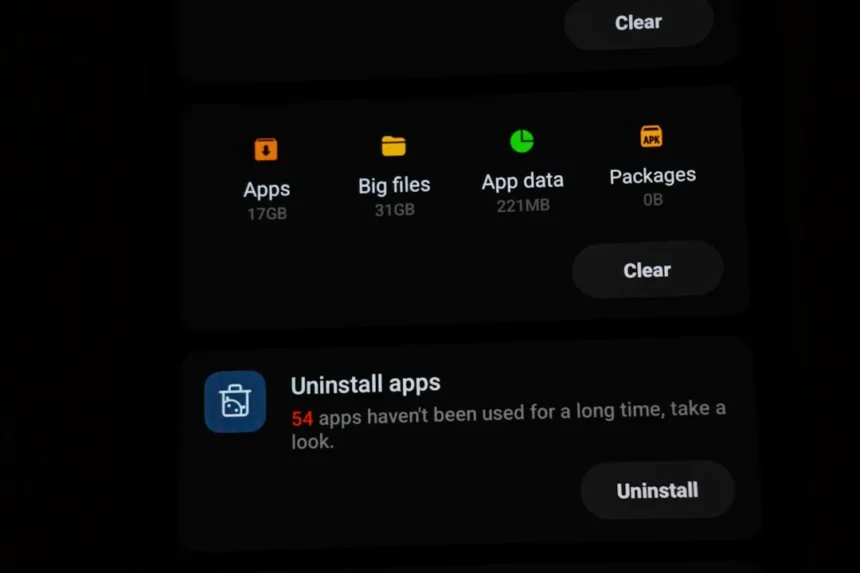
Freeing up Android storage doesn’t require downloading sketchy third-party cleanup apps. Your phone comes with two built-in tools designed to reclaim space and keep your device running smoothly without the bloat.
Key Takeaways
- Android’s built-in cache clearing removes temporary files without deleting your personal data.
- Google Files’ Clean feature identifies junk files, old downloads, and storage hogs automatically.
- Both tools are free and already on your phone—no third-party apps necessary.
- Regular cache clearing prevents “memory full” errors before they slow your device.
- Combined, these two features can reclaim significant storage space on most Android phones.
Why Your Android Phone Fills Up So Fast
Android devices accumulate cached data and unnecessary files over time. Apps store temporary files to load faster, downloads pile up in your folder, and system logs grow silently in the background. Most users never notice until their phone starts throwing “memory full” warnings and performance tanks. The good news: you don’t need to install a dedicated cleaner app to fix this. The tools are already there.
Cache clearing is the simplest first step. Every app you use—from social media to banking—stores temporary data to speed up loading. This cache is useful until it becomes bloated. Clearing it removes these temporary files while leaving your actual app data, photos, and messages untouched. It’s safe, reversible, and often frees up hundreds of megabytes in minutes.
How to Clear App Cache on Android
Clearing cache is straightforward and takes less than five minutes. Open your phone’s Settings app, then navigate to Storage. From there, select Apps to see which applications are consuming the most space. Tap into an individual app’s storage page and look for the “Clear Cache” button. Tap it, and the temporary files disappear immediately. Your app will rebuild its cache the next time you use it—no data loss, no broken functionality.


Start with your largest apps first. Social media apps, streaming services, and messaging platforms often hoard the most cache. If you’re desperate for space, you can clear cache across multiple apps in succession. The process is repetitive but harmless. Some Android phones also offer a “Clear Cache” option in the Storage menu itself, which clears cache for all apps at once—even faster if you’re in a hurry.
Google Files’ Clean Feature Tackles the Bigger Picture
If cache clearing alone doesn’t free enough space, Google Files’ Clean feature does the heavier lifting. Open the Files app by Google on your phone, then navigate to the Clean section. This tool scans your device and surfaces items you probably don’t need: duplicate files, blurry photos, incomplete downloads, and other storage-heavy clutter. You review the suggestions, decide what to delete, and remove only what you’re comfortable losing.



The Clean feature is smarter than blindly deleting files. It categorizes items by type—old downloads, large videos, unused apps—so you know exactly what you’re removing before it’s gone. This prevents the panic of accidentally deleting something important. Unlike aggressive third-party cleaners that promise magical space recovery, Google Files respects your control over what leaves your phone.
Combining Both Tools for Maximum Space Recovery
The real power comes from using both tools together. Start with cache clearing to remove temporary app files, then run Google Files’ Clean to tackle larger junk. This two-step approach addresses both the small daily clutter and the bigger storage sinkholes. On many phones, this combination can free up several gigabytes without touching a single photo or important file.
Make cache clearing a monthly habit. Set a reminder, or do it whenever you notice your phone slowing down. Google Files’ Clean can run less frequently—quarterly or whenever you’re running low on space. This preventive approach stops “memory full” errors before they happen and keeps your phone responsive without relying on third-party software that often requests unnecessary permissions or shows ads.
Why Avoid Third-Party Cleaner Apps
Third-party storage cleaners promise aggressive space recovery, but they’re unnecessary. Many request broad device permissions, display intrusive ads, or claim they’ll speed up your phone—a claim that’s largely marketing hype. Your phone’s built-in tools are designed by Google and your device manufacturer to safely remove files without breaking anything. They don’t nag you with notifications or try to upsell premium features. They just work.


Android’s native storage management has improved significantly over recent years. The operating system is designed with these built-in tools in mind, making them more reliable and safer than any third-party alternative. You’re not sacrificing functionality by skipping the cleaner apps—you’re actually getting a better, simpler experience.
How often should I clear my Android cache?
Clear cache monthly as routine maintenance, or whenever you notice your phone slowing down. If you’re running low on storage, clear cache more frequently. There’s no downside to clearing it regularly—apps will simply rebuild their cache the next time you use them.
Will clearing cache delete my photos or messages?
No. Cache clearing removes only temporary files that apps create for faster loading. Your photos, messages, documents, and personal data remain untouched. This is why cache clearing is safe to do without worry.
Does Google Files’ Clean feature cost anything?
Google Files is free, and the Clean feature is included. You don’t need a paid subscription or any additional app. If you don’t have Google Files pre-installed, you can download it from the Play Store at no cost.
Keeping your Android phone running smoothly doesn’t require downloading extra software or paying for premium cleanup services. Your device already has everything you need. Clear your cache regularly, use Google Files’ Clean feature when you need to recover larger amounts of space, and you’ll avoid the “memory full” trap entirely. It’s simple maintenance that takes minutes and makes a real difference in how your phone performs.
Where to Buy
Google Pixel 10 Pro | Samsung Galaxy S26 Ultra
Edited by the All Things Geek team.
Source: TechRadar