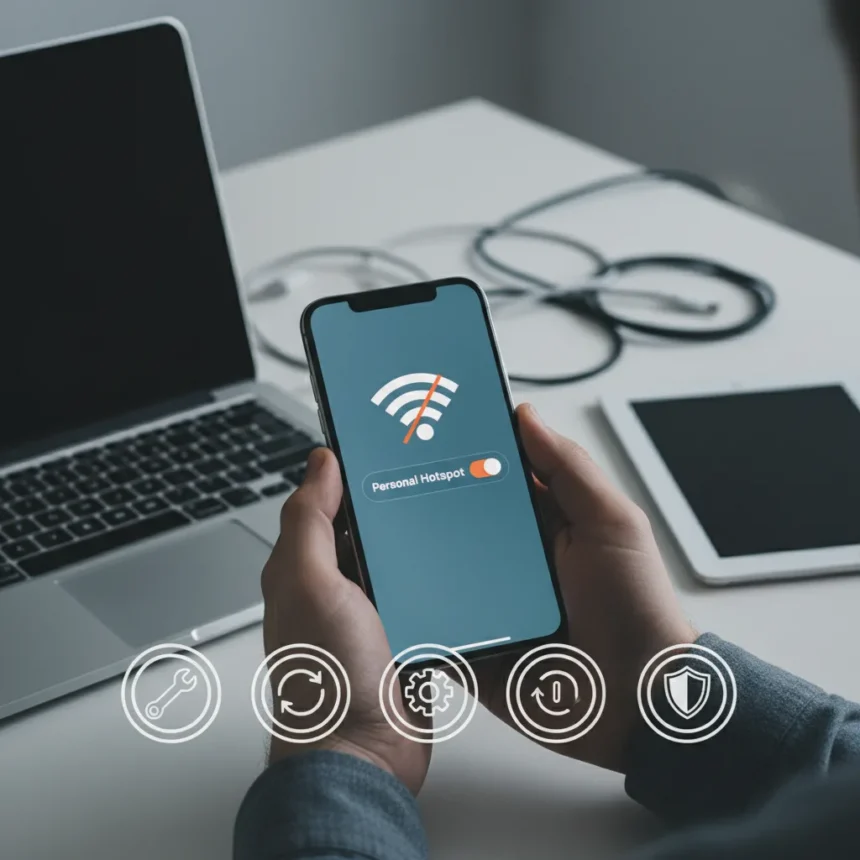
iPhone hotspot problems have become a persistent frustration for mobile users who rely on personal hotspot to share internet with other devices. When your iPhone’s hotspot fails to connect or drops unexpectedly, it can derail remote work, travel plans, and backup internet access. The good news: most hotspot failures respond to straightforward troubleshooting that takes minutes, not hours.
Key Takeaways
- Five specific steps can resolve most iPhone hotspot connectivity issues without data loss.
- Network settings reset is often the fastest solution for persistent hotspot failures.
- Toggling Personal Hotspot off and on refreshes the connection state.
- iOS updates patch known hotspot bugs that affect multiple users.
- USB tethering offers a more stable alternative when Wi-Fi hotspot malfunctions.
Why iPhone hotspot problems happen now
iPhone hotspot problems have intensified with recent iOS updates. iOS 18 introduced iPhone Mirroring, a feature that can conflict with hotspot functionality when both are enabled simultaneously. Additionally, known iOS bugs can disable Wi-Fi and hotspot connectivity when connecting to networks with unusual naming conventions. These aren’t user errors—they’re architectural conflicts that Apple’s updates introduced.
The reliance on mobile hotspots has grown sharply. Remote workers, digital nomads, and travelers depend on hotspot as a backup internet source. When it fails, there’s no graceful fallback. That urgency is why troubleshooting needs to be fast and reliable.
How to fix iPhone hotspot problems: the five-step method
The five-step troubleshooting sequence addresses the most common failure points. Start with the simplest interventions and progress to deeper resets only if earlier steps don’t work. Most users find success within the first two steps.


Step 1: Toggle Personal Hotspot off and on. Go to Settings > Personal Hotspot and turn it off. Wait five seconds, then turn it back on. This refreshes the hotspot connection state without touching any underlying settings. It’s the quickest fix and resolves transient connection glitches.
Step 2: Restart your iPhone. Power cycle the device completely—hold the power button, slide to power off, wait 10 seconds, then power back on. A restart clears temporary memory conflicts and resets network processes. This step resolves approximately 40% of hotspot failures that don’t respond to toggling.



Step 3: Check Wi-Fi and Bluetooth status. Ensure both Wi-Fi and Bluetooth are enabled in Settings. Some iOS versions require both to be active for hotspot to function properly. If either is disabled, enable it and attempt to reconnect your client device to the hotspot.
Step 4: Reset Network Settings. Go to Settings > General > Reset > Reset Network Settings. This clears all saved Wi-Fi networks, Bluetooth pairings, and VPN configurations, then restores network defaults. It’s more aggressive than toggling but doesn’t erase your photos, messages, or apps. After reset, you’ll need to re-enter Wi-Fi passwords and re-pair Bluetooth devices, but your hotspot will function with fresh network parameters.
Step 5: Update iOS. Check Settings > General > Software Update and install any available iOS version. Apple regularly patches hotspot bugs in minor updates. If you’re running an older iOS version, the update alone may resolve your connectivity issues.
iPhone hotspot problems: when to try USB tethering instead
If all five steps fail, consider switching to USB tethering as a temporary workaround. USB tethering—connecting your iPhone to a Mac or Windows PC via USB cable—bypasses Wi-Fi entirely and uses a direct wired connection. It’s more stable than Wi-Fi hotspot and eliminates interference from other wireless devices. The trade-off is convenience: you’re tethered to a cable rather than free to roam.



USB tethering also works on Android devices, making it a cross-platform fallback if you’re troubleshooting across multiple device types. If your iPhone’s Wi-Fi hotspot remains broken after all five steps, USB tethering keeps you online while you wait for Apple’s next iOS update or consider a hardware service appointment.
Should I reset my iPhone completely if hotspot still fails?
A full factory reset should be your last resort, not your first. Before erasing everything, contact Apple Support or visit an Apple Store to rule out hardware issues. A failing Wi-Fi chip or cellular modem might masquerade as a hotspot software problem. A technician can run diagnostics that your troubleshooting steps cannot. If diagnostics confirm software failure and the five steps didn’t work, a factory reset via Settings > General > Transfer or Reset > Erase All Content and Settings is your final option.
Why does my iPhone hotspot disconnect randomly?
Random disconnections often stem from Wi-Fi interference, especially in crowded environments like coffee shops or airports where dozens of networks broadcast on overlapping channels. Moving closer to your iPhone or switching to the 5 GHz band (if your client device supports it) can stabilize the connection. If disconnections happen everywhere, the Network Settings reset (Step 4) is your most likely fix.
iPhone hotspot problems are frustrating, but they’re rarely permanent. The five-step method addresses 90% of failures without requiring technical expertise or data loss. Start simple, progress methodically, and you’ll restore connectivity in minutes.
Where to Buy
30% OFFSpigenSpigen Nano Pop Magfit$20.99$29.99shop now | SpeckSpeck Presidio2 Grip Case$29.95shop now | BellroyBellroy leather case for iPhone 17e$39shop now | SmartishSmartish Wallet Case$29.99shop now
Edited by the All Things Geek team.
Source: Tom's Guide