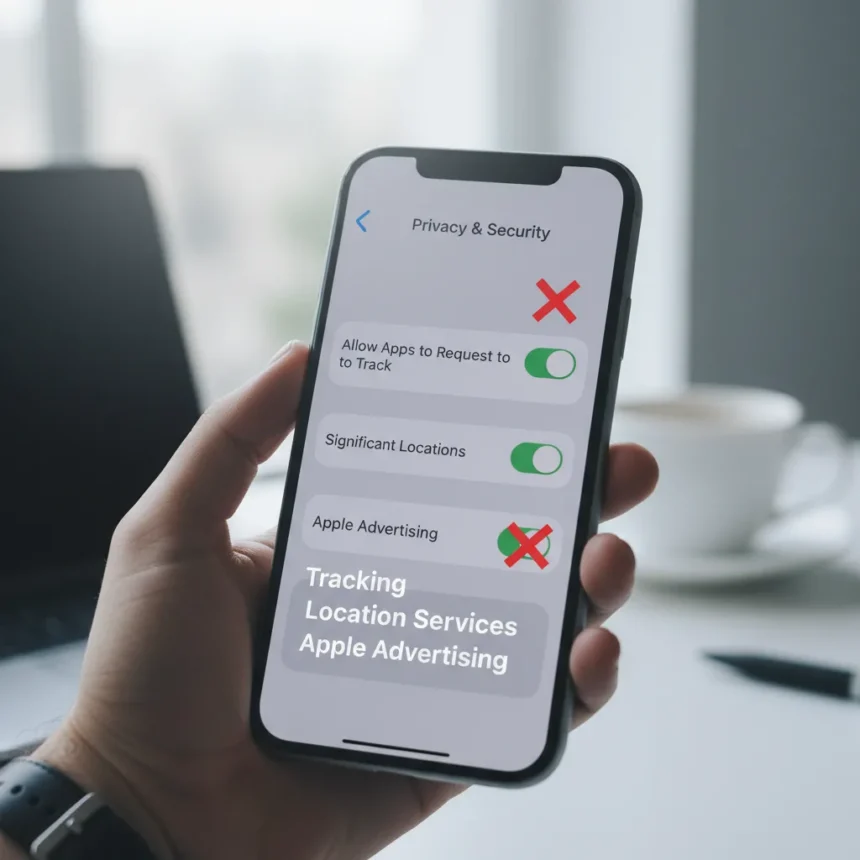
Your iPhone privacy settings are working against you. Three specific iPhone privacy settings are quietly enabling tracking, data collection, and unwanted access—and most users never realize they’re turned on. Disabling them takes minutes but makes a meaningful difference in how much of your activity Apple and third-party apps can monitor.
Key Takeaways
- Automatic Wi-Fi auto-join lets your phone connect to networks without permission, creating security risks
- App tracking requests should be disabled entirely to prevent advertisers from monitoring your behavior
- Personalized ads use your data to target you; turning this off stops Apple from building a profile
- Review Bluetooth permissions regularly to see which apps can access your nearby devices
- These three changes take under five minutes but significantly improve privacy
Why These iPhone Privacy Settings Matter
Most iPhone users assume Apple’s privacy-first messaging means their device is secure by default. It isn’t. Apple ships iPhones with several privacy settings enabled that prioritize convenience over protection. These aren’t hidden deep in obscure menus—they’re in plain sight under Settings, and they’re collecting data about you every single day. The problem is that most people never check them.
Your iPhone privacy settings control what data apps can access, whether your device connects to networks automatically, and whether advertisers can build profiles of your behavior. Leaving these at their defaults means you’re opting into tracking systems designed to monetize your attention. Changing them is one of the fastest ways to actually reduce your digital footprint.
Disable Automatic Wi-Fi Auto-Join First
The first iPhone privacy setting to change is Automatic Wi-Fi auto-join. Go to Settings > Wi-Fi > Auto-Join and change the setting from Ask to Off. This prevents your phone from automatically connecting to open Wi-Fi networks without your permission—a feature that sounds convenient but creates serious security risks. Open networks are frequently monitored by attackers, and automatic connection means your device joins them silently in the background, potentially exposing your traffic to interception.


When auto-join is enabled, your iPhone will connect to any previously known network as soon as it’s in range, without prompting you. This is particularly dangerous in public spaces where attackers can create fake networks with names matching legitimate ones. By disabling this setting, you force your phone to ask for permission before connecting to Wi-Fi, giving you control over which networks you trust.
Turn Off App Tracking Requests Entirely
The second critical iPhone privacy setting is app tracking permissions. Navigate to Settings > Privacy & Security > Tracking and toggle off Allow Apps to Request to Track. This single change stops apps and advertisers from requesting permission to monitor your behavior across other apps and websites. Even when users deny tracking requests one by one, the repeated prompts wear people down—many eventually say yes just to stop the notifications.



By disabling this setting entirely, you eliminate the ability for apps to request tracking at all. Apps can still function normally; they simply cannot ask to monitor your activity. This is one of the most impactful privacy changes you can make, as it blocks the entire infrastructure that advertisers use to build behavioral profiles and target you with personalized ads. No prompts, no negotiation, no tracking.
Disable Personalized Ads in Apple Advertising Settings
The third iPhone privacy setting you need to change is personalized ads. Go to Settings > Privacy & Security > Apple Advertising and turn off Personalized Ads. This prevents Apple itself from using your device activity, app usage, and browsing behavior to target you with customized advertisements. Many users don’t realize that Apple collects this data and uses it to serve targeted ads across its own services and partner platforms.
With personalized ads enabled, Apple builds a detailed profile of your interests, habits, and preferences. Disabling this setting means you’ll still see ads, but they won’t be tailored to your specific behavior. The difference is subtle but meaningful—you’re no longer the product being sold to advertisers.
Review Bluetooth Permissions While You’re At It
While you’re in the privacy settings, also check Settings > Privacy & Security > Bluetooth and review which apps have permission to access your nearby devices. Bluetooth permissions are often overlooked, but they allow apps to detect and potentially connect to your headphones, smartwatch, car, and other paired devices. Most apps don’t need this access. Toggle off Bluetooth permissions for any app that doesn’t genuinely require them—your health app probably doesn’t need to scan for Bluetooth devices, for example.



How These Settings Compare to Apple’s Security Recommendations
Apple promotes itself as privacy-focused, and it does offer strong privacy features when you enable them. However, the company ships iPhones with convenience-first defaults that contradict this messaging. A related Tom’s Guide article highlights seven iPhone security settings you should enable right now, including Hidden Photos, Find My, Stolen Device Protection, and Advanced Data Protection. That’s the flip side of this conversation—some settings protect you and should be turned on, while others expose you and should be turned off. The key is that neither group is set optimally by default.
How Long Does This Take?
Changing these three iPhone privacy settings takes approximately five minutes. Open Settings, navigate to each location, toggle or change the setting, and you’re done. There’s no restart required, no data loss, and no disruption to your device’s functionality. Apps will continue to work exactly as before—they’ll simply have less permission to track you.
Will Disabling These Settings Break Anything?
No. Turning off automatic Wi-Fi auto-join means you’ll manually connect to Wi-Fi networks instead of letting your phone do it automatically—a minor inconvenience that’s worth the security benefit. Disabling app tracking requests and personalized ads doesn’t break app functionality; apps simply lose the ability to monitor your behavior. You’ll still use your phone exactly the same way, except you won’t be tracked.
Can You Re-Enable These Settings Later If You Change Your Mind?
Yes. All three settings can be toggled back on anytime by retracing the same menu paths. These aren’t permanent changes—they’re preferences you can adjust whenever you want. However, once you experience the privacy improvement, most users find they have no reason to turn tracking back on.
Your iPhone privacy settings are designed to benefit Apple and advertisers, not you. Spending five minutes to disable tracking, auto-join, and personalized ads is one of the highest-impact privacy changes you can make on any device. Do it today, and you’ll immediately reduce the amount of data being collected about your behavior.
Edited by the All Things Geek team.
Source: Tom's Guide