





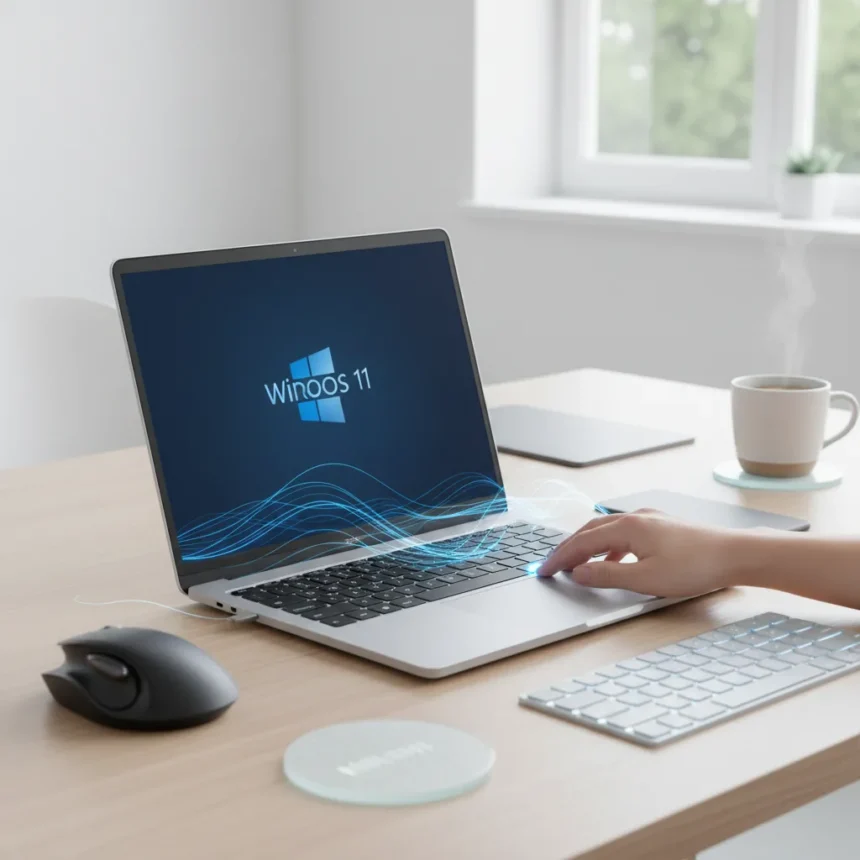
Windows 11 Haptic Signals is a new feature that delivers tactile feedback to compatible devices during UI interactions, transforming routine actions into a more tangible experience. The feature arrives as a quality-of-life enhancement that most users did not know they needed until experiencing it firsthand.
Key Takeaways
- Windows 11 Haptic Signals adds haptic feedback to UI interactions on supported hardware.
- The feature works only on devices with compatible haptic hardware.
- Haptic Signals is positioned as a subtle enhancement rather than a major OS overhaul.
- The feature makes desktop interactions feel more responsive and tactile.
- Compatibility varies by device, limiting its reach to newer or premium machines.
What Are Windows 11 Haptic Signals?
Windows 11 Haptic Signals represents a shift in how desktop operating systems approach user feedback. Rather than relying solely on visual cues and sound, the feature integrates haptic vibrations into the Windows 11 interface. When you interact with UI elements on a compatible device, you feel a subtle vibration that confirms your action has registered. This transforms the tactile experience of using Windows from purely visual to genuinely physical.
The innovation sits at the intersection of mobile and desktop computing. Smartphones have offered haptic feedback for years, but integrating it into a desktop OS is less common. Windows 11 Haptic Signals bridges that gap, bringing the responsiveness users expect from their phones to their computers. The feature works transparently—you do not need to enable special settings or change your workflow. If your device supports it, the haptics simply happen.
Why Windows 11 Haptic Signals Matters for Desktop Computing
Desktop operating systems have remained largely unchanged in their sensory feedback approach for decades. A click is a click—you see a button depress on screen and hear a sound if your speakers are on. Windows 11 Haptic Signals breaks that pattern by adding a third dimension: touch. This seemingly minor addition has a disproportionate impact on how responsive the OS feels.


The feature addresses a subtle but persistent friction in desktop computing. When you click a button or interact with a menu, there is a brief moment of uncertainty—did the system register my input? Visual feedback helps, but it requires you to look at the screen. Haptic feedback is instantaneous and does not require visual confirmation. Your fingertip feels the response before your eyes can process it. This creates a sense of directness and control that standard desktop interfaces lack. The gap between action and feedback shrinks to nearly zero, making Windows feel snappier and more responsive than it actually is.
Compatibility and Device Limitations
The catch with Windows 11 Haptic Signals is that not every device supports it. Haptic feedback requires compatible hardware—specifically, devices with motors or actuators capable of producing vibrations. This limits the feature to certain laptops, tablets, and hybrid devices. Older machines, budget laptops, and traditional desktop computers without haptic-capable peripherals cannot use the feature at all.



This hardware dependency creates a two-tier Windows 11 experience. Users with newer or premium devices get the enhanced tactile feedback, while others use Windows as they always have. The fragmentation is not ideal, but it reflects the reality of hardware diversity in the PC ecosystem. Unlike smartphones, where manufacturers can standardize on haptic engines, Windows 11 runs on thousands of different device configurations. Supporting Haptic Signals across all of them is impractical.
How Haptic Signals Compares to Mobile Haptic Feedback
Windows 11 Haptic Signals follows the playbook established by iOS and Android, which have made haptic feedback central to their user experience. However, the desktop implementation faces unique challenges. Mobile devices are held in hand, making vibrations immediately perceptible. A laptop or desktop device sits on a desk, and vibrations may be less noticeable depending on the hardware and setup. This means Windows 11 Haptic Signals cannot replicate the full impact of mobile haptics, but it can still deliver meaningful feedback for users who have compatible devices.
The feature also operates within the constraints of desktop workflows. Mobile apps are designed around touch interactions, where haptic feedback feels natural. Desktop applications vary widely in their interaction patterns. Some UI elements benefit more from haptic feedback than others. Windows 11 Haptic Signals appears to target high-frequency interactions—clicks, button presses, menu selections—where the feedback can be most effective without becoming intrusive or annoying.
The Broader Implications for Windows 11
Windows 11 Haptic Signals signals a shift in how Microsoft thinks about the operating system. Rather than chasing major visual overhauls or headline-grabbing features, the company is focusing on incremental improvements that enhance the everyday experience. This approach reflects a maturity in OS design: the biggest wins now come from refining existing interactions, not reinventing them.



For users with compatible devices, Haptic Signals is a welcome addition that makes Windows feel more polished and responsive. For everyone else, it is a reminder that hardware limitations shape what an OS can deliver. The feature will likely become more common as newer devices ship with haptic hardware as standard, but for now, it remains a premium enhancement available only to some.
Should You Upgrade to Experience Haptic Signals?
If your current Windows 11 device supports haptic feedback, Haptic Signals is worth trying. The feature is subtle enough that it will not distract you, but noticeable enough to make a difference in how the OS feels. If your device lacks haptic hardware, you are not missing a critical feature—Windows 11 works fine without it. However, if you are in the market for a new laptop or hybrid device, haptic support is a nice bonus to consider.
Is Windows 11 Haptic Signals available on all devices?
No. Windows 11 Haptic Signals requires compatible hardware with haptic motors or actuators. Older PCs, budget laptops, and traditional desktops without haptic-capable components cannot use the feature. Check your device specifications to see if it supports haptic feedback.
How does Haptic Signals improve the user experience?
Haptic Signals adds tactile confirmation to UI interactions, making the OS feel more responsive and direct. Instead of relying only on visual feedback, you feel a subtle vibration when you click a button or interact with menus. This reduces the perceived lag between your action and the system’s response.
Can you disable Windows 11 Haptic Signals?
The research brief does not specify whether the feature can be disabled or adjusted. Users with compatible devices should check Windows 11 settings to see if haptic feedback options are available.
Windows 11 Haptic Signals is a perfect example of how small, thoughtful enhancements can meaningfully improve an operating system. It is not revolutionary, but it is the kind of feature that makes you wonder how you ever lived without it once you experience it. For the users whose devices support it, Haptic Signals transforms Windows 11 from a solid OS into one that feels genuinely responsive. That is worth paying attention to.
Edited by the All Things Geek team.
Source: Windows Central




