





Windows 11 experimental features are now accessible on-demand through Settings, eliminating the need for third-party tools like ViveTool for officially announced capabilities. Microsoft’s Insider Program overhaul introduces a streamlined structure with Experimental and Beta channels, signaling a fundamental shift in how the company tests and deploys new OS functionality before public release.
Key Takeaways
- Windows 11 Insider Program now includes Experimental channel with on-demand feature toggles via Settings
- Feature flags apply only to officially announced features; unannounced ones still require ViveTool
- Enrollment requires prior Insider Program membership and selection of Experimental experience level
- Available OS versions for testing include 25H2, 26H1, and Feature Platforms
- Phased rollout starting with Dev Channel users moving to Experimental reveals Microsoft’s quality-focused testing strategy
How to enroll in Windows 11 experimental features
Accessing Windows 11 experimental features requires three steps: first, confirm your computer is already enrolled in the Windows Insider Program; second, navigate to Settings > Windows Update > Windows Insider Program and select Experimental under Select your experience; third, choose your OS version (25H2, 26H1, or Feature Platforms) in Advanced Options, then check for updates to download the latest preview build. The process is deliberately straightforward, designed to lower friction for testers who previously relied on command-line tools.
Once enrolled, you’ll receive preview builds containing the experimental toggles. The Experimental channel differs fundamentally from the Dev Channel—it’s designed for users comfortable with early software but who want stability guarantees through Microsoft’s phased rollout approach. Microsoft stated it would begin moving Dev Channel users to Experimental, ensuring quality and reliability through gradual deployment rather than immediate universal availability.
Enabling individual Windows 11 experimental features
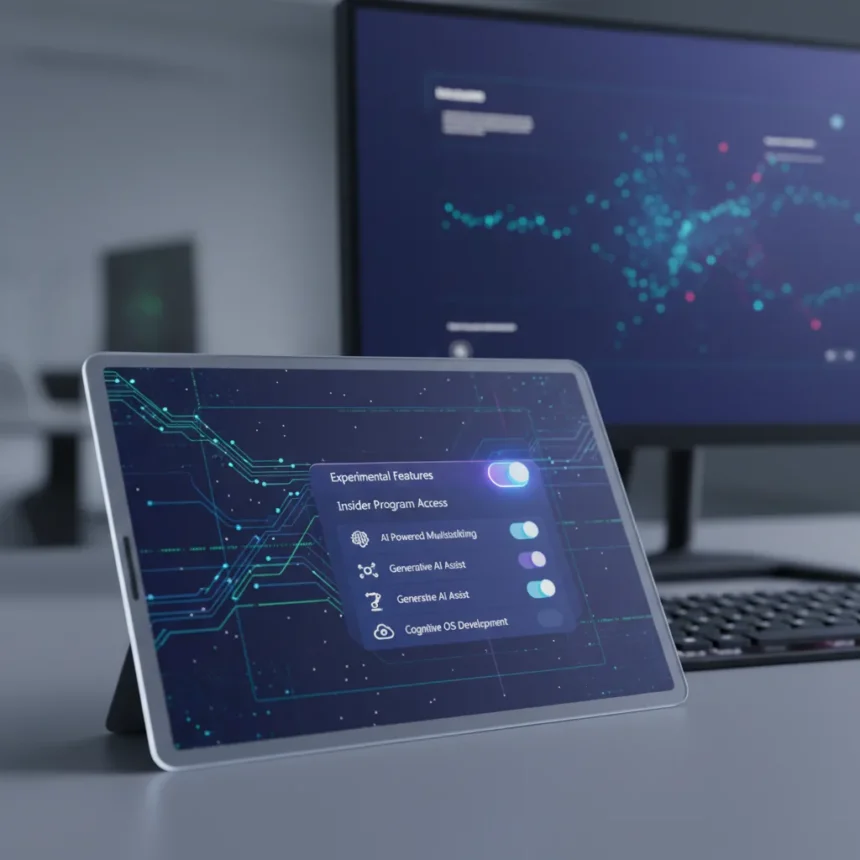
After installing a preview build, individual Windows 11 experimental features are toggled through feature flags in Settings. Open Settings > Windows Update > Windows Insider Program > Feature flags, select Enabled for your desired flags, click Apply Changes, and restart your device. This represents a dramatic departure from the previous workflow, where accessing unreleased features required downloading ViveTool, a third-party utility that bypassed Microsoft’s official channels entirely.


Not all experimental toggles appear immediately upon enrollment. If the new Experimental channel UI isn’t visible in your Settings, you can manually enable it by navigating to the same Feature flags section and toggling on the new experience. This dual-path approach accommodates phased rollout timing while giving users control over when they adopt the interface changes.
What Windows 11 experimental features reveal about Microsoft’s roadmap
The shift toward Windows 11 experimental features with on-demand toggles signals Microsoft’s commitment to AI-first OS development. Preview build 26220.7272 introduced an experimental agentic features toggle in Dev and Beta Channels, hinting at autonomous AI capabilities being tested for future releases. This architectural change—moving from hidden, undocumented flags to officially documented, user-controlled toggles—suggests Microsoft wants broader feedback on AI integrations before they ship to the general public.



The Insider Program overhaul also reveals frustration with the previous system. ViveTool, while functional, existed in a gray area: it accessed features Microsoft hadn’t publicly announced, creating support and stability risks. By formalizing the Experimental channel and tying it to official feature flags, Microsoft gains two advantages: first, it controls the narrative around which features are ready for testing; second, it reduces the risk of users encountering genuinely broken functionality and blaming the OS rather than understanding they’re testing unfinished code. The phased rollout, starting with Dev Channel users, further demonstrates Microsoft’s quality-focused philosophy—it’s not dumping experimental builds on millions of people simultaneously.
Experimental vs. Beta: Understanding the new channel structure
Microsoft’s restructured Insider Program now emphasizes two main channels: Experimental for latest, frequently-updated features, and Beta for more stable previews closer to public release. The previous Dev Channel is being phased out in favor of Experimental, consolidating early-access testing into a single, more organized channel. This consolidation doesn’t mean fewer updates—it means clearer expectations about stability and feature maturity.
The distinction matters for your use case. If you want to test the absolute latest—including features that might break or behave unexpectedly—Experimental is your channel. If you prefer previews that are more polished but still ahead of public release, Beta offers that middle ground. Choosing between 25H2, 26H1, and Feature Platforms during enrollment lets you target specific OS versions, giving you granular control over which features you’re testing.
Why ViveTool still exists (and when you might need it)
Feature flags apply only to officially announced features. Unannounced capabilities—those Microsoft hasn’t publicly documented—still require ViveTool to access. This limitation is intentional. Microsoft wants to control the flow of information about upcoming features, preventing premature leaks or user confusion about incomplete functionality. ViveTool remains useful for power users and researchers investigating undocumented flags, but for most testers, the Settings-based feature flags now provide sufficient access.



The persistence of ViveTool also reflects Microsoft’s pragmatic approach: rather than attempting to completely lock down the OS and alienate the enthusiast community, the company has legitimized the testing pathway through official channels while tolerating third-party tools for deeper exploration. This balance satisfies both Microsoft’s need for organized feedback and the community’s desire for transparency.
Frequently asked questions
Do I need to be a developer to access Windows 11 experimental features?
No. The Experimental channel is open to any Windows Insider Program member, regardless of technical background. The Settings-based interface is designed for general users, though familiarity with restarting your device and navigating Settings is assumed.
Will experimental features I enable break my system?
Microsoft’s phased rollout approach is designed to minimize catastrophic failures, but experimental features are inherently unstable. You should only enable them on non-critical devices or be prepared for unexpected behavior. Backup your data before enrolling in Experimental.
Can I switch back from Experimental to a stable channel?
Yes. You can change your Insider experience level at any time through Settings > Windows Update > Windows Insider Program. Switching to a stable channel will eventually receive standard updates, though you may need to wait for the next major release cycle to fully exit the preview program.
Microsoft’s overhaul of the Windows Insider Program demonstrates the company’s recognition that testing OS features at scale requires transparency and user control. By moving Windows 11 experimental features into official Settings toggles, Microsoft has legitimized what was once a workaround, signaling confidence in both the features being tested and the community’s ability to provide meaningful feedback. The emphasis on AI-focused toggles and phased rollout reveals where the company’s priorities lie: building an OS that learns and adapts, with users as active participants in that evolution rather than passive recipients of finished products.
Edited by the All Things Geek team.
Source: Windows Central