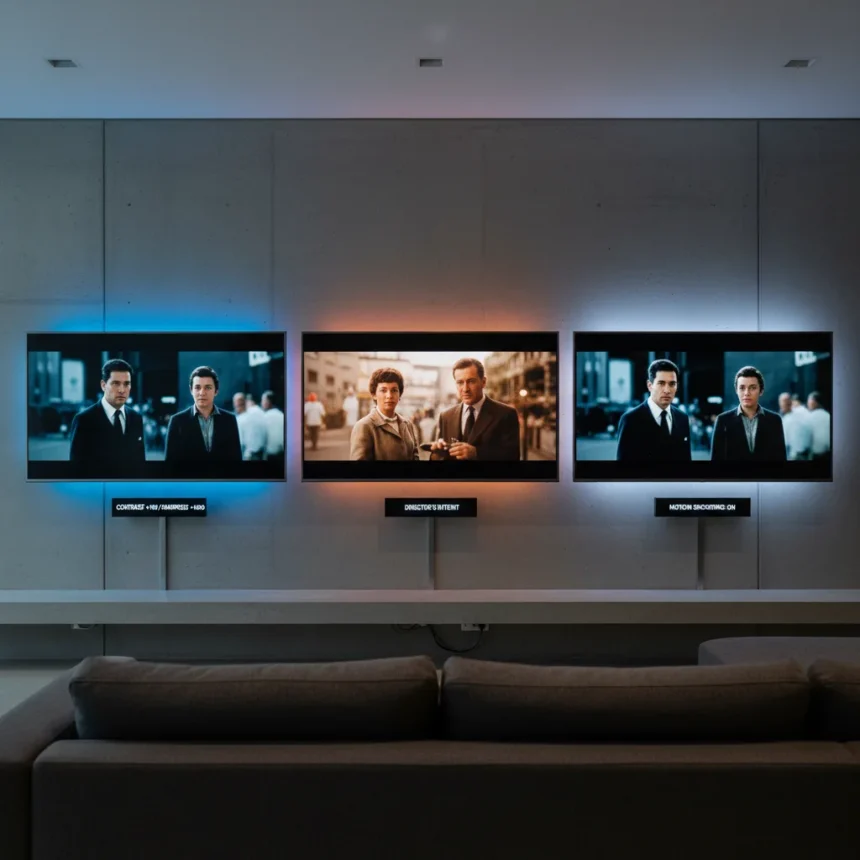
Most people never touch their TV’s picture settings, which means they’re watching films through a lens of factory defaults that actively work against the director’s vision. TV picture settings for movies require just three tweaks to restore accuracy, whether you own a budget set or a premium model.
Key Takeaways
- Three core settings—contrast, sharpness, and motion smoothing—distort film presentation on most TVs.
- Lowering sharpness prevents artificial edge enhancement that makes films look overly processed.
- Disabling motion smoothing eliminates the “soap opera effect” and preserves cinematic motion.
- Filmmaker or cinema picture modes provide a good starting point before manual refinement.
- These adjustments work on affordable and premium TVs alike.
Why your TV’s default picture settings ruin movies
Out of the box, most televisions prioritize eye-catching brightness and artificial sharpness over accuracy. Manufacturers boost contrast to make TVs look impressive in showrooms, enhance sharpness to create a false sense of detail, and enable motion smoothing to make sports and fast-paced content feel fluid. None of these defaults serve film watching. The result is a picture that bears little resemblance to what the filmmaker intended—colors are blown out, edges are artificially crisp, and motion feels unnatural.
The good news is that fixing this does not require professional calibration equipment or deep technical knowledge. A handful of menu adjustments can bring your picture substantially closer to the director’s original vision, regardless of your TV’s price point.
Adjust contrast to preserve highlight detail
Contrast is the first setting to revisit. Most TVs ship with contrast set aggressively high, which crushes shadow detail and blows out bright areas until they lose all information. When you watch a film scene with a bright window or a nighttime sky, those highlights should contain texture and depth. Instead, on a factory-default TV, they flatten into featureless white.



Lowering contrast restores detail in both bright and dark areas, making the image feel more three-dimensional and true to how the cinematographer lit the scene. The adjustment is subtle but transformative—the image may initially look less punchy, but it actually contains far more information. This is the accuracy you want.
Lower sharpness to eliminate artificial processing
Sharpness is perhaps the most abused setting on modern televisions. TV manufacturers artificially enhance edge definition to create the impression of clarity, but this processing makes films look plastic and overly crisp. Real cinema has a softer, more organic quality. When sharpness is cranked up, every edge becomes a hard line, and the image loses the cinematic quality that makes film distinct from television.



Reducing sharpness—or turning it off entirely if your TV allows—removes this artificial edge enhancement. The image may seem slightly less sharp at first glance, but you are actually seeing the film as it was shot, not as your TV’s processors decided to reinterpret it. This single change often makes the biggest perceptual difference to viewers accustomed to default settings.
Disable motion smoothing to preserve film motion
Motion smoothing, also called the “soap opera effect,” is a feature that interpolates frames to create artificially smooth motion. It was designed for sports broadcasts, where smoother motion can feel more dynamic. For films, it is a disaster. Movies are shot at 24 frames per second, and that specific frame rate is part of the cinematic aesthetic. Motion smoothing adds fake frames between the real ones, destroying the film’s intended motion signature and making scenes feel like they were shot on video instead of film.
Turning off motion smoothing—or reducing it to its lowest setting if your TV does not allow complete disabling—restores the original cadence of motion. Action sequences feel more cinematic, pans move with the proper weight, and the overall presentation returns to what the filmmaker intended. This setting is often buried under names like TruMotion, MotionFlow, or TruCinema, depending on your TV brand, but the principle is the same: disable it.
Start with filmmaker modes, then refine
Many modern TVs include preset picture modes labeled filmmaker, movie, or cinema. These modes are designed as starting points that already disable motion smoothing and adjust contrast and sharpness closer to cinema standards. Using one of these modes as your baseline is smart—it saves you from adjusting every setting individually. After selecting a filmmaker mode, you can then fine-tune contrast and sharpness if needed to match your room’s lighting and your personal preference.



Not every TV offers these modes, and naming varies widely across manufacturers. If your TV does not have a dedicated filmmaker mode, the manual adjustments outlined above will still get you most of the way there. The goal is the same regardless of which path you take: strip away the artificial processing and restore fidelity to the source material.
Does this work on all TV brands?
The three core adjustments—contrast, sharpness, and motion smoothing—exist on virtually every television sold today, from budget models to flagship sets. Menu navigation and setting names vary by manufacturer. Samsung might call a setting by a different name than LG or Sony, but the underlying picture controls are fundamentally similar. You may need to explore your TV’s menu to locate these settings, but once you find them, the principle is universal: lower contrast to preserve highlights, reduce sharpness to remove artificial processing, and disable motion smoothing to restore cinematic motion.
Can I use these settings for all content?
These adjustments are optimized for film viewing. Sports broadcasts and fast-paced television content may actually benefit from some motion smoothing and higher sharpness, since those formats are designed for different frame rates and visual styles. Consider creating separate picture profiles in your TV’s menu if it allows custom presets—one tuned for cinema and another for general television. This way you can switch between them depending on what you are watching without manually re-adjusting every time.
Do I need to recalibrate my TV seasonally?
Once you have adjusted these three settings, they remain stable unless you reset your TV or change picture modes. Seasonal changes in room lighting may make the image appear slightly different, but the underlying settings do not need frequent adjustment. If you move your TV to a different room or significantly change your lighting setup, you may want to revisit contrast in particular, since that setting is most sensitive to ambient light. Sharpness and motion smoothing, however, remain optimal once set.
Three simple changes to your TV’s picture settings can transform how you watch films. By lowering contrast to preserve detail, reducing sharpness to eliminate artificial processing, and disabling motion smoothing to restore cinematic motion, you bring your picture substantially closer to the director’s original vision. The adjustment takes minutes and costs nothing, yet the improvement is immediate and profound. If you care about how films actually look, these are the first three settings you should change.
Edited by the All Things Geek team.
Source: Tom's Guide