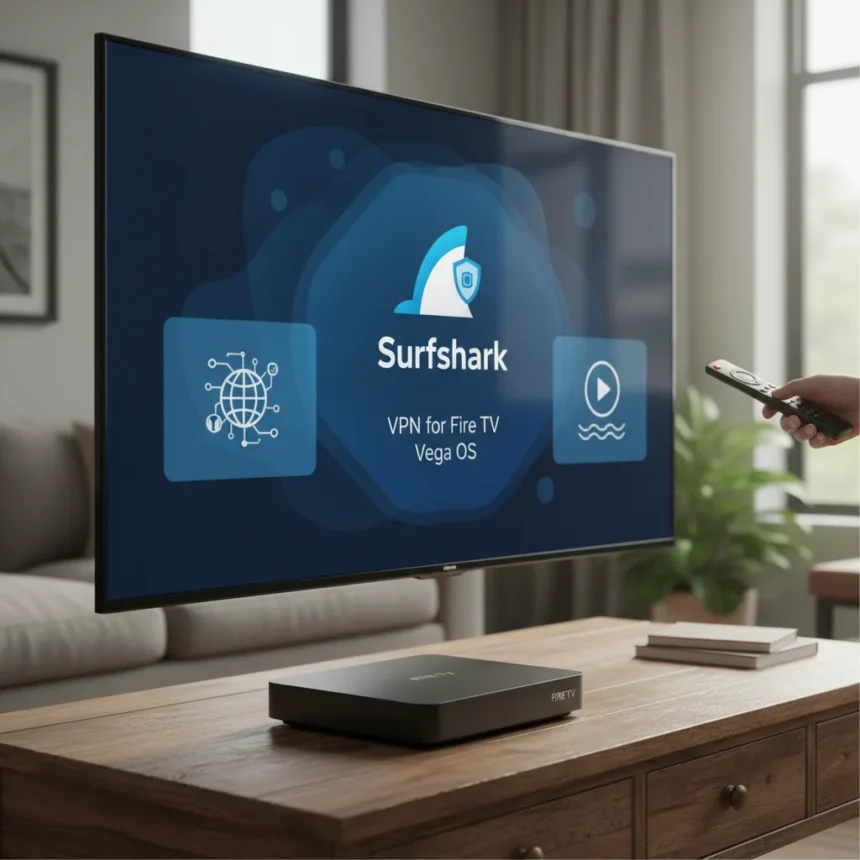
Surfshark VPN for Fire TV now has a native app for Amazon’s new Vega OS, joining only NordVPN and IPVanish as providers ready for the platform. Vega OS is Amazon’s Linux-based operating system launched in October 2025 for Fire TV devices, replacing the older Android-based Fire OS. The Surfshark app became available on May 5, 2026, via the Amazon Appstore on the Fire TV Stick 4K Select (2025) and compatible smart TVs. Unlike older Fire OS apps, Vega OS requires native applications — existing Android VPN apps will not work on the new platform.
Key Takeaways
- Surfshark is the third VPN provider to launch a native Vega OS app, following NordVPN and IPVanish
- The app uses WireGuard protocol only, optimized for streaming without protocol switching options
- Unlimited simultaneous connections available across Fire TV, laptops, smartphones under one account
- Setup takes five steps: open app store, search Surfshark, download, log in, and connect to a server
- Currently available on Fire TV Stick 4K Select (2025); Amazon plans broader device expansion
What Is Vega OS and Why It Matters for VPN Users
Vega OS is Amazon’s new Linux-based operating system for Fire TV devices and smart TVs, fundamentally different from the Android-based Fire OS it replaces. This shift means older Android VPN apps are incompatible with new Vega OS hardware. For streaming users, the timing matters: ISP throttling and buffering remain common problems, and a native VPN app provides direct protection without relying on workarounds or sideloading. Surfshark’s Vega OS app fills a critical gap for users upgrading to Amazon’s newest Fire TV hardware who want VPN protection built into their streaming device.
Surfshark VPN for Fire TV: Installation Steps
Setting up Surfshark VPN for Fire TV on Vega OS is straightforward and takes under five minutes. First, open the app store on your Vega OS Fire TV Stick device. Search for Surfshark and select the official app from the results. Download and install it — the process is automatic. Once installed, log in with your Surfshark account credentials. Finally, connect to a server, and you are protected. No configuration files, no manual setup, no technical knowledge required. The app handles everything else.
Surfshark’s Vega OS app supports WireGuard protocol exclusively, which prioritizes speed and stability for streaming. You cannot switch between protocols like you might on desktop or mobile versions — WireGuard is the only option. This simplification is intentional: WireGuard is optimized for fast, reliable connections and reduces the complexity of the Fire TV interface. If you need protocol flexibility, Surfshark’s desktop or mobile apps offer OpenVPN and IKEv2 alternatives, but the Fire TV Vega OS version keeps things lean.



Unlimited Simultaneous Connections Across Devices
One advantage Surfshark VPN for Fire TV brings to Amazon’s ecosystem is unlimited simultaneous connections under a single account. This means you can protect your Fire TV Stick, laptop, smartphone, and tablet all at once without worrying about connection limits. Competitors like NordVPN and IPVanish offer native Vega OS apps too, but Surfshark’s unlimited simultaneous connections feature sets it apart for households with multiple streaming devices. If you share your account across family members or manage several devices, this unlimited approach removes friction and cost barriers.
How to Troubleshoot Surfshark VPN for Fire TV Connection Issues
If Surfshark VPN for Fire TV fails to connect on Vega OS, follow these troubleshooting steps in order. First, try connecting to a different server — open the app, select a different server location, and test the connection. If that fails, disconnect and try several other servers. Second, check your internet connection independently of Surfshark to ensure stable connectivity before launching the VPN app. Third, disable any other VPN apps on your device, quit them completely, reboot the Fire TV Stick, and test Surfshark again. Fourth, if none of these resolve the issue, uninstall Surfshark from your Vega OS device, restart the device, and reinstall the app fresh from the Amazon Appstore. Most connection problems stem from conflicting apps or temporary connectivity glitches — these steps resolve the majority of issues without contacting support.



Surfshark VPN for Fire TV vs. Other Vega OS Options
NordVPN and IPVanish launched Vega OS apps before Surfshark, making them the only two alternatives currently available for Amazon’s new platform. The choice between these three comes down to feature preferences and pricing. Surfshark emphasizes unlimited simultaneous connections and WireGuard-only simplicity, making it ideal for multi-device households and users who prioritize speed. NordVPN and IPVanish offer similar core functionality but may differ in server counts, pricing structures, and protocol options — however, all three now provide native Vega OS support, closing a critical gap that existed when Amazon first launched the platform.
Server Network and Global Coverage
Surfshark operates 4,500+ servers across 100 countries, providing global coverage for streaming, privacy, and unblocking use cases. For Fire TV users, this extensive network means you can connect to servers in virtually any region, enabling access to geo-restricted content and protecting your streaming activity from ISP monitoring. The WireGuard protocol on Vega OS ensures these connections remain fast even across international routes, crucial for streaming HD content without buffering.
Subscription Requirements and Pricing
Surfshark VPN for Fire TV requires an active subscription to use. You must purchase a Surfshark plan through the company’s pricing page before downloading and logging into the Vega OS app. The app itself downloads free from the Amazon Appstore, but account access and server connectivity require a paid subscription. No free trial information is available in Surfshark’s Vega OS documentation, so plan accordingly if you are evaluating the service.
What Devices Support Surfshark VPN for Fire TV?
Currently, Surfshark VPN for Fire TV Vega OS is available on the Fire TV Stick 4K Select (2025) and compatible smart TVs running Vega OS. Amazon plans to expand Vega OS support to additional Fire TV devices and smart TV models, but no specific timeline or device list has been announced. If you own an older Fire TV Stick (first-generation or earlier), Surfshark VPN for Fire TV will not work — those devices do not support any native VPN app and require Fire OS 5 or higher. Check your device model before attempting to install the app.



Is Surfshark VPN for Fire TV worth installing?
Surfshark VPN for Fire TV makes sense if you own a Fire TV Stick 4K Select (2025) or newer Vega OS device and want native VPN protection without sideloading or desktop workarounds. The unlimited simultaneous connections feature and WireGuard focus on streaming speed are genuine advantages. If you already subscribe to Surfshark on other devices, adding Fire TV protection at no extra cost is a no-brainer. If you are choosing between Surfshark, NordVPN, and IPVanish for Vega OS, all three are viable — your decision should hinge on pricing, existing subscriptions, and whether you value unlimited simultaneous connections.
Can I use older Surfshark apps on Vega OS Fire TV?
No. Vega OS is Linux-based, not Android, so older Surfshark Android apps designed for Fire OS are incompatible. You must download the new native Vega OS app from the Amazon Appstore. Attempting to sideload or install older Android versions will not work on Vega OS hardware.
Does Surfshark VPN for Fire TV slow down streaming?
WireGuard, the protocol used by Surfshark VPN for Fire TV, is designed for speed and minimal latency, making it well-suited for streaming. However, VPN overhead is unavoidable — all VPN services add some latency. For most users on stable internet connections, the slowdown is imperceptible during streaming. If you experience buffering, try connecting to a geographically closer server or testing without the VPN to isolate whether Surfshark is the cause.
Surfshark VPN for Fire TV solves a real problem: Amazon’s transition to Vega OS left new Fire TV hardware without VPN support until native apps arrived. With Surfshark now available alongside NordVPN and IPVanish, Fire TV users have genuine choices for protecting their streaming activity. If you own compatible hardware and subscribe to Surfshark, installing the Vega OS app is straightforward and adds meaningful privacy protection to your streaming setup.
Edited by the All Things Geek team.
Source: Tom's Guide