





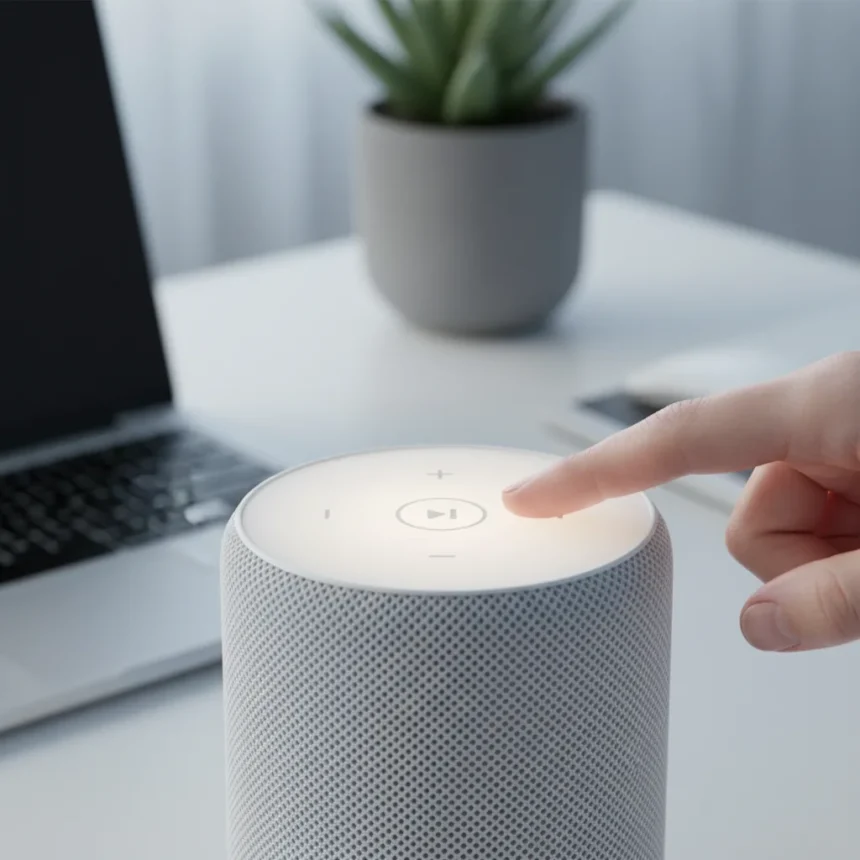
Apple HomePod touch controls offer a straightforward workaround when Siri refuses to cooperate. The top of every HomePod—both the second-generation full-size model and HomePod mini—features a touch-sensitive panel that lets you skip tracks, adjust volume, and pause music without saying a word. For anyone frustrated by Siri’s occasional failures, these hidden gestures transform the speaker from a voice-dependent device into something genuinely tactile and responsive.
Key Takeaways
- HomePod top panel supports tap, swipe, and hold gestures for direct control without Siri
- Triple-tap skips tracks faster than voice commands when Siri glitches
- Clockwise and counterclockwise swipes adjust volume instantly
- Both HomePod and HomePod mini models include full touch control support
- Touch controls complement HomeKit hub and Apple Home app integrations
How to Use Apple HomePod touch controls
Apple HomePod touch controls work through five simple gestures on the top panel. Single-tap the center to pause or play whatever is currently streaming. Triple-tap the same spot to skip to the next track—this is the gesture that saves you when Siri misunderstands your accent or the music is too loud for voice recognition. To adjust volume, swipe your finger clockwise around the edge of the top surface to turn it up, or counterclockwise to turn it down. Hold your finger on the top for a second or two to invoke Siri if you do want voice control. These controls work identically on HomePod and HomePod mini, making the feature consistent across Apple’s speaker lineup.
The reliability of these touch gestures matters because Siri’s voice recognition can lag. Users report noticeable delays when asking Siri to skip music, and sometimes the command simply does not register. A triple-tap is instantaneous and never requires a confirmation—you tap, the track changes, you move on. For anyone who plays music frequently, this alone justifies learning the gesture.
Apple HomePod touch controls versus Siri reliability
Siri on HomePod introduces a frustrating delay between your request and the speaker’s response. When you ask Siri to skip a track, you wait for the speaker to process the command, confirm it understood, and then execute the action. A triple-tap eliminates every step of that chain. The comparison is not about Siri being unintelligent—it is about Siri being slower and less consistent for simple, repetitive tasks. If you are skipping three tracks in a row because you are not in the mood for an album, touching the speaker three times is faster than speaking three commands and waiting for confirmations.


This becomes especially apparent if you have ever tried to skip music while Siri was already processing another request. The speaker gets confused, misinterprets your voice, or asks you to repeat yourself. Touch controls sidestep this entirely. They are dumb in the best way possible—they do exactly what you ask, instantly, without trying to interpret your intent.
Integrating Apple HomePod touch controls with TV and HomeKit
Touch controls extend beyond music. If you pair your HomePod with an Apple TV remote, you can use the speaker’s top panel to adjust TV volume without picking up the remote. This requires enabling audio return channel (eARC) in your Apple TV’s audio output settings, which routes all television audio through the HomePod. Once configured, the HomePod becomes your primary volume control for everything the TV plays—streaming apps, cable, gaming consoles connected via HDMI.



The HomePod also acts as a HomeKit hub, which means touch controls can trigger automations through the Apple Home app. While the physical panel controls music and volume directly, the app lets you set up conditional automations—for example, activating a dehumidifier if humidity exceeds 60% when someone is home. This separation of concerns is useful: quick tasks stay tactile, complex automations stay in the app.
Why Apple HomePod touch controls matter for smart home users
Smart speakers succeed or fail based on how often you actually use them. If Siri is unreliable enough that you stop asking it to do things, the HomePod becomes expensive furniture. Touch controls keep the device useful even when voice recognition stumbles. You do not need Siri to work perfectly if you can skip a track with three taps, adjust volume with a swipe, or pause music with a single tap.
For households with multiple people, accents, or background noise, this matters even more. A guest visiting your home might feel awkward speaking to Siri, but tapping the speaker is intuitive and requires no explanation. The HomePod mini, smaller and cheaper than the full-size model, benefits most from this accessibility—it becomes a genuinely useful device rather than a novelty.
Frequently Asked Questions
Can I use Apple HomePod touch controls without an internet connection?
Yes. Touch controls are purely local—they do not require internet or HomeKit connectivity. You can pause music, skip tracks, and adjust volume even if your Wi-Fi is down, as long as the HomePod is powered on.



Do HomePod mini and full-size HomePod use the same touch gestures?
Yes. Both models feature identical touch panels with the same five gestures: single-tap for play/pause, triple-tap for skip, swipes for volume, and hold for Siri.
What happens if I hold my finger on the HomePod top for too long?
Holding your finger on the top surface invokes Siri. Release it when you hear the listening tone and speak your command. There is no penalty for holding too long—Siri simply stays in listening mode until you speak or the timeout expires.
Apple HomePod touch controls solve a real problem: Siri is not always reliable enough for simple tasks. By learning these five gestures, you turn your speaker into a responsive device that works instantly, without voice delays or misunderstandings. For anyone frustrated by Siri failures, these hidden controls are the feature Apple should have highlighted from day one.
Edited by the All Things Geek team.
Source: T3




