





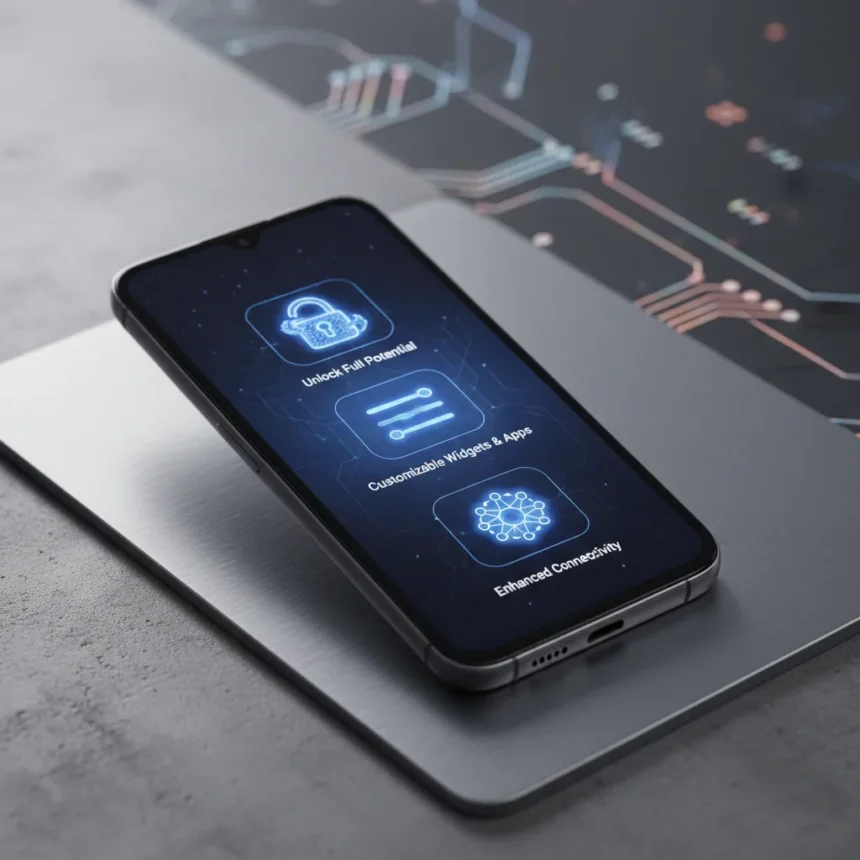
The Samsung Galaxy Z Flip 7 cover screen is a major selling point for Samsung’s latest flip phone, yet it arrives neutered. Out of the box, Samsung restricts what you can do with this secondary display, locking away app access and limiting widget customization. The good news: three practical adjustments can reclaim the functionality Samsung should have enabled from day one.
Key Takeaways
- Samsung Galaxy Z Flip 7 cover screen access is restricted by default, requiring manual configuration.
- Built-in settings let you customize widgets and other cover-screen elements directly.
- Samsung Good Lock and the MultiStar module expand app availability on the cover screen.
- Additional Samsung features can unlock further cover-screen functionality beyond basic defaults.
- The cover screen is a key differentiator for the Z Flip 7 but needs extra setup to shine.
Why Samsung Galaxy Z Flip 7 cover screen limits matter
The cover screen is the reason you buy a flip phone instead of a traditional slab. It lets you check notifications, control music, and snap selfies without unfolding the device. Yet Samsung still does not give Z Flip 7 users unrestricted access to this display. Apps are not fully supported out of the box, and widgets come with artificial constraints. This is not a hardware limitation—it is a software choice. Understanding why matters: Samsung has the technology to open the cover screen completely, but it has chosen to gate that functionality behind optional settings and third-party modules. That gap between potential and default behavior is where these three tips live.
Tip 1: Customize the cover screen through Samsung’s built-in settings
Start with what Samsung officially provides. Open your Galaxy Z Flip 7, navigate to the cover screen settings, and explore what you can customize. Samsung lets you manage widgets and adjust other cover-screen elements directly from this menu. You can swap out default widgets, adjust clock styles, and modify wallpaper settings—all without installing anything extra. This is the easiest entry point and requires zero technical knowledge. If you spend most of your time on the cover screen checking time, weather, or calendar events, this step alone may satisfy your needs. The limitation: Samsung’s default widget selection is conservative, and you cannot add arbitrary apps this way. But for casual users, it is enough.
The built-in settings approach respects Samsung’s design philosophy—stability and battery efficiency come first. You are not breaking anything or sideloading untrusted code. You are simply telling Samsung’s own software to show you more of what it already supports. This is the safest path and the one most users should take first.


Tip 2: Use Samsung Good Lock and MultiStar to expand app access
If the built-in settings feel limiting, Samsung Good Lock is your next stop. Good Lock is Samsung’s official customization suite, and within it lives the MultiStar module. This module is the key to unlocking more apps on your cover screen. Install Good Lock from the Galaxy Store, open the MultiStar module, and enable the option that expands cover-screen app access. Once activated, you can add a launcher or widget if one is available, giving you far more flexibility than the default setup allows. This is where the Samsung Galaxy Z Flip 7 cover screen truly begins to feel like your device rather than Samsung’s limited vision of what it should be.
Good Lock is still officially sanctioned by Samsung, so you are not venturing into risky territory. However, it does require an extra installation step and some menu navigation. The payoff is substantial: suddenly, apps you thought were locked to the main display become accessible on the cover screen. This is the middle ground between vanilla safety and full customization.


Tip 3: Explore additional Samsung cover-screen features
Beyond Good Lock, Samsung has additional cover-screen functionality hidden in Labs-based features and Flex Mode-related behavior. These experimental options are less polished than the official settings, but they unlock even more possibilities. The exact features available depend on your region and software version, so spend time in the Settings app exploring Labs, experimental features, and any cover-screen-specific toggles you find. Some of these options may feel half-baked—that is the nature of experimental features—but they represent Samsung’s roadmap for what the cover screen could become.
This third approach requires patience and willingness to dig through menus. You may find features that do not quite work as expected, or options that drain battery faster than alternatives. But if you want to push the Samsung Galaxy Z Flip 7 cover screen to its absolute limits, this is where you find the bleeding edge. The fact that Samsung buries these options rather than promoting them suggests the company is still figuring out the right balance between capability and user experience.
Why Samsung still restricts the cover screen
The obvious question: why does Samsung ship the Z Flip 7 with these restrictions in place? The answer is threefold. First, battery life. An always-on secondary display with unlimited app access drains power faster. Second, stability. Allowing every app to run on the cover screen creates edge cases and potential crashes that Samsung wants to avoid. Third, ecosystem control. Samsung wants to guide users toward specific experiences and monetization opportunities. By restricting the cover screen, Samsung keeps you engaged with the main display and the apps it promotes. Cynical? Perhaps. But it is the most honest explanation for why a company with the technical capability to open the cover screen chooses not to.
Samsung Galaxy Z Flip 7 vs. previous Flip models
The Z Flip 7 is not the first Flip phone, and Samsung has been wrestling with cover-screen restrictions since the Z Flip 3. Earlier models had similarly limited cover-screen access, though the specific menus and modules have evolved. What is new with the Z Flip 7 is that Samsung has had years to perfect these workarounds, and the Good Lock ecosystem has matured considerably. The MultiStar module is more stable than it was two generations ago. The built-in settings are more granular. If you owned a Z Flip 5 or Z Flip 6, you will recognize this pattern—Samsung ships with restrictions, then gradually opens things up through updates and optional modules. The Z Flip 7 is simply the latest iteration of this cycle.

Is the Samsung Galaxy Z Flip 7 cover screen worth the extra setup?
Yes, but with caveats. If you rarely use the cover screen and only glance at notifications, the default setup is fine. But if you bought the Z Flip 7 specifically for the cover screen experience, these three tips transform it from a gimmick into a genuinely useful secondary display. The time investment is minimal—most users can implement all three tips in under 15 minutes. The payoff is a device that finally feels like it respects your preferences rather than Samsung’s design constraints.
Can I run any app on the Samsung Galaxy Z Flip 7 cover screen?
No. Even with Good Lock and the MultiStar module enabled, not every app supports the cover screen. Developers have to specifically optimize their apps for this display, and many have not bothered. You will find popular apps like messaging and music players available, but niche or newer apps may not work. Samsung’s restrictions are not purely artificial—they also reflect the fact that many apps simply were not designed to run on a 6-inch secondary display.
Does enabling cover-screen features drain the battery faster?
Yes, but the impact varies. Using the cover screen for basic tasks like checking the time or reading notifications has minimal battery cost. Running apps continuously or keeping the display on for extended periods will drain power noticeably faster than using the main display. If battery life is your top concern, stick with the built-in settings and skip the experimental features. If you are willing to trade some battery for functionality, the Good Lock approach is a reasonable compromise.
How do I install Samsung Good Lock?
Open the Galaxy Store app on your Z Flip 7, search for Good Lock, and tap Install. Once installed, open Good Lock, navigate to the MultiStar module, and enable cover-screen app access. The entire process takes two minutes. Good Lock is only available in certain regions—if you cannot find it in your Galaxy Store, your country or carrier may not support it yet.
The Samsung Galaxy Z Flip 7 cover screen is a powerful feature that Samsung has unnecessarily hobbled. These three tips—customizing built-in settings, enabling Good Lock, and exploring experimental features—are not workarounds so much as they are corrections. They restore what should have been enabled from the start. If you own a Z Flip 7, spend 15 minutes implementing these changes. Your cover screen will finally feel like a feature rather than a compromise.
Where to Buy
Edited by the All Things Geek team.
Source: Android Central




