





Gemini screen automations, the AI-powered task automation feature that debuted on Samsung Galaxy S26, are now rolling out to Pixel 10 phones, bringing hands-free control of apps like Uber, DoorDash, and Lyft to Google’s flagship lineup. Announced by Google on February 25, 2026, these automations let you ask Gemini to handle multi-step tasks in the background while you continue using your phone.
Key Takeaways
- Gemini screen automations enable AI to book rides, order food, and complete multi-step tasks without user input after initial command.
- Available on Galaxy S26 (US/Korea) and Pixel 10/Pro/Pro XL; Pixel rollout pending as of March 2026.
- Free tier includes 5 daily requests; paid tiers offer 12, 20, or 120 requests per day.
- Requires explicit user trigger via power button; runs in secure virtual window with real-time progress view.
- Supports Uber, Lyft, GrubHub, DoorDash, Uber Eats, and Starbucks; currently in beta.
How Gemini screen automations work
Gemini screen automations let you delegate routine tasks to AI by simply long-pressing your power button and speaking a command. Ask Gemini to “book a ride to the airport,” “reorder my last coffee,” or “order pizza for delivery,” and the AI handles the entire transaction—clicking, typing, and confirming—without your hands. The automation runs in a secure virtual window, giving you real-time visibility into what Gemini is doing and the ability to stop it at any moment.
Unlike full device automation, Gemini screen automations operate within strict guardrails. The feature cannot access your full device data or perform arbitrary actions across your phone. Instead, it works exclusively with supported apps: Uber, Lyft, GrubHub, DoorDash, Uber Eats, and Starbucks. Each command you give is an explicit user trigger—Gemini cannot proactively automate tasks or run jobs in the background without your permission.
The underlying technology relies on Android 16 QPR3’s new “Screen automation” permission, which allows apps (particularly the Google/Gemini app) to see and interact with other apps’ screen content, even when those apps are backgrounded. This is a departure from traditional Android permissions, which typically restrict background access. Google implemented this carefully: users can choose to always allow, ask every time (the default), or deny screen automation permission entirely.


Gemini screen automations pricing and daily limits
Google tiers Gemini screen automations by subscription level, with strict daily request caps to prevent abuse. The free tier grants 5 requests per day, making it suitable for light users. Google AI Plus subscribers get 12 daily requests for $7.99 per month, while AI Pro subscribers unlock 20 requests for $19.99 per month. At the premium end, AI Ultra subscribers enjoy 120 daily requests for $249.99.
These limits are distinct from Gemini Agent, a separate desktop and web-focused automation tool exclusive to AI Ultra subscribers that allows 200 requests per day. If you need heavy automation across multiple devices, AI Ultra is the only tier that grants access to both Gemini screen automations (on mobile) and Gemini Agent (on desktop).



Gemini screen automations vs. Pixel Rules
Google offers a simpler automation feature called Pixel Rules, which handles location and Wi-Fi-based triggers without AI involvement. Pixel Rules let you set conditional automations: when you arrive at a location or connect to a specific Wi-Fi network, your phone automatically performs a predefined action. This is fundamentally different from Gemini screen automations, which require natural-language commands and AI reasoning to navigate app interfaces.
Pixel Rules work best for static, predictable scenarios—silencing your phone when you arrive at work or enabling Do Not Disturb when you connect to your home network. Gemini screen automations handle dynamic, multi-step tasks that require decision-making: booking a ride at a specific time, reordering a meal with customizations, or adding items to a cart. Neither feature replaces the other; they serve different automation needs within Android’s expanding ecosystem.
Availability and rollout timeline
Gemini screen automations debuted on Samsung Galaxy S26 in the US and Korea, where the feature remains live. Google announced Pixel 10 support alongside the Galaxy S26 launch in February 2026, but as of mid-March 2026, the feature has not yet rolled out to Pixel 10, Pixel 10 Pro, or Pixel 10 Pro XL devices in the US. The feature is currently in beta and exclusive to these two device families; no expansion to older Pixels (such as Pixel 9) or other Android manufacturers has been confirmed.
Scam detection, a related feature that uses similar automation principles, is already live on Galaxy S26 in the US and on Pixel phones in the US, Australia, Canada, India, Ireland, and the UK. This suggests Google may eventually expand Gemini screen automations to additional regions and devices, but any such timeline remains unofficial.
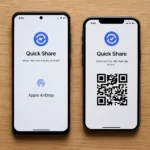


Setting up Gemini screen automations on Pixel 10
Once the feature rolls out to your Pixel 10, you’ll need to grant the Screen automation permission before Gemini can interact with other apps. Navigate to Settings > Apps > Special app access > Screen automation, select the Google app, and choose your preference: Always allow, Ask every time (the default), or Don’t allow. If you select “Always allow,” Gemini can immediately execute automations without requesting permission each time.
After granting permission, activating an automation is straightforward: long-press your power button to open Gemini, then speak your request. Try “Book a ride home,” “Reorder my last meal on DoorDash,” or “Schedule a ride for tomorrow”. Gemini will confirm your request, display a virtual window showing its progress, and complete the task. You can interrupt at any point by tapping the stop button.
Is Gemini screen automations secure?
Google designed Gemini screen automations with privacy and security in mind, though the feature’s novelty means real-world risks are still emerging. Automations run in a sandboxed virtual window, meaning Gemini cannot access files, photos, contacts, or other sensitive data outside the target app. The feature requires explicit user permission via the Screen automation setting, and you can revoke it at any time.
That said, Gemini screen automations do grant the AI permission to see and interact with app interfaces—including text fields, buttons, and potentially sensitive information displayed on-screen (like payment methods or addresses). If you’re uncomfortable with this level of access, you can disable the feature or select “Ask every time” to review each automation before execution.
FAQ
What apps work with Gemini screen automations?
Gemini screen automations currently support Uber, Lyft, GrubHub, DoorDash, Uber Eats, and Starbucks. Google has not announced plans to expand support to additional apps, though the architecture could theoretically support any app with a user interface.
Can I use Gemini screen automations on my Pixel 9?
No. Gemini screen automations are exclusive to Galaxy S26 and Pixel 10/Pro/Pro XL devices. There is no confirmed timeline for expanding the feature to older Pixels or other Android phones.
How many requests do I get per day with the free tier?
The free tier of Gemini includes 5 screen automation requests per day. If you need more, Google AI Plus ($7.99/month) grants 12 daily requests, AI Pro ($19.99/month) grants 20, and AI Ultra ($249.99) grants 120.
Gemini screen automations represent a significant shift in how AI interacts with mobile devices, moving beyond chatbots and into active app control. For Pixel 10 owners, the feature promises to reclaim time spent on repetitive tasks—booking rides, ordering meals, managing shopping carts—by letting AI handle the grunt work. Until the rollout completes and real-world usage data emerges, treating this as a beta convenience tool rather than a mission-critical automation platform is wise. When it arrives on your Pixel, try it with low-stakes tasks first, then decide whether the daily request limits justify upgrading to a paid tier.
Edited by the All Things Geek team.
Source: Tom's Guide




