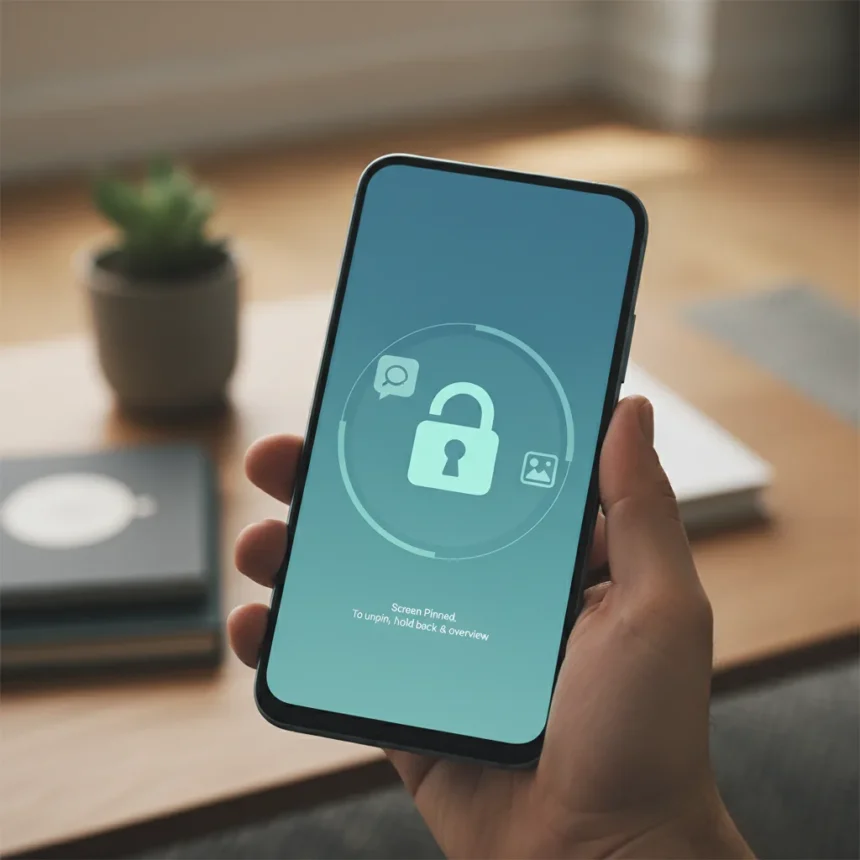
Android Screen Pinning is a built-in privacy feature that locks your phone to a single app, preventing anyone who gains temporary access from navigating to your messages, photos, or other sensitive content. Available on Android 5.0 and later, this tool remains one of the most underused defenses against casual phone snooping—whether from curious partners, colleagues, or guests asking to borrow your device.
Key Takeaways
- Android Screen Pinning restricts users to one app; exiting requires fingerprint, passcode, or PIN authentication
- Access via Settings > Security > Advanced > App pinning, though exact paths vary by device manufacturer
- Activate by opening an app, tapping Recent Apps, selecting the app icon, and choosing Pin
- Works discreetly—snoops won’t notice the restriction until they try to leave the pinned app
- iOS offers Guided Access as an equivalent feature with more granular control over touch areas and buttons
How to Enable and Use Android Screen Pinning
Enabling Android Screen Pinning takes under a minute. Navigate to Settings, then Security (or Biometrics & Security on some devices), then Advanced, then App pinning, and toggle the feature on. Your device may prompt you to set up or confirm a lock method—fingerprint, PIN, or pattern—since this is what will be required to unpin the app later. Once enabled, the feature runs silently in the background until you activate it.
To pin an app, open the application you want to restrict—a photo gallery, a specific messaging app, or a video player. Swipe up from the bottom or tap the Recent Apps button (the square icon), then tap the app’s icon at the top of its preview card and select Pin this app or Pin. The screen locks immediately to that application. Anyone attempting to press the back button, navigate to home, or access settings will hit the lock screen instead, forcing them to enter your authentication method to escape.
Unpinning requires pressing Power and Volume Down simultaneously (or the Overview button on some devices) to trigger the lock screen, then entering your PIN, fingerprint, or pattern. This dual-authentication system means casual snooping becomes friction-filled—someone would need both your device and your biometric or code to escape the pinned app.


Why Android Screen Pinning Matters for Privacy
The feature’s power lies in its invisibility. A snoop handed your phone to view a photo or video won’t immediately realize they’re trapped in a single app. They’ll attempt to navigate away, hit the lock screen, and face a choice: give up or ask you for your authentication. In most cases, they’ll abandon the attempt rather than admit they were trying to access your private data. The psychological barrier is often more effective than a technical one.
This is particularly valuable in scenarios where trust is conditional. Parents sharing a phone with young children can pin a game or educational app without worrying about accidental access to banking apps, dating profiles, or work emails. Colleagues borrowing your phone to check a shared document can be restricted to that document. Even on a first date, you could hand over your phone to show photos without exposing your messaging history.



Android Screen Pinning is not a replacement for strong device-level security—you still need a robust lock screen passcode or biometric authentication—but it adds a critical second layer for specific, temporary access scenarios.
Android Screen Pinning vs. iOS Guided Access
Apple’s iOS offers an equivalent feature called Guided Access, accessed by triple-clicking the side button or home button depending on your iPhone model. While both tools restrict access to a single app, Guided Access provides more granular control. It allows you to disable specific touch areas on the screen, disable the sleep/wake button, and block notifications—giving you surgical precision over what a user can and cannot do within the app. Android Screen Pinning is simpler and more straightforward: you lock to the app, period.
For most users, Android Screen Pinning’s simplicity is an advantage. There’s no configuration—no need to map out which screen areas should be disabled or which buttons should be locked. You pin, they’re stuck, done. iOS users who need that level of control will appreciate Guided Access’s flexibility, but Android users who want quick, friction-free privacy will find Screen Pinning sufficient.
Other Android Privacy Tools Worth Knowing
Android Screen Pinning works best as part of a broader privacy strategy. The Sensors Off toggle in Developer Options blocks your device’s microphone, camera, and motion sensors at the system level, preventing apps from accessing these hardware inputs without your knowledge. The Android Permission Manager lets you revoke microphone, camera, and location access on a per-app basis, giving you control over which apps can access your most sensitive hardware. For users concerned about app tracking, NetGuard blocks app internet access and tracks data flows, though it requires more technical setup.


Samsung devices can integrate Screen Pinning with Secure Folder or Knox for enhanced privacy, layering the feature with Samsung’s proprietary security ecosystem. These additional tools work alongside Screen Pinning rather than replacing it—they address different threat models. Screen Pinning stops someone from snooping through your apps when you hand them your phone. Sensors Off and Permission Manager stop apps from spying on you when you’re not looking.
Why This Feature Remains Hidden
Android Screen Pinning has existed since Android Lollipop in 2014, yet most users have never heard of it. The feature isn’t truly hidden—it lives in standard Settings—but the path varies by Android version and manufacturer, potentially confusing users searching for it. Samsung devices, Google Pixels, and other OEM skins all implement it slightly differently, which may explain why it hasn’t achieved mainstream awareness despite being available for over a decade.
The lack of visibility is a missed opportunity. As phone snooping concerns rise—whether from nosy partners, data-hungry colleagues, or casual curiosity—Android Screen Pinning deserves promotion as a first-line defense. It’s free, built-in, and requires no app installation or configuration beyond a single toggle.
Is Android Screen Pinning secure against determined attackers?
Android Screen Pinning is designed to stop casual snooping, not sophisticated attacks. If someone knows your PIN or can replicate your fingerprint, they can escape the pinned app. It’s a privacy tool for temporary, consensual device sharing, not a security feature against determined threats. For that level of protection, you need device-level encryption and a strong lock screen passcode.
Can I pin multiple apps at once?
No. Android Screen Pinning locks your device to a single app at a time. If you need to restrict access to multiple apps, you would need to unpin one and pin another, which requires authentication each time.
Does Screen Pinning work on all Android devices?
Screen Pinning is available on Android 5.0 and later, which covers the vast majority of devices in use today. The exact path to enable it varies by manufacturer—Samsung, Google Pixel, and other OEM skins may label or organize the setting differently—so check your device’s Settings menu under Security or Biometrics & Security.
Android Screen Pinning is a reminder that some of the most effective privacy tools are already built into your device, waiting to be discovered. If you regularly hand your phone to others—whether family, friends, or colleagues—enabling this feature takes less than a minute and could save you significant embarrassment or privacy violation. The feature’s true power lies not in technical sophistication but in its ability to create friction where casual snooping would otherwise succeed.
Edited by the All Things Geek team.
Source: Tom's Guide