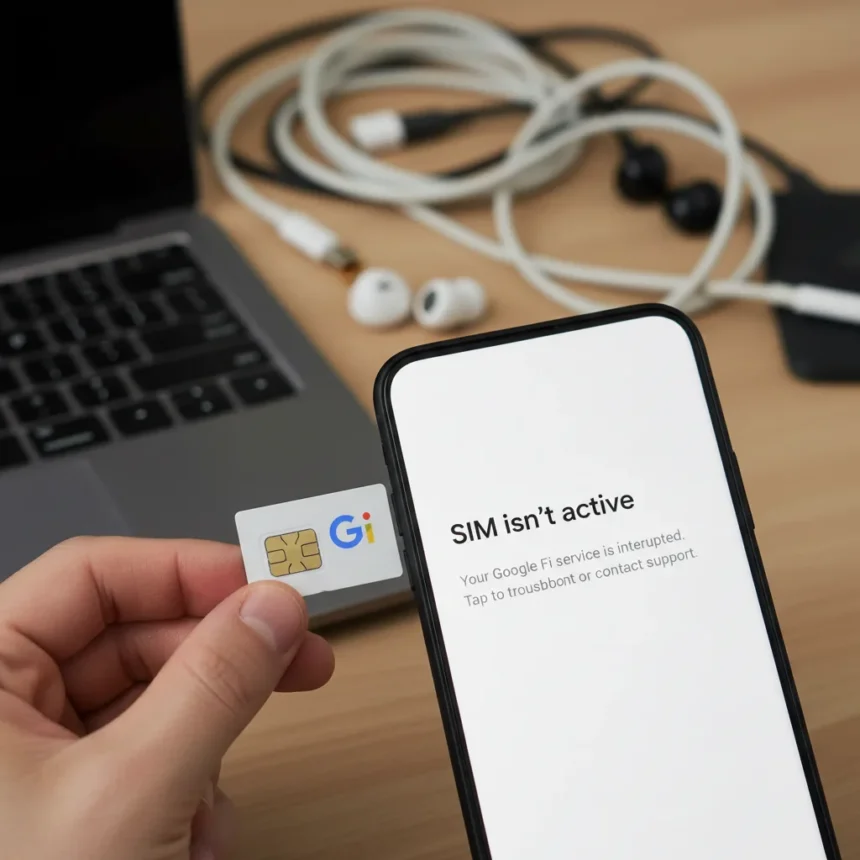
Google Fi SIM not active errors are hitting users randomly, and Google has confirmed it is aware of the problem and working on a fix. The notification—sometimes accompanied by “sign into Fi network” prompts or “SIM cannot be read” messages—has frustrated subscribers across multiple device types and Android versions, from standard Pixel phones to custom ROMs like GrapheneOS.
Key Takeaways
- Google Fi SIM not active errors stem from eSIM provisioning delays, physical SIM conflicts, device incompatibility, or carrier locks
- Most modern devices support eSIM; check Google’s compatibility list before troubleshooting
- Provisioning can take 10 minutes to 24 hours; patience often resolves the issue without manual intervention
- Error codes T014, T018, T144, and L144 each require different fixes, from app resets to SIM replacement
- Physical SIMs clash with eSIMs; eSIM is the recommended approach for compatible devices
What Causes Google Fi SIM Not Active Errors
The Google Fi SIM not active error usually stems from one of five root causes: eSIM activation failures, physical SIM conflicts, device incompatibility, outdated operating systems, or network provisioning delays. Some users encounter “ghost” SIMs—phantom SIM entries that persist even after removal—or activation screens that hang indefinitely on “Just a moment”. Others see the error after switching between physical and eSIM, or when a device has both SIM types enabled simultaneously.
Google Fi operates exclusively on the T-Mobile eSIM network in the United States, Canada, and Mexico, so activation issues often mirror T-Mobile service limitations and regional constraints. Bring Your Own Device (BYOD) users face an additional friction point: carrier-locked phones may refuse eSIM activation until the lock is removed, and some Pixel devices purchased through carrier channels like Verizon carry carrier locks even when sold via Google Store.
Provisioning delays are the most common invisible culprit. After activation, Google’s network can take anywhere from 10 to 30 minutes—sometimes up to 24 hours—to fully provision your line, during which the SIM may appear inactive. Many users restart their devices or reinstall the Google Fi app during this window, mistaking a normal delay for a genuine failure.


How to Fix Google Fi SIM Not Active Right Now
Google’s official troubleshooting sequence begins with removing any physical Google Fi SIM cards, downloading or updating the Google Fi app, and reactivating via eSIM. If the error persists after reactivation, restart your device and wait 1–2 minutes between each step. For eSIM-compatible devices, the process is straightforward: open Settings, navigate to Cellular or Mobile Networks, select Add eSIM, scan the QR code from fi.google.com using your Google account, and follow on-screen prompts.
Physical SIM users should ensure the card is firmly inserted in the correct slot, remove it, wait 1–2 minutes, and reinsert. If this fails, switch to eSIM if your device supports it. For those who must use a physical SIM, ordering a replacement from the Google Fi website is the next step. Once the new SIM arrives, place it in tray slot 1, restart the device by holding the power button for 30 seconds, open the Google Fi app, and activate.


Specific error codes require targeted fixes. Error codes T014 and T018 often resolve by closing and reopening the Google Fi app. Codes T144 and L144 demand a restart, a retry of activation, and—if those fail—testing the physical SIM in another phone or requesting a replacement SIM.
Google Fi SIM Not Active and Device Compatibility
Not all GSM-unlocked phones work flawlessly with Google Fi, despite appearing compatible on paper. Google maintains an approved device list on its Fi support page; checking this list before troubleshooting can save hours of frustration. eSIM-compatible devices—most flagship and mid-range phones from the past three years—are less prone to activation errors than older physical-SIM-only devices.
GrapheneOS users have reported unique friction, requiring manual permission grants to Google Play Services and the Google Fi app, DSDS (dual SIM dual standby) enablement checks, and unrestricted data usage toggles. These steps are not necessary on standard Android, but custom ROM users may encounter them.
When to Contact Google Fi Support
If troubleshooting steps fail after 24 hours, or if you encounter repeated error codes despite following Google’s sequence, contact Google Fi support directly. Mention your specific error code and whether you are using eSIM or physical SIM; this speeds up diagnosis. If you have already ordered a replacement SIM but activation still fails, a support agent can manually provision your line or investigate whether your device is carrier-locked.


Is Google Fi SIM not active a widespread issue?
Yes. Multiple forums, Reddit threads, and Google’s own support pages document ongoing random “SIM not active” errors affecting users globally. Google has publicly acknowledged the issue and stated it is working on a fix, though no timeline for resolution has been announced.
How long does Google Fi provisioning take?
Provisioning typically completes within 10–30 minutes, but can extend to 24 hours in rare cases. During this window, your SIM may appear inactive even though activation is proceeding normally. Restarting your device or reinstalling the app during provisioning does not speed up the process.
Should I use eSIM or physical SIM with Google Fi?
eSIM is the recommended approach for compatible devices because it avoids physical SIM conflicts and provisioning friction. Physical SIMs are necessary only if your device lacks eSIM support, which is increasingly rare on modern phones. If you have both active simultaneously, disable the physical SIM to eliminate conflicts.
The Google Fi SIM not active error is frustrating but usually temporary. Most cases resolve within 24 hours of initial activation without user intervention. Patience, a device compatibility check, and the official troubleshooting sequence—remove physical SIM, activate eSIM, restart, wait—resolve the majority of cases. Google’s acknowledgment of the issue signals that a permanent fix may arrive soon, but until then, eSIM remains your most reliable path to uninterrupted service.
Edited by the All Things Geek team.
Source: Android Central