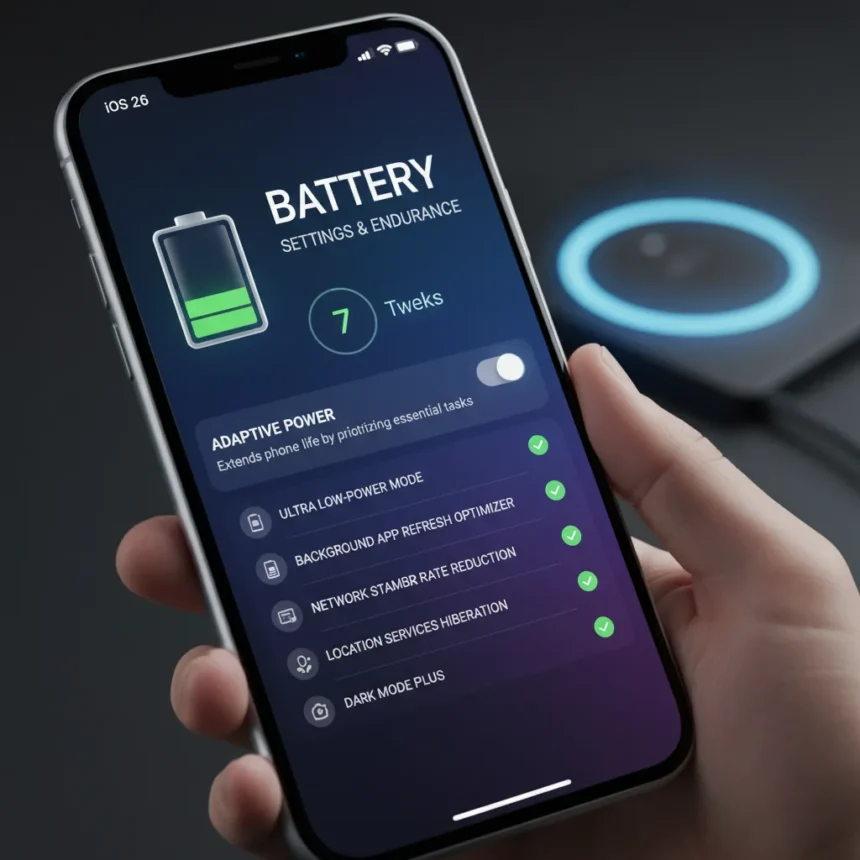
iOS 26 battery settings changes are the fastest way to squeeze extra hours from your iPhone without buying a new device. The operating system now includes Adaptive Power, an AI-driven feature that trims energy consumption by adjusting performance like lowering brightness and slowing background activities. This is not Low Power Mode—it is smarter, always-on optimization that ships enabled by default on compatible devices.
Key Takeaways
- Adaptive Power (iOS 26) automatically adjusts performance to extend battery life on iPhone 15 Pro or newer.
- Check battery health in Settings > Battery > Battery Health; capacity above 80% is healthy.
- Optimized Battery Charging limits charges to 80% to reduce lithium-ion stress.
- Disable 5G or select 5G Auto mode to cut cellular power drain.
- Monitor app usage and adjust settings based on which apps drain battery fastest.
Why iOS 26 Battery Settings Matter Right Now
iOS 26 ships live with a major battery upgrade, but the default settings do not automatically solve every drain problem. Many users still rely on Low Power Mode or overnight charging—both habits that stress lithium-ion batteries and reduce long-term capacity. The real win is combining iOS 26’s built-in intelligence with targeted setting changes that address the biggest power consumers. According to Apple, Adaptive Power delivers small performance adjustments to extend battery life, such as lowering screen brightness and allowing some activities to take a little longer.
Your iPhone’s battery health matters more than most users realize. Lithium-ion batteries prefer the 20-80% charge range; full 100% charges or overnight plugging stress them. If your maximum capacity has dropped below 80%, tweaking settings becomes urgent—you are running on borrowed time. Check your status now in Settings > Battery > Battery Health & Charging to see your maximum capacity percentage and performance status.
Enable Adaptive Power on iOS 26
Adaptive Power is the flagship iOS 26 battery feature, and it is already on by default for iPhone 15 Pro or newer. Still, verify it is active: go to Settings > Battery > Power Mode and confirm Adaptive Power is selected. This feature uses battery data collected from your device to trim app power consumption intelligently. Unlike Low Power Mode, which feels restrictive and forces you to turn it off for demanding tasks, Adaptive Power works silently in the background without sacrificing usability.


Mark Gurman reported that the feature uses battery data collected from users’ devices to trim app power consumption. The difference from Google’s Adaptive Battery on Android is architectural: Android’s version predicts app usage and restricts background activity on idle devices, learning worst-drain apps over time. iOS 26’s Adaptive Power takes a different approach, adjusting system performance rather than app permissions.
Check Your Battery Health First
Before making other changes, you need a baseline. Open Settings > Battery > Battery Health & Charging and note your maximum capacity percentage. If it is above 80%, your battery is healthy and standard iOS 26 settings should suffice. If it is below 80%, every setting tweak matters—your battery is degrading and you need aggressive optimization. The same screen shows your performance status and app usage over recent days, helping you identify which apps drain fastest.



This is the foundation of smart battery management. A phone with 85% capacity behaves very differently from one at 65% capacity. Knowing your baseline lets you measure whether your setting changes actually work.
Enable Optimized Battery Charging
Navigate to Settings > Battery > Charging and toggle on Optimized Battery Charging. This feature limits your iPhone to 80% charge automatically, protecting your battery from the stress of frequent 100% charges. Lithium-ion batteries degrade faster when held at full capacity, so capping at 80% extends their lifespan. You can see your charge time to 80% and 100% on your lock screen and in Settings > Battery > Charging, so you know exactly how long to wait.
Some users manually set limits to 80-85% instead of relying on automatic optimization, but the built-in feature is designed for this exact purpose. Let it work.
Optimize 5G or Switch to 4G
5G is a battery killer on older implementations. If you have a 5G iPhone, you have options. Open Settings > Cellular (or Mobile Data) and tap Cellular Data Options (or Mobile Data Options). Then tap Voice & Data. You will see options to disable 5G entirely by selecting 4G (or LTE), or keep 5G Auto (the default) and adjust Data Mode for optimization. If you live in an area with solid 4G coverage and rarely need 5G speed, switching to 4G alone can add hours to your battery.



If you want to keep 5G but optimize it, select 5G Auto mode and adjust your Data Mode settings to balance speed and power consumption. The exact option depends on your carrier and iPhone model, but the principle is the same: 5G is fast but expensive in battery terms.
Frequently Asked Questions
What is Adaptive Power on iOS 26?
Adaptive Power is an AI-driven battery feature on iOS 26 that automatically adjusts system performance to extend battery life. It lowers screen brightness, slows background activities, and manages other tasks intelligently without requiring user input. It is enabled by default on iPhone 15 Pro or newer.
How do I check my iPhone battery health?
Go to Settings > Battery > Battery Health & Charging. You will see your maximum capacity percentage, performance status, and recent app usage. If capacity is above 80%, your battery is healthy. Below 80% means your battery is degrading and needs aggressive optimization.
Should I disable 5G to save battery?
If you have a 5G iPhone and rarely use 5G speeds, disabling it (Settings > Cellular > Voice & Data > 4G) can noticeably extend battery life. If you need 5G speed, select 5G Auto mode instead and adjust Data Mode settings to balance performance and power consumption.
iOS 26 battery settings changes work best when layered together. Enable Adaptive Power, verify Optimized Battery Charging is on, check your battery health to understand your baseline, and optimize 5G based on your actual usage patterns. These are not exotic tweaks—they are built-in features Apple designed for exactly this purpose. The difference between a user who ignores these settings and one who enables them is often 2-4 extra hours per day, which compounds over weeks and months of device lifespan. Start with Adaptive Power today, then work through the rest. Your battery will thank you.
Edited by the All Things Geek team.
Source: Tom's Guide