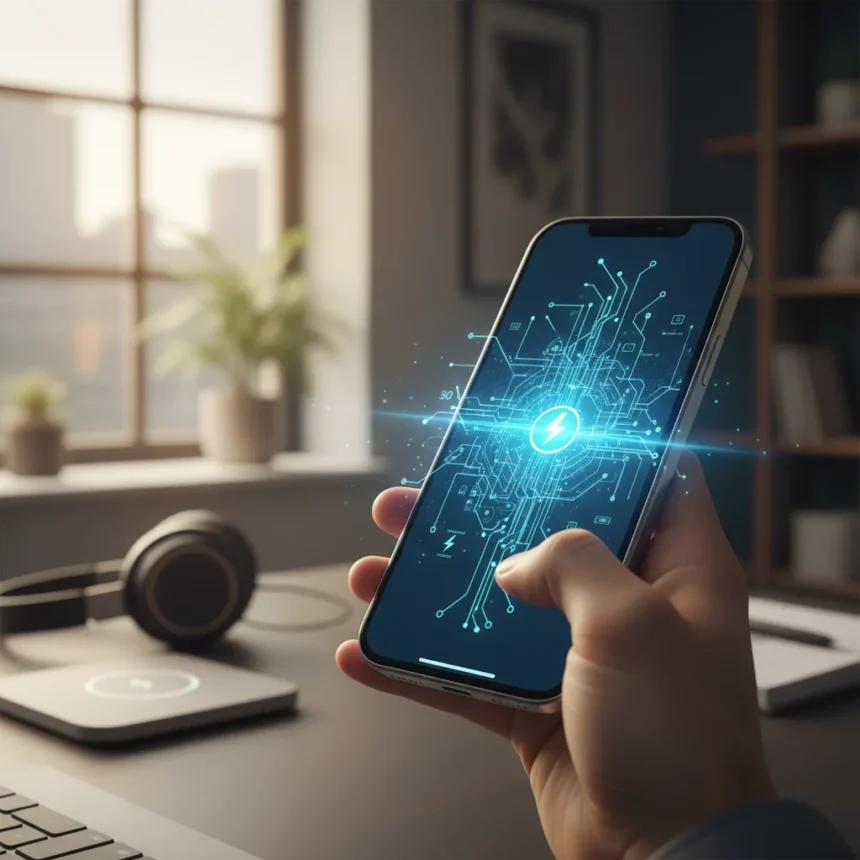
Hidden iPhone features aren’t really hidden—they’re just tucked away in menus most users never visit. Your iPhone contains dozens of built-in tools that eliminate the need for third-party apps, yet even power users miss them. The hidden iPhone features Apple buries in Accessibility settings and gesture controls can save you time, money, and frustration every single day.
Key Takeaways
- Control Center customization lets you add tools like Music Recognition without opening Settings.
- Back Tap gestures assign double or triple taps to actions like flashlight or camera launch.
- Live Captions transcribe videos, podcasts, and calls in real-time via Accessibility menu.
- Background Sounds provides built-in white noise to replace third-party meditation apps.
- Drag-and-drop, USSD codes, and Spotlight math eliminate common workflow friction.
Control Center: The Customization Hub Everyone Ignores
Control Center is the fastest way to access iPhone tools, yet most users never modify it beyond the defaults. Swipe down from the top-right corner of your screen, then long-press on any blank area to reveal the “Add Controls” button. This single gesture unlocks Music Recognition (Shazam), Home controls, Accessibility shortcuts, and dozens of other toggles. You can rearrange them by dragging, remove what you don’t use, and access everything even when your phone is locked. The customization takes two minutes but saves hundreds of taps over a year.
One iPhone hack that makes daily life easier is being able to keep your most-used controls visible without diving into Settings. If you frequently use Shazam to identify music, add it to Control Center instead of opening a separate app. The same applies to Home controls if you manage smart devices, or accessibility features if you use them regularly. This is not flashy, but it is genuinely useful.
Back Tap: Gestures That Replace Physical Buttons
Back Tap is a gesture-based shortcut system that responds to taps on the back of your iPhone. Navigate to Settings > Accessibility > Touch > Back Tap, then assign actions to Double Tap or Triple Tap. Double Tap the back of your phone to trigger Torch (flashlight), open Camera, take a screenshot, or launch any app. Triple Tap can trigger a different action entirely. This feature shines when your hands are full, you are operating your phone at odd angles, or you simply want faster access to critical tools.


The learning curve is minimal—most users find the gesture intuitive within a few uses. Assign Double Tap to Torch and Triple Tap to Camera, and you will wonder how you ever lived without it. The feature works reliably across iPhone models that support iOS 16 and later.
Live Captions: Real-Time Transcription Without Third-Party Apps
Live Captions transcribes audio from videos, podcasts, phone calls, and nearby conversations in real-time. Open Settings > Accessibility > Live Captions and toggle the feature on. Your iPhone will generate captions for any audio playing through the device or picked up by your microphone. This is invaluable if you are deaf or hard of hearing, but it also helps in noisy environments, during calls with poor audio quality, or when you need to follow dialogue without sound.


The feature works across FaceTime, phone calls, and third-party apps like YouTube, Spotify, and Zoom. It does not require internet for some transcription tasks, making it faster than waiting for app-specific captions to load. Unlike third-party captioning apps, Live Captions is free and integrated directly into iOS.
Background Sounds: A Built-In White Noise Machine
Your iPhone contains a sound machine hiding in plain sight. Navigate to Settings > Accessibility > Audio & Visual > Background Sounds and toggle it on. Choose from Balanced Noise, Bright Noise, Dark Noise, Ocean, Rain, or Stream sounds. Adjust the volume to your preference, and your iPhone will play the selected sound continuously, even with other audio or notifications. You can add Background Sounds to Control Center for one-tap access.
This feature replaces paid meditation and white noise apps entirely. It works during calls, while using other apps, and in the background throughout your day. If you struggle with focus, sleep, or sensory sensitivity, Background Sounds offers a free alternative to third-party solutions.
Lesser-Known Shortcuts That Save Time Daily
Drag-and-drop between apps sounds simple but remains underused. Open a source app like Photos, Files, or Safari, long-press an item (image, PDF, link), and drag it directly into another app like Notes or Messages. This works for images, videos, and documents. It is tricky the first time, but once you master it, you will use it constantly to move content between apps without copying and pasting.

USSD codes are ancient phone tricks that still work on modern iPhones. Dial *#06# to display your IMEI and phone number without calling anyone. Other codes hide your caller ID, divert calls, or launch field test mode to monitor cellular data. These codes bypass the normal phone interface and execute directly on your carrier’s network. Use them carefully, as some codes may affect your service if misused.
Quick photo access in Messages saves steps when composing. Long-press the plus icon while typing a message to open recent photos directly, skipping the menu. Timers that finish at specific times instead of counting down are available in the Clock app or by using your search bar. Search for “timer” and specify an end time rather than a duration. These small shortcuts compound into significant time savings.
Spotlight Search: A Calculator and Converter in Disguise
Spotlight search is far more powerful than most users realize. Swipe down from the home screen to open Spotlight, then type an equation like “25% of 80” and your iPhone calculates the result instantly. Unit conversions work the same way—type “100 miles to kilometers” and get the answer without opening a calculator app. This eliminates the need to launch the Calculator app or search online for conversions. The feature works for currency, temperature, distance, weight, and volume conversions.
Camera Tricks: Video from Photo Mode
The Camera app offers a hidden video shortcut. Open Camera, select Photo mode, long-press the shutter button to record video, and release to stop. This is faster than switching to Video mode manually. It is a small optimization, but it matters when you need to capture a moment quickly without fumbling through settings.
LED Flash and Accessibility Features That Replace Paid Apps
LED Flash for Alerts converts notifications into visual signals. Navigate to Settings > Accessibility > Audio & Visual > Flash Alerts and choose LED Flash, Screen Flash, or both. Your iPhone will blink the LED or flash the screen when you receive calls or notifications. This feature is critical for deaf and hard of hearing users, but it also works for anyone who needs silent alerts in meetings or quiet environments.
These accessibility features prove that Apple has invested heavily in built-in tools that replace entire categories of third-party apps. The hidden iPhone features buried in Accessibility settings often outperform dedicated apps because they are integrated directly into iOS and do not drain battery or require separate permissions.
Why Apple Hides These Features
Apple deliberately places powerful tools in Accessibility menus because these features serve specific use cases. Accessibility settings are designed for users with disabilities, but many features benefit everyone. Control Center customization, Back Tap, and Spotlight search are genuinely useful for any user, yet Apple does not promote them in marketing materials. The result is millions of users paying for third-party apps that duplicate free, built-in functionality.
The hidden iPhone features philosophy also reflects Apple’s design principle of simplicity. Rather than cluttering the main interface with dozens of options, Apple tucks advanced settings into menus where power users will find them but casual users will not be overwhelmed. This approach works, but it means you have to know where to look.
FAQ
What are the most useful hidden iPhone features?
Control Center customization, Back Tap gestures, Live Captions, and Background Sounds are the most universally useful hidden iPhone features. They save time daily, require no third-party apps, and work across all compatible iPhone models. Start with Control Center and Back Tap if you want immediate productivity gains.
Do hidden iPhone features work on older iPhones?
Most hidden iPhone features require iOS 16 or later. Some features like Back Tap and Live Captions are available on iPhone XS and newer models. Check your iOS version in Settings > General > About to confirm compatibility before attempting to enable specific features.
Can I use hidden iPhone features offline?
Many hidden iPhone features work offline, including Background Sounds, Back Tap, Control Center customization, and Spotlight math. Live Captions may require an internet connection for some transcription tasks, but the feature works with local audio processing on newer models.
Your iPhone ships with dozens of tools that most users never discover. The hidden iPhone features buried in Settings and gestures are not secret—they are simply overlooked. Spend ten minutes customizing Control Center and enabling Back Tap, and you will immediately feel the difference in your daily workflow. The remaining features are there when you need them, free and built-in.
Edited by the All Things Geek team.
Source: Tom's Guide